Search & Filters
OpenTranscribe provides powerful hybrid search combining full-text and semantic search with advanced filtering.
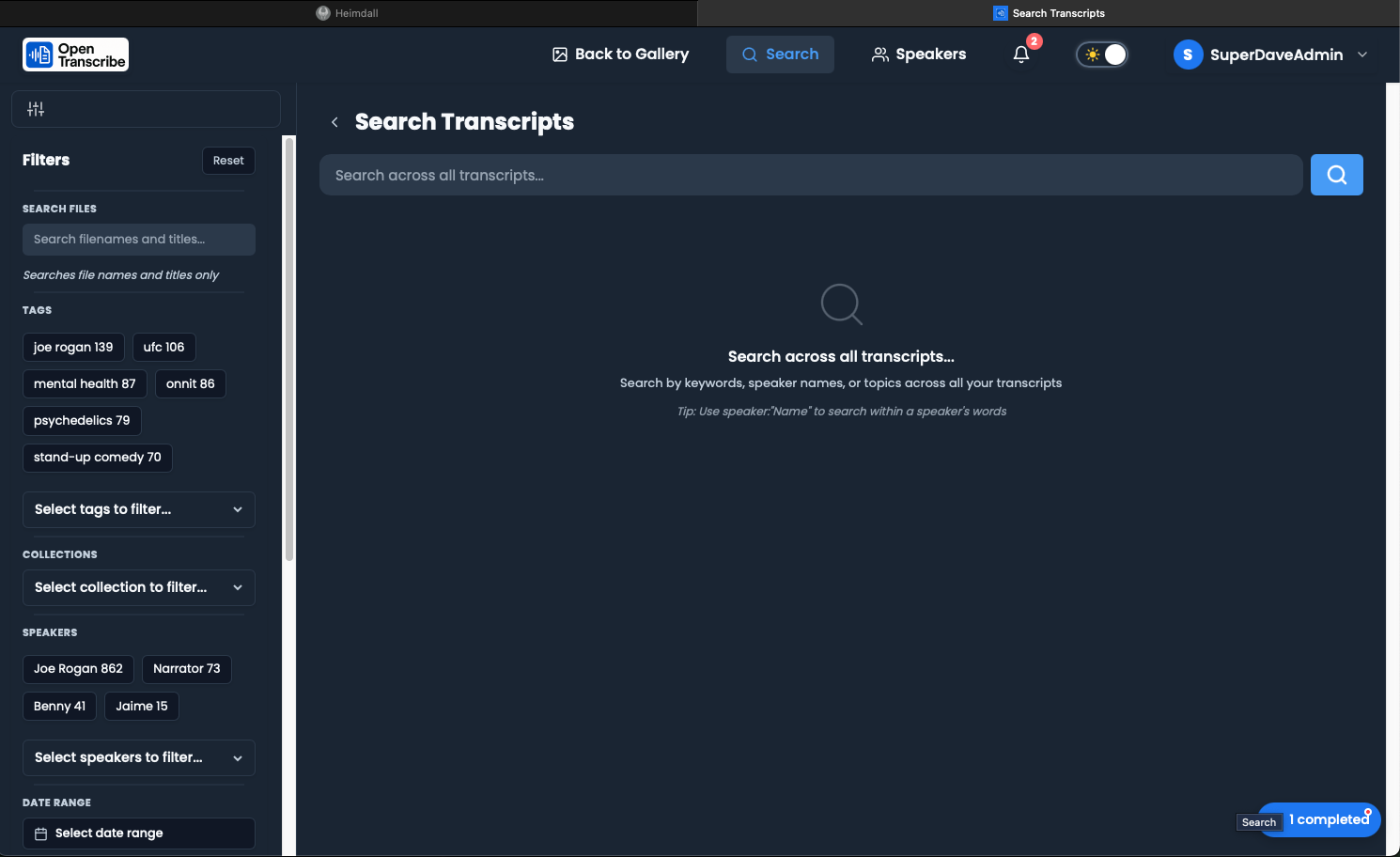
Search Types
Full-Text Search
Lightning-fast keyword search powered by OpenSearch 3.4.0:
- Exact phrase matching
- Wildcard support
- Boolean operators (AND, OR, NOT)
- Optimized scoring and relevance ranking
Semantic Search
AI-powered contextual search:
- Finds conceptually similar content
- Works across paraphrases
- Understands meaning, not just keywords
Hybrid Search
Combines full-text and semantic search for the best results:
- Automatic score normalization across search types
- Weighted combination for optimal relevance
- Falls back gracefully if neural search is unavailable
A critical bug in OpenSearch 3.4 caused hybrid search to silently fall back to keyword-only (BM25) search due to an ArrayIndexOutOfBoundsException triggered by the combination of aggregations, collapse, and RRF search pipelines. This was fixed in v0.4.0 — semantic search now works as intended. The improvement is significant: for example, searching "pytorch" went from 1 result to 83 results after the fix. Typo tolerance and query latency (255–500ms) are also confirmed working. If you were using an earlier version, reindexing is not required — the fix is in the query layer.
Filters
Filter transcriptions by:
- Speaker: Find content by specific speakers
- Date Range: Time-based filtering
- Duration: File length
- Tags: Custom categorization
- Collections: Grouped media files
- Status: Processing status
- File Type: Audio vs video
Gallery Views
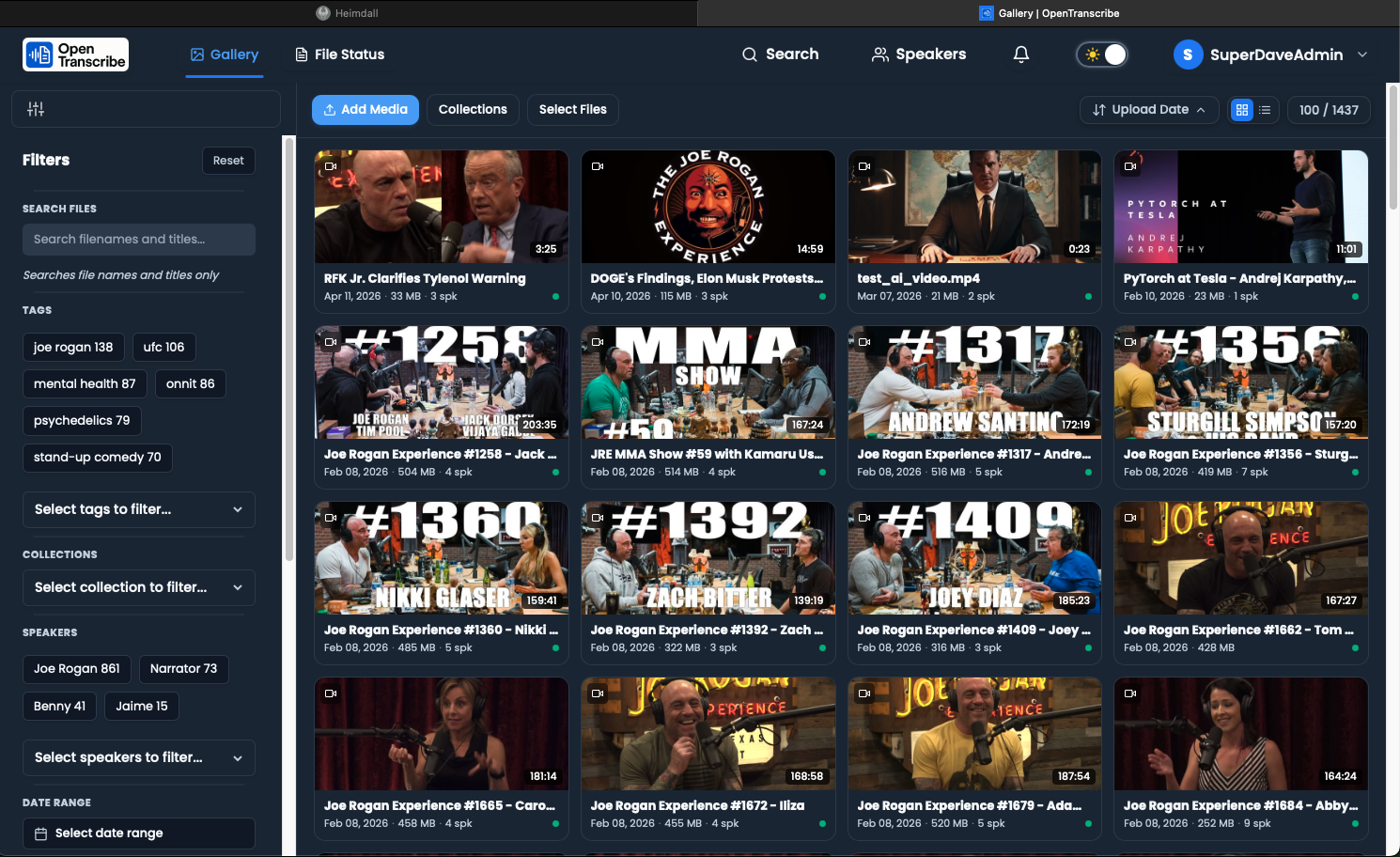
The main file gallery supports multiple display modes:
- Grid View: Card-based layout showing thumbnails and metadata (default)
- List View: Compact table layout for faster scanning of large libraries
- Pagination: Navigate through large file collections with configurable page sizes
- Virtual Scrolling: Smooth performance even with thousands of files
Search Query Syntax
Full-Text Search Operators
OpenTranscribe's full-text search supports standard query syntax:
| Syntax | Example | Description |
|---|---|---|
| Exact phrase | "project deadline" | Matches the exact phrase |
| AND | budget AND timeline | Both terms must appear |
| OR | budget OR finance | Either term can appear |
| NOT | meeting NOT standup | Excludes a term |
| Wildcard | transcri* | Matches any suffix (transcribe, transcription, etc.) |
| Fuzzy match | Automatic | Handles typos and minor spelling variations |
Operators can be combined: "quarterly review" AND budget NOT draft
Semantic Search Tips
Semantic search finds conceptually related content even when exact words differ:
- Search for
"budget concerns"to find mentions of "financial constraints", "cost overruns", or "spending limits" - Search for
"next steps"to find action items, follow-ups, and task assignments - Works best with natural language queries rather than single keywords
- Semantic search runs automatically alongside full-text search in hybrid mode
Combining Filters with Search
For maximum precision, combine text queries with filters:
- Enter your search query in the search bar
- Open the Filter sidebar
- Apply filters (speaker, date range, tags, collections, file type)
- Results are narrowed to match both the query and all active filters
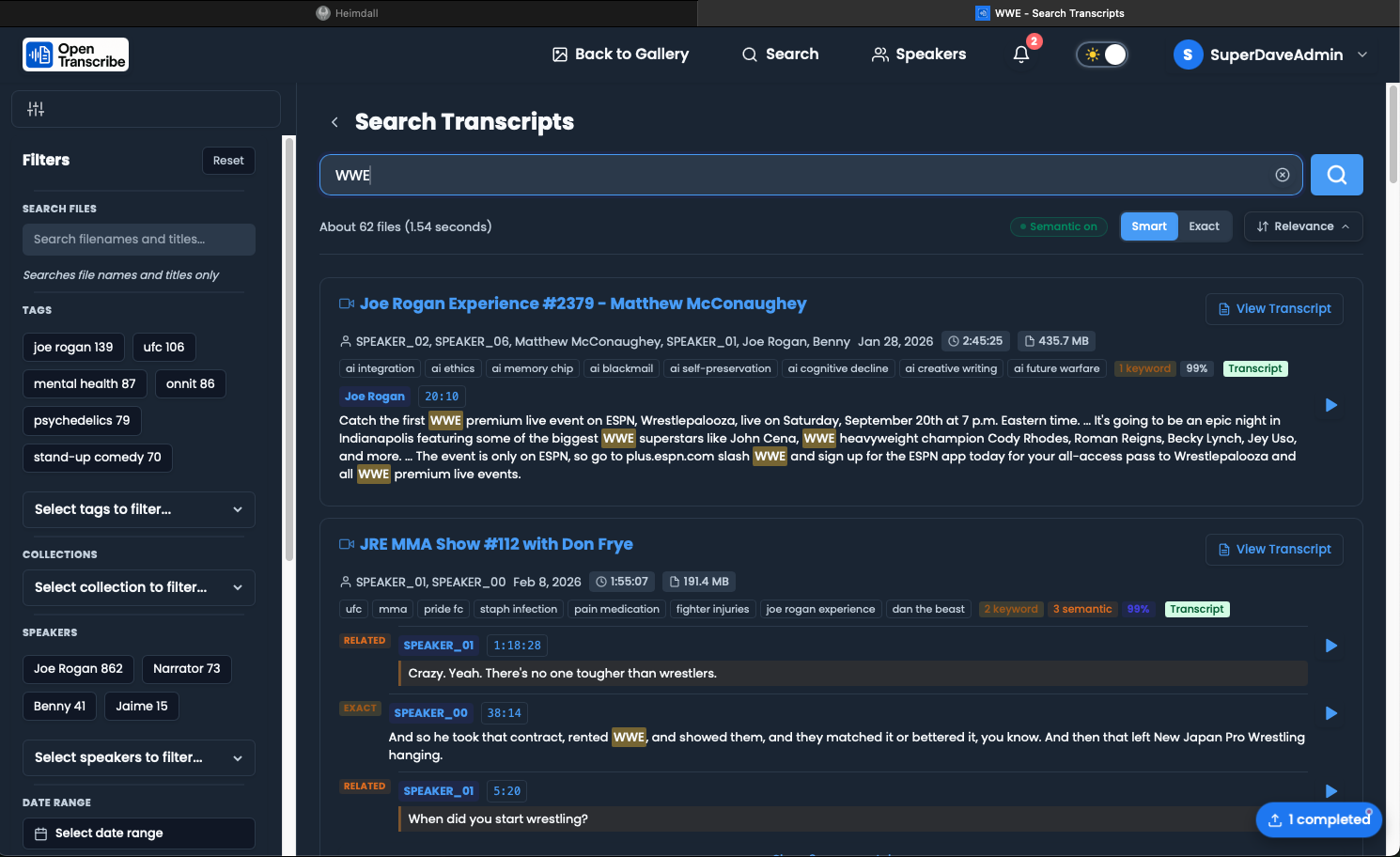
Search Result Highlighting
When search results are returned, matching text is highlighted with <em> tags in the result snippets. This makes it easy to see exactly where your search terms appear within each transcript. Result snippets show up to 150 characters of surrounding context for each match.
Finding Text Inside a Transcript
The gallery/library search above searches across your whole collection. A separate find bar searches within the transcript or summary you currently have open, and shares its component and fuzzy-matching behavior (diacritic- and case-folding) everywhere it appears, so it behaves the same way in the transcript viewer as it does in the summary panel.
In the transcript viewer, the find bar highlights matches in the currently loaded portion of the transcript instantly, then resolves a lightweight, debounced count query scoped to that file to show an accurate N of M+ indicator and progressively load more matches if any exist outside what's currently rendered — so a match late in a long transcript is never missed just because that page hasn't loaded yet. In the summary panel, where the whole summary is already in memory, the find bar is a simpler, complete-from-the-start version of the same component.
Searching Settings
Settings has its own macOS-style search: a search box above the sidebar tabs that replaces the grouped navigation with ranked, highlighted results as you type. Selecting a result jumps straight to that section and briefly flashes the matched control, so you don't have to remember which tab a setting lives under. It works across all supported languages and only surfaces settings your account and edition can actually see.
Transcript Comments
Add timestamped comments to any transcript for notes, annotations, or collaboration.
Adding a Comment
- Open a transcript and navigate to the Comments section
- Type your comment in the text area
- Click "Mark Current Time" to attach the current playback timestamp -- a timestamp is required
- Click "Add Comment" to save
Timestamp-Linked Comments
Every comment is linked to a specific point in the media file:
- Comments display the timestamp in
MM:SSformat - Click the timestamp badge on any comment to jump the player to that moment
- Comments are sorted chronologically by timestamp
- You can clear and re-set the timestamp before submitting
Editing and Deleting Comments
- Edit: Click the Edit link on your own comment, modify the text, then click Save
- Delete: Click the Delete link on your own comment and confirm the deletion
- Only the comment author can edit or delete their comments
- A confirmation dialog appears before deletion to prevent accidental removal
Comments in Exports
When exporting a transcript as .txt, you can optionally include comments in the export output (see Export Options).