Admin Panel
The Admin Panel provides system-wide management capabilities for OpenTranscribe administrators. It is accessible through the Settings modal and includes tools for user management, authentication configuration, search indexing, data integrity, and system monitoring.
Access Requirements
The Admin Panel is role-gated. The dividing rule is:
Anything that changes how the deployment runs, or that stores infrastructure credentials, is
super_admin. Anything that manages users and their content isadmin.
| Role | Access |
|---|---|
| User | Profile, recording, transcription, personal settings, own MFA, own active sessions |
| Admin | All user sections plus user management, system statistics, task health, search & indexing, data integrity, embedding consistency/migration, retention, retry settings, and media sources |
| Super Admin | All admin sections plus authentication configuration, role changes, audit logs, ASR provider, engine configuration, backups, media mirror, watch sources, and the redaction policy floor |
Six panels moved from admin to super_admin: ASR provider, Engine configuration,
Backups, Media Mirror, Watch sources, and the Redaction policy floor. If a plain
admin administers any of them today, promote that account (Settings → Users → Role) before
upgrading, or hand the work to an existing super admin.
To access admin features, open Settings (gear icon) and scroll to the admin sections in the sidebar.
System Statistics
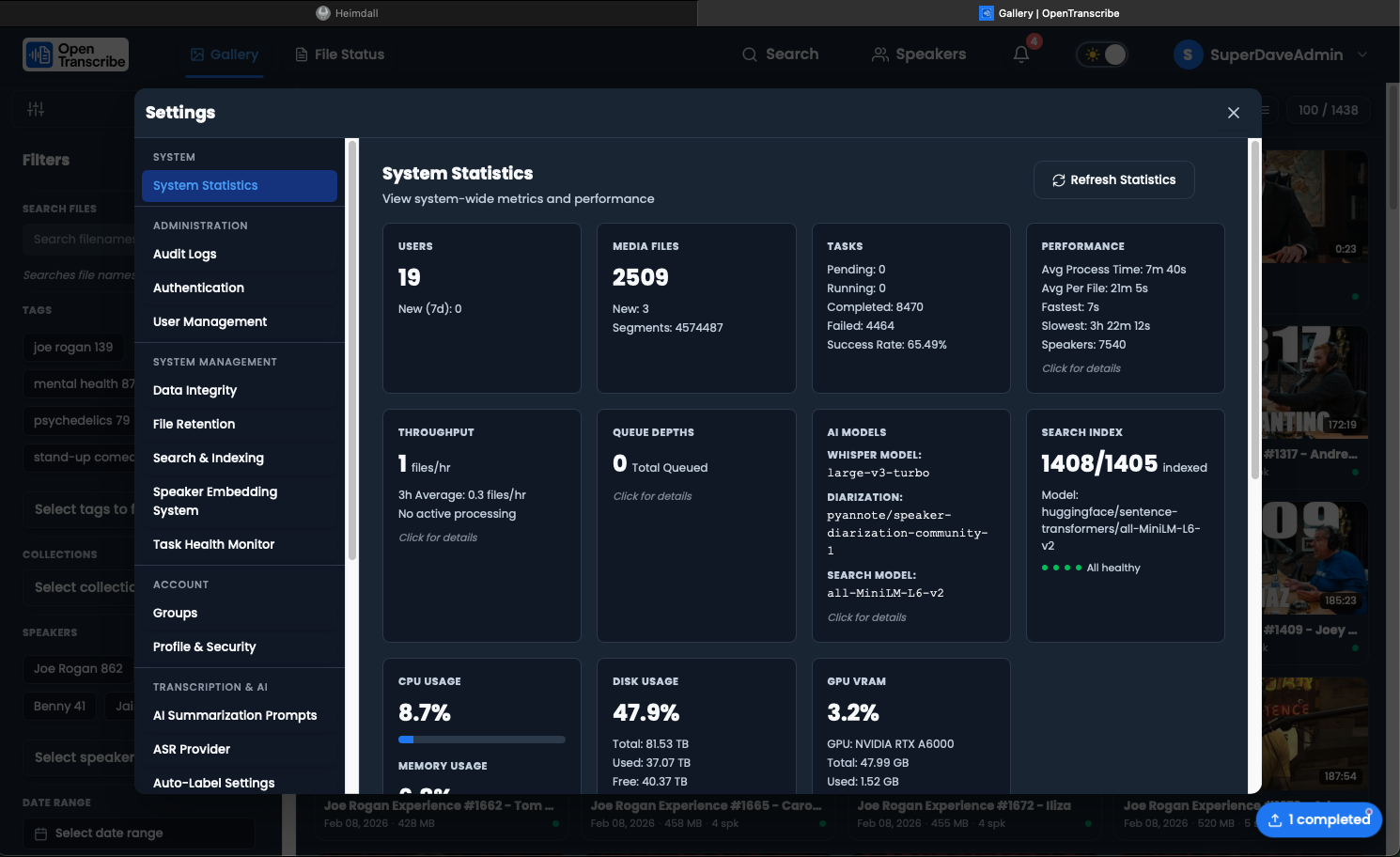
The System Statistics section provides a real-time dashboard of your OpenTranscribe deployment.
Metrics Displayed
- Users -- Total registered users and recent signups
- Files -- Total media files, recent uploads, total audio duration, and transcript segment count
- Tasks -- Pending, running, completed, and failed task counts with success rate and average processing time
- Speakers -- Total detected speakers and average speakers per file
- Models -- Active Whisper and diarization model names
- System Resources -- CPU usage (per-core and aggregate), memory usage, disk usage
- GPU -- GPU name, VRAM usage (used/total/free), GPU utilization percentage, and temperature
GPU Monitoring
GPU statistics are collected from the Celery worker via Redis. The backend queries nvidia-smi on the worker and caches the results. If Redis has no cached stats, the backend attempts a direct nvidia-smi query or dispatches an on-demand collection task to the CPU queue.
In multi-GPU scaling mode, stats are reported per active GPU worker.
User Management
The Users section manages all user accounts, pending invitations, and per-account authentication settings.
Inviting users
Invite User is the supported way to onboard when self-registration is off. You name:
- Full name (optional)
- Role --
user,admin, orsuper_admin - Auth type --
local,ldap,oidc, orpki - Expiry in hours
The invitee receives an emailed link, proves control of the address, and chooses their own credential. For an external auth type no password is set at all — the account is handed to the identity provider. Invitation tokens are hashed at rest, single-use, and expiring.
Pending invitations are listed with a pre-computed status (pending, accepted, revoked,
expired) and can be revoked.
Inviting or creating a super_admin raises a confirmation dialog. Invitations require a working
transactional-mail transport — see auth email designation below.
Pending approvals
When a super admin turns on Authentication → Local → Require account approval, every newly
provisioned account — self-registered or created just-in-time by an external identity
provider — lands in a pending state instead of becoming usable. Administrators approve or reject
them (GET/POST /api/admin/user-approvals).
Approval is not the same as activation: deactivation revokes an account that was once usable, approval gates one that never has been. Turning the setting off releases everything still pending; rejected accounts stay rejected, and rejecting never deletes the row.
Creating users directly
Add User creates an account immediately. Fields: full name, email (unique), role, auth
type, and — for auth_type: local only — a password. Choosing an external auth type omits the
password field entirely rather than storing a credential the account will never accept.
User table
Columns for name, email, role, auth type and creation date, with badges for inactive and unverified accounts. A search bar filters by name or email.
Available actions
For each user (except yourself):
| Action | Description |
|---|---|
| Change role | user / admin / super_admin — the super_admin option is visible only to a super admin, is audited, and raises a confirmation dialog |
| Reset password | Super admin only. Applies the password policy and the reuse history, revokes every session, and optionally flags the account for a forced change on next sign-in. Refused for an account whose identity lives in a directory |
| Lock / unlock account | Lock deactivates the account; unlock is its true inverse — it clears both the deactivation and any failed-login lockout |
| Force logout | Revokes every session for the account |
| Reset MFA | Super admin only. Clears the user's TOTP enrolment and backup codes so they can re-enrol |
| Toggle local fallback | Super admin only — allows an external (pki / oidc) account to also sign in with a local password. Rejected for ldap accounts, which never have one |
| Recover files | Triggers file recovery for the user |
| Delete user | Permanently deletes the account (confirmation required) |
You cannot change your own role or delete your own account here; your row shows "Current User". The last remaining super admin cannot be demoted or deleted.
Engine Configuration
Admin-tunable, runtime-safe transcription engine settings. All changes apply live -- no worker restart required. Settings are DB-backed with environment-variable fallback.
Diarization Boundary Correction
- Boundary smoothing (default on): collapses 1--3 word "wrong-speaker islands" at speaker turn boundaries (pure-CPU, runs at finalize)
- Acoustic backchannel re-check (default off, experimental, GPU): re-embeds short disputed/overlap words and reassigns them by voiceprint cosine
- Cosine margin: minimum cosine advantage required to relabel a word (default 0.05)
- Max word duration: only words shorter than this are eligible for re-check (default 1.0 s)
Backend Selection
- Transcriber backend: select the active transcription engine
- Diarizer backend: select the active diarization engine
Redaction Policy
The admin enforcement floor for content redaction. While per-user redaction preferences live under Settings → Content Redaction, this admin policy is the floor that overrides those preferences for all users.
- Force categories: force PII, toxicity, and/or profanity redaction on for every user (cannot be disabled per-user)
- Mandate censored exports: require masked output for all subtitle/transcript exports
- Mandate mask-before-LLM: require redaction before transcripts are sent to LLM features
- Re-scan / re-index after model upgrade: trigger a re-scan and re-index of all files following a detection-model upgrade
Authentication Configuration
Super Admin only. The Authentication section configures every identity source at runtime, without restarting services. Precedence is database → environment variable → coded default, so once you save a panel the stored value wins.
Tabs
| Tab | Purpose |
|---|---|
| Local | Local password login, self-registration, password policy, MFA enforcement, account lockout, login banner |
| LDAP | Directory connection, search base, bind credentials, attribute mapping, admission and admin groups |
| OIDC | Any OpenID Connect provider — discovery URL, client ID/secret, callback, roles claim, token-validation controls |
| PKI | X.509 settings, CA path, trusted proxies, mode, revocation checking |
| SAML | SAML 2.0 service provider — IdP metadata/entity ID, ACS/SLS endpoint settings, attribute mapping, admission groups (same group-list syntax as OIDC) |
| Mappings | Bind LDAP/OIDC group claims to an in-app group and/or a role grant, with a dry-run tester (IdP group mapping) |
| SCIM | Bearer tokens for SCIM 2.0 provisioning from an IdP — create, view status, and revoke (see SCIM Provisioning below) |
| Session | Token lifetimes, idle and absolute session timeouts, concurrent-session limit and policy |
| Audit | Who changed which auth setting, and when |
Each tab has Save, and LDAP and OIDC have Test Connection to verify before committing.
The Keycloak tab is now OIDC and works with any conforming provider. Existing KEYCLOAK_*
environment variables keep working permanently; stored database keys were renamed automatically
by migration v379.
Two behaviours worth knowing:
- Secrets are never sent back to the browser. A sensitive field shows "configured — leave
blank to keep it"; the API returns
nullplus anis_setflag rather than a placeholder. - A typo'd key is rejected. Writes are validated against a per-category schema, and incoherent combinations (self-registration on with local login off) are refused with a message naming which switch to change first.
The Audit tab reads auth_config_audit in PostgreSQL and shows configuration changes with
the account that made each one. It is a different source from the Audit Logs section below,
which streams security events from OpenSearch and carries no configuration changes.
Auth email designation
Password resets, invitations and email-verification links need a mail transport. The provider
rows themselves live in Settings → Watch Sources → Email configurations; one of them is
designated to carry authentication mail (super admin only). Clearing the designation falls
back to the SMTP_* environment transport. A designation naming a missing or disabled
configuration is rejected when you save it, and deleting or disabling the designated row is
refused while it holds the designation.
SCIM Provisioning
The SCIM tab manages the bearer tokens that authenticate an identity provider's SCIM 2.0
push provisioning against /scim/v2 — this is the only place tokens are created, viewed, or
revoked. See SCIM 2.0 provisioning for the
protocol-level detail.
| Field | Description |
|---|---|
| Name | A label to tell tokens apart (e.g. "Okta production") |
| Expires | Optional expiry date; leave blank for a token that never expires |
| Status | Active or Revoked |
| Last used | Timestamp of the most recent SCIM request authenticated with this token |
Click Add Token to create one. The plaintext token is shown exactly once, immediately after creation — only its SHA-256 digest is stored, so if it's lost there is no way to retrieve it, only to revoke it and create a replacement.
Rotating a token means creating a new one, updating the directory's SCIM connector to use it, and then revoking the old one — there is no in-place "regenerate" that keeps the same token row. Revocation is one-way and immediate: every SCIM request bearing that token is refused from that point on.
A SCIM connector authenticated this way can create, update, and deactivate user accounts, but it
can never create or modify a super_admin, and it can never write a role directly — group
membership it creates is tagged source='scim', kept separate from LDAP/OIDC directory-sync
reconciliation. Deactivating a user (active: false or DELETE) disables the account and
revokes its sessions without deleting it or its transcripts.
Security Settings
The Security section in the user settings area manages per-user MFA. Deployment-wide security policy lives in the Authentication section above.
MFA setup flow
- A super admin enables MFA at Authentication → Local → MFA Enabled
- Users see the MFA setup option in their Security settings
- Click Enable MFA to generate a QR code
- Scan with any TOTP authenticator app (Google Authenticator, Microsoft Authenticator, Authy)
- Enter the 6-digit code to confirm
- Save the generated backup codes — they are shown only once
MFA details
- Standard: RFC 6238 TOTP, 6-digit codes, single-use (a code cannot be replayed inside its step window)
- Backup codes: one-time-use recovery codes; a code used to disable MFA is consumed
- Disable: requires a valid TOTP code or backup code
- Required MFA is enforced at the server. With
mfa_requiredon, a user who has not enrolled receives an enrolment-scoped half-token that authorizes only the two setup endpoints — an API client that ignores the hint gets no session - External IdP users: PKI and OIDC users bypass local MFA only when they authenticated with their native method. If such an account falls back to a local password, local MFA applies
- Admin reset: Settings → Users → Reset MFA clears a user's enrolment so they can re-enrol
Active sessions
Every user sees their own sessions (device, IP, last activity) in Settings → Profile and can revoke any of them. Admins can list and revoke another account's sessions from the Users section; changing a credential or a privilege revokes sessions automatically.
Audit Log Viewer
Super Admin only. The Audit Logs section provides a searchable, filterable view of all authentication and administrative events.
Tracked Event Types
| Category | Events |
|---|---|
| Authentication | auth.login.success, auth.login.failure, auth.logout, auth.logout.all |
| MFA | auth.mfa.setup, auth.mfa.verify, auth.mfa.disable, auth.mfa.backup_used |
| Password | auth.password.change, auth.password.reset_request, auth.password.reset_complete, auth.password.expired |
| Account lifecycle | auth.account.lockout, auth.account.unlock, auth.account.disabled, auth.account.expired |
| Tokens | auth.token.refresh, auth.token.revoke, auth.token.verify |
| Sessions | auth.session.created, auth.session.expired, auth.session.terminated, auth.session.limit_exceeded |
| Banner | auth.banner.acknowledged |
| Admin | admin.user.create, admin.user.update, admin.user.delete, admin.role.change, admin.settings.change |
| Content moderation | admin.file.quarantine, admin.file.release |
| Prompt sharing | prompt.share, prompt.unshare, prompt.clone |
A few of these are worth knowing about specifically:
auth.login.failurewitherror_code: ACCOUNT_LINK_REFUSEDis an external identity that was refused a takeover of an existing account by email match — see Account linking.auth.session.limit_exceededrecords the concurrent-session cap (FedRAMP AC-10), whether the policy evicted the oldest session or rejected the new one.admin.role.changewith an actor ofidp_loginordirectory_syncis a privilege change driven by a directory group mapping rather than by a person.- Login-banner refusals are deliberately not audited per request — they would fire on every request of every pre-acknowledgment session. The acknowledgment itself is the artefact.
Filtering
Filter logs using any combination of:
- Start Date / End Date -- Date range picker
- Event Type -- Dropdown of all tracked event types
- Outcome -- Success or Failure
Click Apply to reload with the selected filters.
Log Table Columns
| Column | Description |
|---|---|
| Time | Timestamp in compact locale format |
| Event | Event type code (e.g., auth.login.success) |
| User | Username associated with the event |
| Status | OK or FAIL badge |
| IP | Source IP address |
| Details | Click ... to view full JSON event details in a modal |
Exporting
Export filtered logs in CSV or JSON format using the export buttons. The downloaded file is named audit-logs-YYYY-MM-DD.{format}.
Search Settings
The Search & Indexing section manages OpenSearch neural search and the document index.
Status Dashboard
Status chips display at-a-glance metrics:
- Indexed -- Files indexed vs total (e.g.,
142/142) - Model -- Current embedding model name
- Health -- Overall index health (OK or Needs Repair)
- Pending -- Files awaiting indexing (if any)
Embedding Model Selection
Choose from several pre-configured sentence-transformer models:
Every model below is verified: it registers, deploys, and returns its declared
dimension from a real prediction. Multilingual models are additionally checked for
cross-lingual behaviour — the same sentence in two languages must land close together.
Measured 2026-08-18 on opensearch:3.4.0.
| Model | Tier | Dim | Size | Languages | Cross-lingual (cosine vs English) |
|---|---|---|---|---|---|
all-MiniLM-L6-v2 (default) | Fast | 384 | 87.5 MB | English | — |
all-MiniLM-L12-v2 | Fast | 384 | 128.3 MB | English | — |
multi-qa-MiniLM-L6-cos-v1 | Fast | 384 | 80 MB | English | — |
paraphrase-multilingual-MiniLM-L12-v2 | Fast | 384 | 465.5 MB | 50+ | es 0.98, zh 0.95, ar 0.94, ru 0.94, de 0.90 |
all-mpnet-base-v2 | Balanced | 768 | 418.7 MB | English | — |
all-distilroberta-v1 | Best | 768 | 315.5 MB | English | — |
distiluse-base-multilingual-cased-v1 | Best | 512 | 480 MB | 15 | ru 0.93, es 0.90, de 0.87, zh 0.87, ar 0.85 |
For reference, the English-only models score 0.006–0.313 on those same translations — so the multilingual pair genuinely aligns languages rather than merely returning numbers.
Dimension matters when switching. Moving between models of the same dimension is a
re-embed; changing dimension recreates the index. all-MiniLM-L12-v2,
multi-qa-MiniLM-L6-cos-v1 and paraphrase-multilingual-MiniLM-L12-v2 are all 384,
matching the default — all-MiniLM-L12-v2 in particular is the default with all twelve
layers instead of six, so it is the lowest-risk quality upgrade available: a re-embed,
no index recreation, and a trivial rollback. The cost is roughly half the encode
throughput.
Changing the model triggers a full re-index of all documents. A confirmation modal warns about this before applying.
Do not add a model to the list without running
python3 scripts/verify-embedding-models.py --url <throwaway-cluster> against it. Two
classes of failure are invisible otherwise: a model OpenSearch does not actually provide
(registration fails at every version), and a model trained for dot-product scoring —
the chunks index is cosinesimil, so such a model is ranked by a metric it was never
trained for and the scores look entirely plausible while being wrong.
Re-indexing Operations
| Button | Description |
|---|---|
| Re-index All | Rebuilds the entire search index from scratch |
| Re-index Pending | Only indexes files that are not yet indexed |
| Stop | Cancels a running re-index operation |
Re-indexing progress is tracked in real time via WebSocket with a progress bar, file count, percentage, and ETA.
Data Integrity
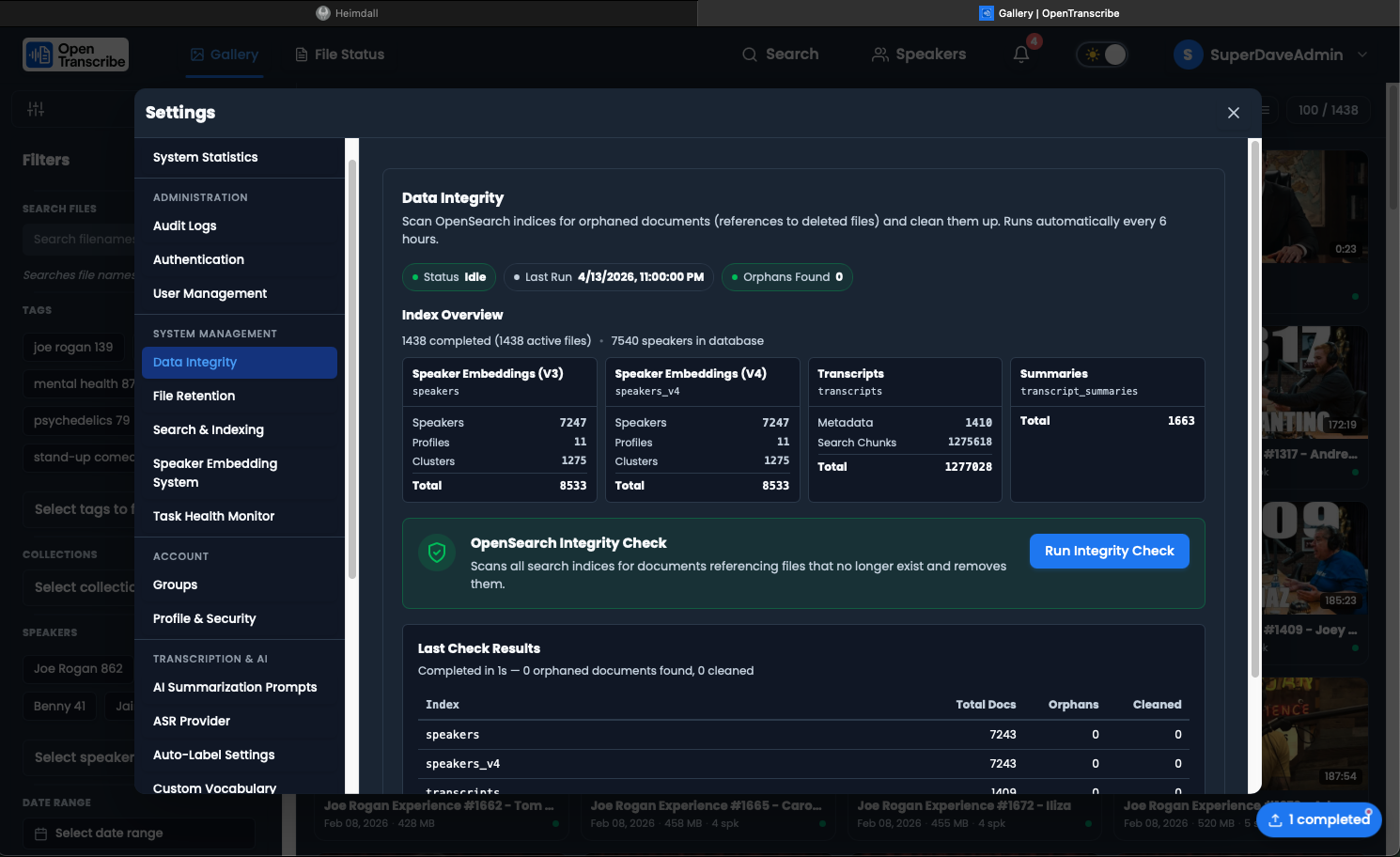
The Data Integrity section verifies consistency between the PostgreSQL database and OpenSearch indices.
Index Overview
Displays a card grid showing each OpenSearch index with:
- Index name and label
- Document count breakdown (speakers, profiles, clusters, metadata, chunks)
- Total document count
- PostgreSQL reference counts (active files, completed files, speakers)
Integrity Check
Click Run Check to scan all indices for orphaned documents -- records in OpenSearch that no longer have a corresponding database entry. The check:
- Scans each index sequentially with progress tracking
- Identifies orphaned documents
- Automatically cleans up (deletes) orphaned records
- Reports results in a summary table
Results show per-index totals: documents scanned, orphans found, and orphans cleaned.
Embedding Consistency
The Embedding Consistency section ensures all speakers in the PostgreSQL database have corresponding embeddings in the OpenSearch speaker indices.
Consistency Counts
When you click Check, the system reports:
- Total PG Speakers -- Speakers in the database
- v3 Indexed / Missing -- Speaker embeddings in the v3 index (512-dim, pyannote)
- v4 Indexed / Missing -- Speaker embeddings in the v4 index (256-dim, WeSpeaker), if it exists
- Unrepairable -- Speakers that cannot be repaired (no audio segments available)
- Orphans -- Embeddings in OpenSearch with no matching database speaker
Repair Operation
Click Repair to re-extract missing embeddings. The system processes each file with missing speakers, extracts new embeddings from the audio, and indexes them. Progress is tracked in real time with a progress bar and ETA. You can Stop a running repair at any time.
Embedding Migration (v3 to v4)
The Embedding Migration section manages the upgrade from v3 speaker embeddings (512-dim pyannote) to v4 (256-dim WeSpeaker).
Migration Benefits
- Improved speaker matching accuracy
- Smaller embedding dimensions (256 vs 512) for faster search
- Better cross-recording speaker identification
Migration Workflow
Status Chips
- Mode -- Current active mode (V3 or V4)
- V3 Docs -- Document count in the v3 index
- V4 Docs -- Document count in the v4 index
- Status -- Migrating indicator when active
Operations
| Action | Description |
|---|---|
| Start Migration | Begins extracting v4 embeddings for all files. Progress tracked via WebSocket. |
| Stop Migration | Pauses the migration. Can be resumed later. |
| Finalize Migration | Performs an atomic OpenSearch alias swap from v3 to v4. Only available after all files are processed. |
| Retry Failed | Re-processes files that failed during migration (available when migration is stalled). |
| Force Complete | Skips remaining failed files and finalizes anyway (use with caution). |
| Force Re-extract | Re-runs v4 extraction for all files, even those already migrated. |
Finalization performs an atomic alias swap. Once finalized, the system uses v4 embeddings for all speaker operations. This is not easily reversible.
File Retention / Auto-Deletion
The Retention section configures automatic deletion of old transcription files.
Configuration Options
| Setting | Description | Default |
|---|---|---|
| Enable Retention | Master toggle for auto-deletion | Off |
| Retention Days | Files older than this are eligible for deletion | 365 |
| Run Time | Daily execution time (HH:MM format) | 02:00 |
| Timezone | Timezone for the scheduled run | UTC |
| Delete Error Files | Also delete files stuck in error status | Off |
Safety Features
Enabling retention requires an explicit confirmation step -- you must check a confirmation checkbox acknowledging that files will be permanently deleted.
Preview and Manual Run
- Preview -- Shows a table of files that would be deleted under the current settings, including title, owner, age, size, and status
- Run Now -- Triggers an immediate retention pass (requires a second confirmation)
- Refresh Status -- Checks results after a manual run
Status Display
Shows the last run timestamp, number of files deleted, and the next scheduled run time.
Retry Settings
The Retry Settings section controls how failed transcription tasks are retried.
| Setting | Description | Default |
|---|---|---|
| Limit Retries | Toggle to cap the number of retry attempts | On |
| Max Retries | Maximum number of retry attempts per task (1-10) | 3 |
When retry limits are disabled, failed tasks will continue retrying indefinitely. Click Save to apply changes or Reset to Defaults to restore the default values.
Task Health
The Task Health section (visible under System Statistics) shows recent task activity:
- Task list with status, file name, duration, and timestamps
- Counts of pending, running, completed, and failed tasks
- Success rate percentage
- Average processing time
This provides a quick operational overview of the transcription pipeline without needing to access the Flower dashboard directly.