Chatting with Your Transcripts
Ask questions across your recordings and get answers grounded in what was actually said, with citations that jump to the exact moment in the player.
Chat is a page in the main navigation, alongside Search and Speakers.
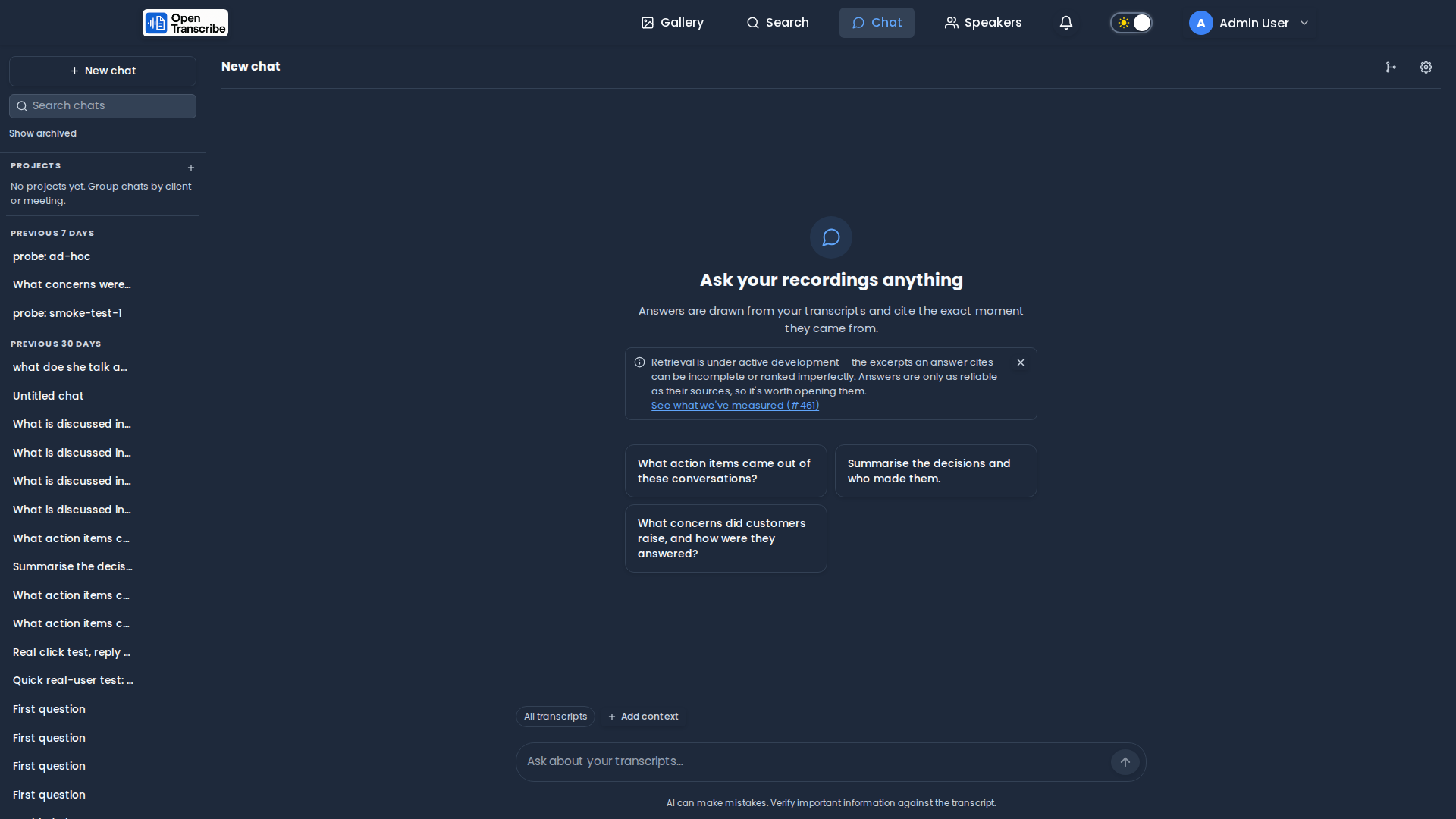
Your first conversation
- Open Chat and type a question.
- The assistant searches your transcripts, then streams an answer with numbered
citations like
[1]. - Click any source card to open that recording at that timestamp.
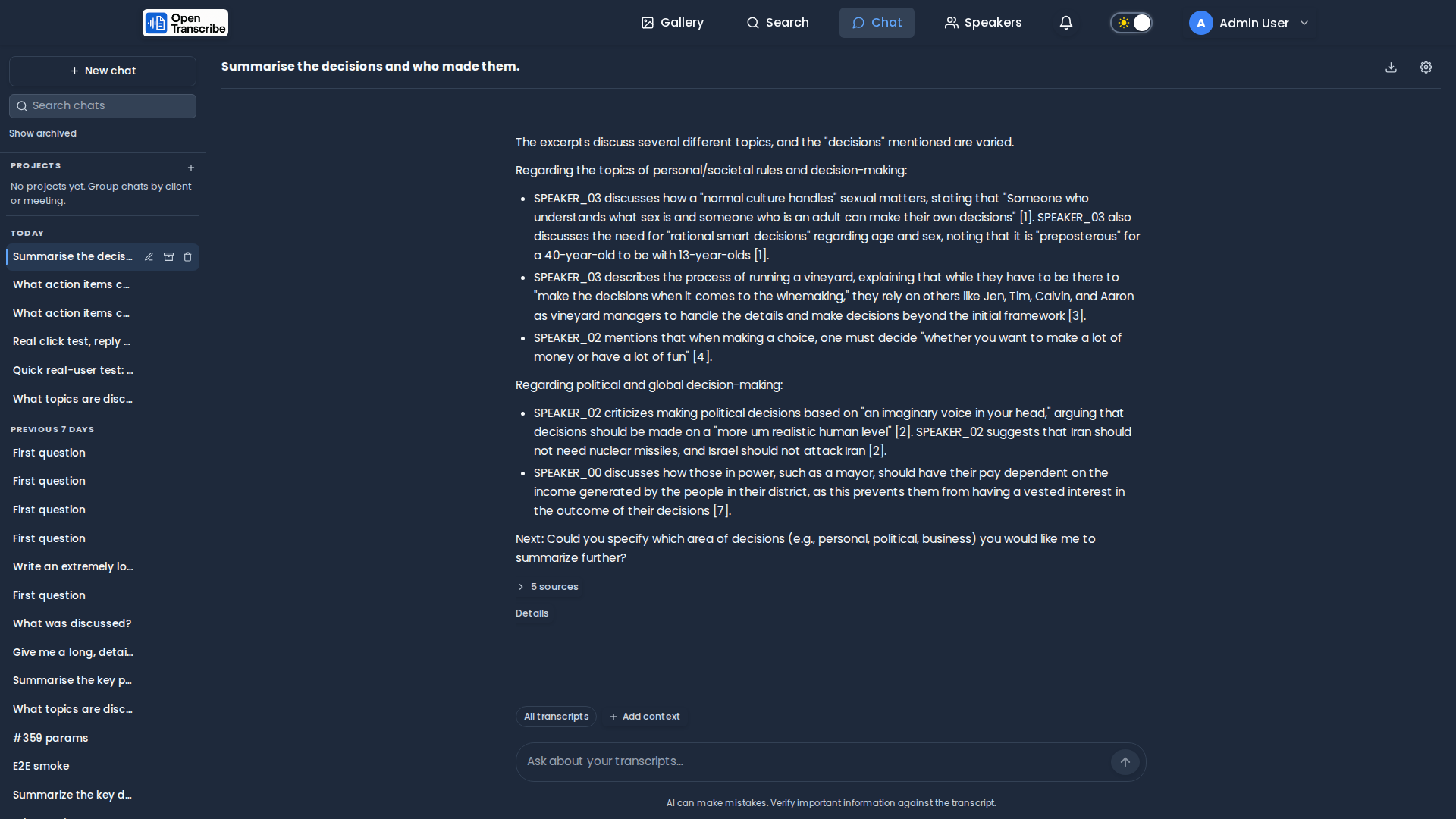
By default it searches everything you can access. That works, but narrowing the scope makes answers noticeably more specific.
Choosing what to chat about
Use Add context above the composer. Four ways to narrow:
| Tab | Use when |
|---|---|
| Recordings | You know the specific files |
| Collections | You want a whole project or client |
| Tags | You organise by topic or status |
| Speakers | You care about what specific people said |
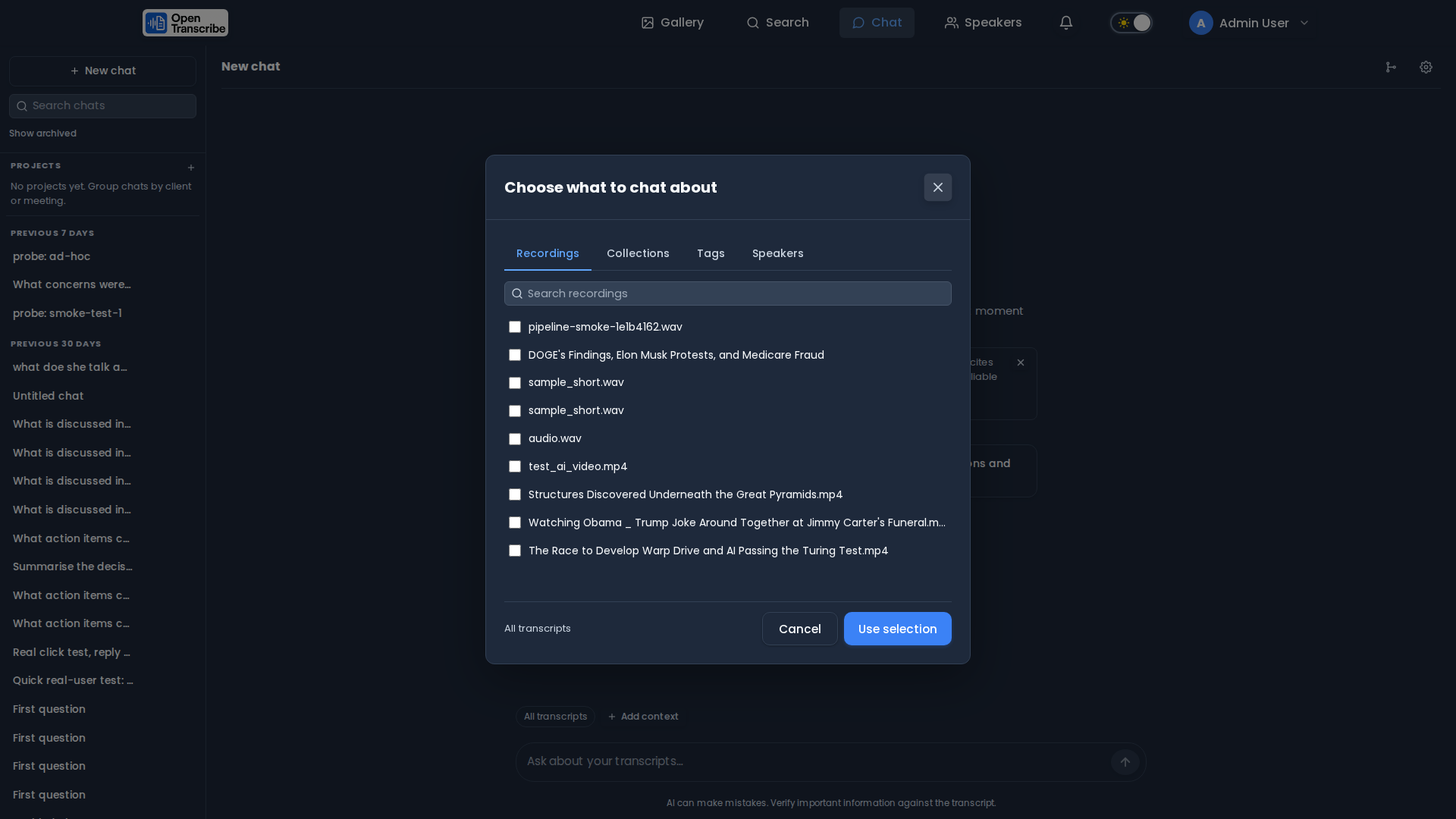
Collections and tags are resolved when you ask, not when you select them — so a recording added to a collection later is automatically in scope for conversations you already started.
You can also start from the gallery: select recordings, then Chat with N in the bulk actions menu.
Asking about one person
The Speakers tab is the one with no equivalent in a general-purpose document chat, and it is exact rather than approximate.
Transcripts are indexed as speaker turns — one passage is one person talking — so selecting a speaker retrieves only their own words. Without that, "what did Dana commit to?" can be answered from a sentence in which someone else mentions Dana. With it, the answer can only come from Dana's own turns.
Speakers are a separate axis from the other three: recordings, collections and tags choose which recordings to search; speakers choose who to listen to within them. Combine them ("what did Dana say in the Q3 calls?") or use speakers alone ("everything Dana said, anywhere").
Organising chats into projects
If you keep coming back to the same subject — a client, a weekly meeting, an investigation — make it a project. Click + beside Projects in the sidebar.
A project remembers two things so you stop repeating yourself:
- Which recordings to search. Pin a collection, some tags or specific files, and every chat you start inside the project already searches them. No more re-picking context each time.
- Standing instructions. Background that is always true for this subject — "this client calls their product Atlas", "always name the account manager".
Click a project to expand its chats; the + on its row starts a new one already scoped to it. Chats outside any project stay in the list below, grouped by date as before.
Deleting a project keeps its conversations — they simply become ungrouped.
Getting better answers
Use the words that were spoken. Retrieval matches your question against the transcript. "What did we decide about the renewal?" beats "what was the outcome" — the first shares vocabulary with the passage you want.
Ask one thing at a time. A three-part question retrieves a blend that serves none of them well. Ask, then follow up — follow-ups are automatically rewritten into standalone questions, so "and what did she say about the timeline?" works.
Narrow the scope before you rephrase. Selecting the four relevant recordings helps more than any rewording.
Quote a distinctive phrase when you know it. Switch Retrieval mode to Exact words for product codes, ticket numbers, or names — vector search is good at meaning and weak at rare literal strings.
If an answer looks thin, read the source cards. They show exactly what the assistant was given. Thin or off-target cards mean the search missed, not that the model was lazy — re-scope or rephrase.
Reading the sources panel
Under every grounded answer is a "N sources" toggle. It is collapsed by default under long answers and expanded while the answer is still streaming. Open it and each source is one card:
| On the card | What it tells you |
|---|---|
[1] | The number the answer cites. Claim [1] was supported by this passage |
| Recording title | Which file it came from |
| Speaker | Who said it — the excerpt is one person's turn, not a mixed passage |
| Timestamp | Where in the recording |
| Two lines of the passage | The actual words the assistant was shown |
Clicking a card opens that recording at that second.
Two properties are worth knowing, because they are what make the panel worth trusting:
- The links are built from the search results, not from the model's text.
The assistant writes
[1]; it never writes the URL. A citation therefore cannot point somewhere the retrieval did not actually return. - The panel lists what actually reached the model, not everything retrieved. If a passage was found but did not fit the context window it is not listed, so the card count is a true account of what the answer could have been based on.
The panel is the fastest way to diagnose a disappointing answer. Read the cards first: if they are off-topic, the search missed and you should re-scope or re-word. If they are on-topic and the answer still isn't, that is the model, and regenerating or switching model is the thing to try.
When it says it doesn't know
The assistant is instructed to say plainly when the retrieved passages do not contain the answer, and to suggest what to search or select instead, rather than producing something plausible. That is the system working, and it is worth reading as information: it usually means the passages it was given genuinely did not cover the question.
What to do, roughly in order of how often it helps:
- Widen or change the scope. The most common cause is that the right recording was not in scope at all. Check the context bar.
- Use the words that were spoken. Retrieval matches your phrasing against the transcript's.
- Try Exact words retrieval mode if you know a distinctive phrase.
- Split the question. Three questions at once retrieve a blend that answers none of them.
- Check the recording finished transcribing. Only completed transcripts are searchable.
Two related messages mean something more specific:
- "This answer was not grounded in your recordings" — passages were found, but none fit the model's context window. Shorten the conversation, lower Excerpts per answer, or use a model with a larger window. Do not read that answer as sourced.
- A Context off chip in the context bar means you turned transcripts off for this conversation. The model is answering from general knowledge with no access to your recordings at all.
If an answer ends with a short "Next:" line, that is the assistant proposing the follow-up it thinks the passages point at — an unresolved decision, a promised action with no outcome. Ignore it freely; it is a suggestion, not part of the answer.
Chat retrieves a handful of relevant passages; it does not read the whole recording. For a whole-transcript summary, use the summary feature on the file itself. Use chat for questions that point at specific moments.
Working with a conversation
| Action | Where |
|---|---|
| Edit a question | Hover it → pencil. The answer is regenerated from that point. |
| Regenerate | Hover the latest answer → circular arrow. |
| Stop generating | The send button becomes Stop while streaming, or press Escape. |
| Copy | Hover any message → copy. Code blocks get their own button. |
| Export | Download icon in the header — Markdown or JSON, with sources as links. |
| Rename / archive / delete | Hover a conversation in the sidebar. |
Shortcuts: Cmd/Ctrl+Shift+O for a new chat, Cmd/Ctrl+/ to focus the composer,
Escape to stop.
Chat settings
The gear icon opens per-conversation settings:
- Use my transcripts — turn context off to use the model as a plain assistant. A Context off chip makes it unmistakable, so an ungrounded answer never looks like a grounded one.
- Instructions for this chat — extra guidance for this conversation only.
- Creativity — lower values stay closer to what was actually said.
- Retrieval mode — Hybrid (default), Meaning (vector only), or Exact words (keyword only).
- Model — pin a different provider or model for this conversation.
Under Advanced there are two more, collapsed because most people never need them: Answer length (the reply's ceiling — longer costs more) and Focus (how narrowly the model picks its words; lower is more predictable).
Account-wide defaults live in Settings → Chat, where you can also set Excerpts per answer and turn Rerank excerpts off for your own chats. Both only ever make your chats leaner than the server default — you cannot ask for more than your administrator allows.
How instructions stack
Instructions add up rather than replace each other, broadest first:
built-in rules → your default → the project → this chat
So "answer concisely" in your settings and "their product is called Atlas" on the project both apply. The built-in rules always win, which is what stops a recording from talking the assistant into ignoring them.
Keeping an eye on cost
Chat sends the retrieved excerpts plus recent history with every message, so cost tracks how much context is in play — not how much you typed. A five-word question can still carry a few thousand tokens.
To keep it lean: scope tightly, start a new chat when the topic changes, and turn off Use my transcripts for questions that aren't about your recordings.
You can see what you have used — tokens per model, with an estimated cost — via the usage endpoints. See Usage Tracking.
Requirements
Chat needs a language model configured in Settings → AI (OpenAI, Anthropic, OpenRouter, Amazon Bedrock, or a self-hosted vLLM/Ollama endpoint). Until one is set, the chat page shows a setup prompt.
Recordings must have finished transcribing to be searchable.
Chat is the only feature that stops without a provider. Search — including semantic search — transcription, diarization and everything else run on local models and need nothing configured. See Working Without an AI Model.
Privacy
- Redaction is honoured. With redact before LLM enabled, excerpts are re-masked before they reach the provider, and masking fails closed — an unmaskable passage is withheld rather than sent.
- Conversations are private to you and are removed by GDPR erasure.
- Transcript content is data, not instructions — a recording cannot hijack the assistant.
For the full feature reference, see AI Chat (RAG).