Screenshots & Visual Guide
A comprehensive visual walkthrough of OpenTranscribe's features and interface. This guide follows a natural user journey from first login through advanced AI-powered features, helping you understand every capability of the application.
Quick Workflow Overview
The following animation shows the complete end-to-end workflow from upload to AI-powered analysis:
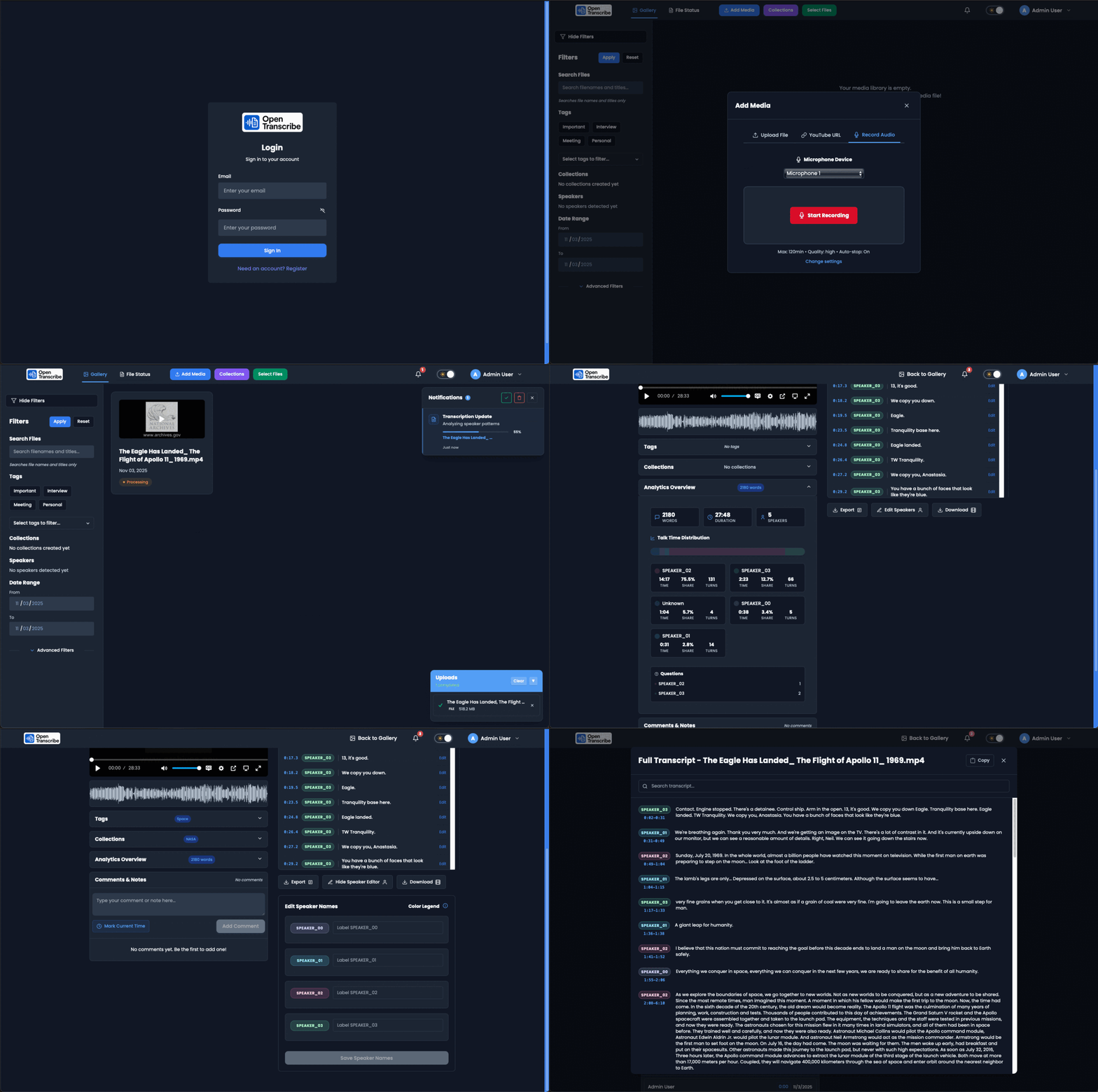
Complete workflow: Login → Upload → Process → Transcribe → Speaker Identification → AI Tags & Collections
Getting Started
First Login
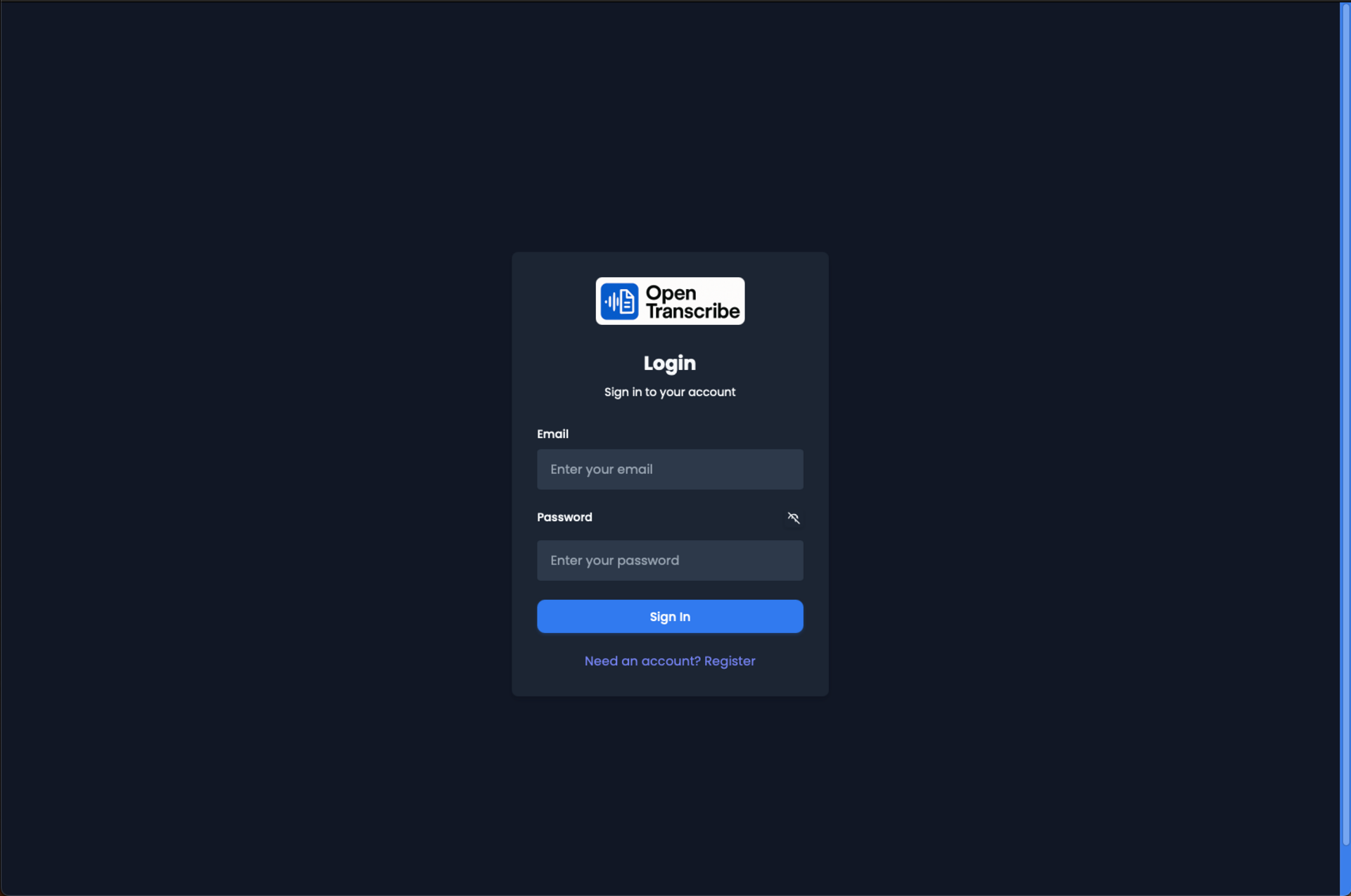
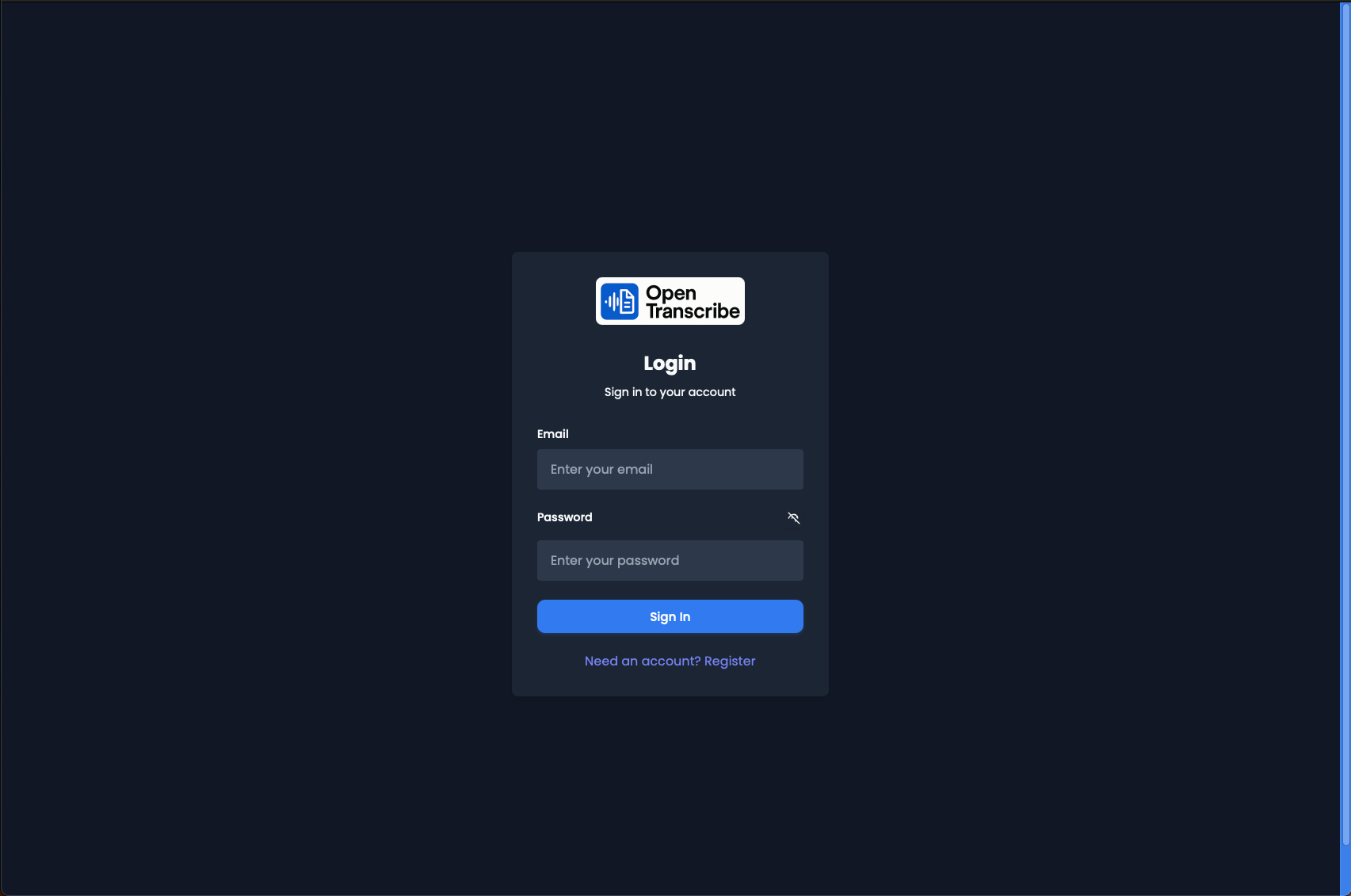
OpenTranscribe login screen with email and password fields. Clean, dark-themed authentication interface.
Start your OpenTranscribe journey by logging in with your credentials. The application supports role-based access control for team environments.
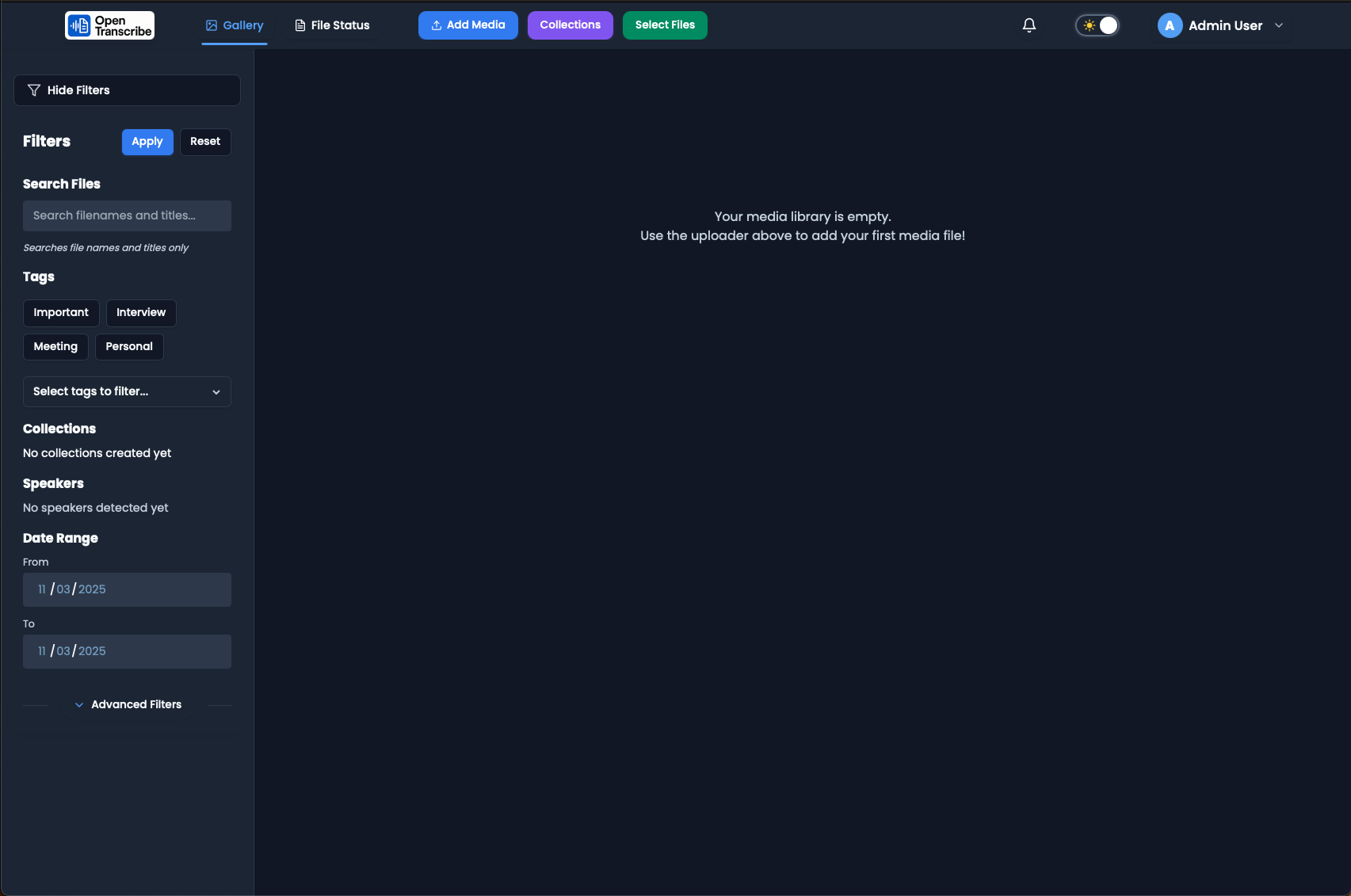
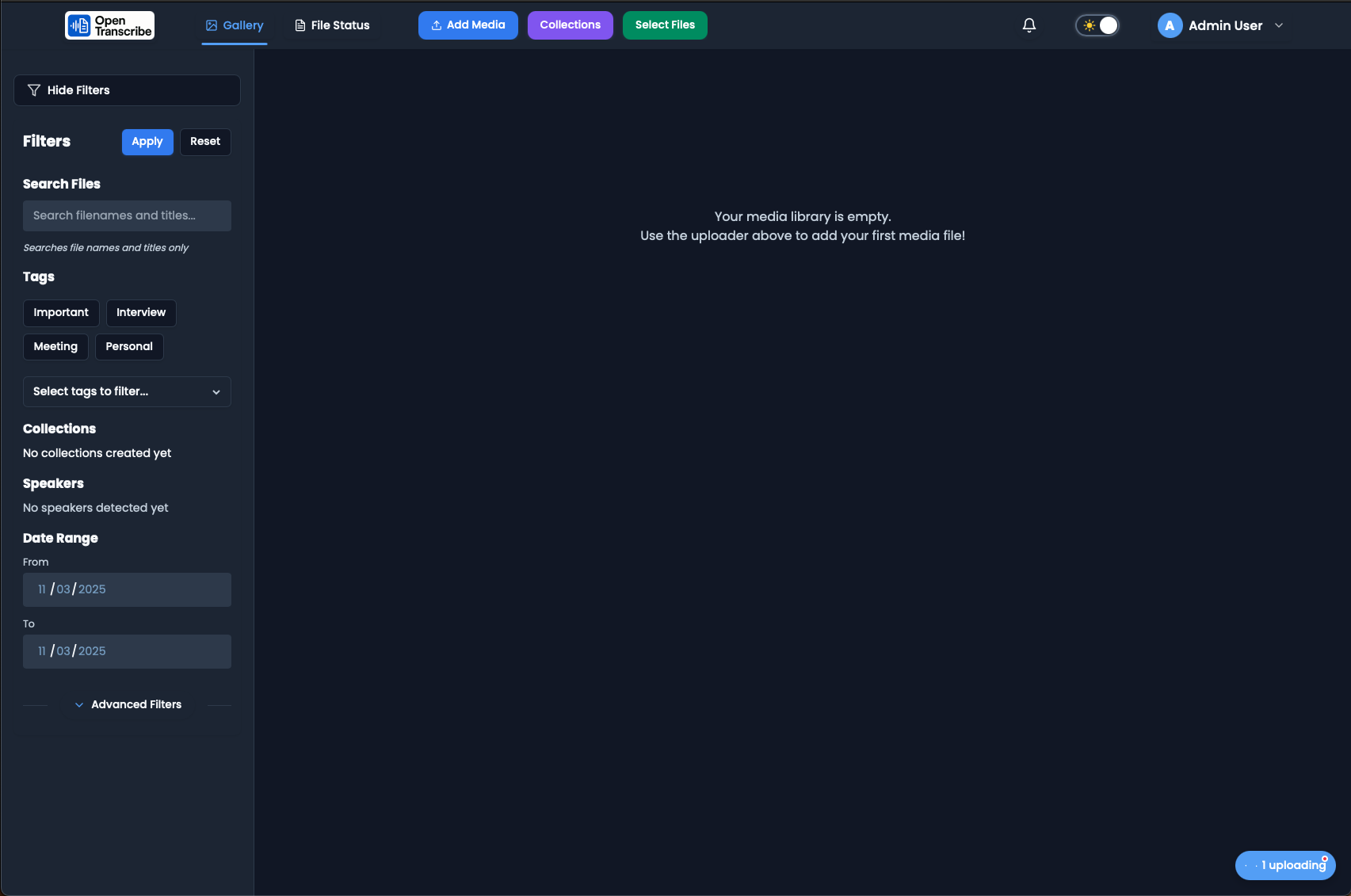
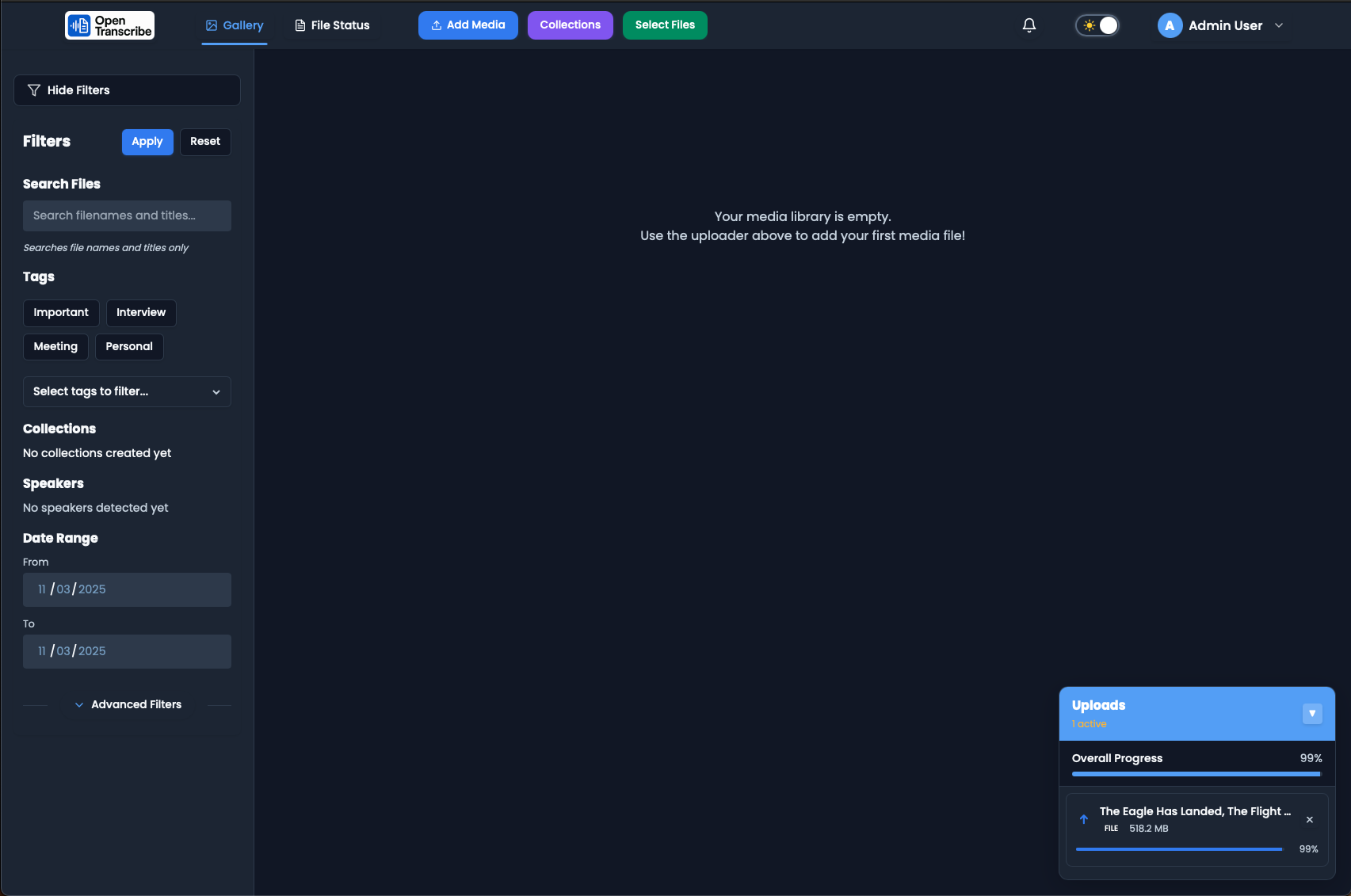
Empty Gallery - Ready to Begin
Empty gallery prompting user to upload first media file. Filters sidebar visible showing all available organization options.
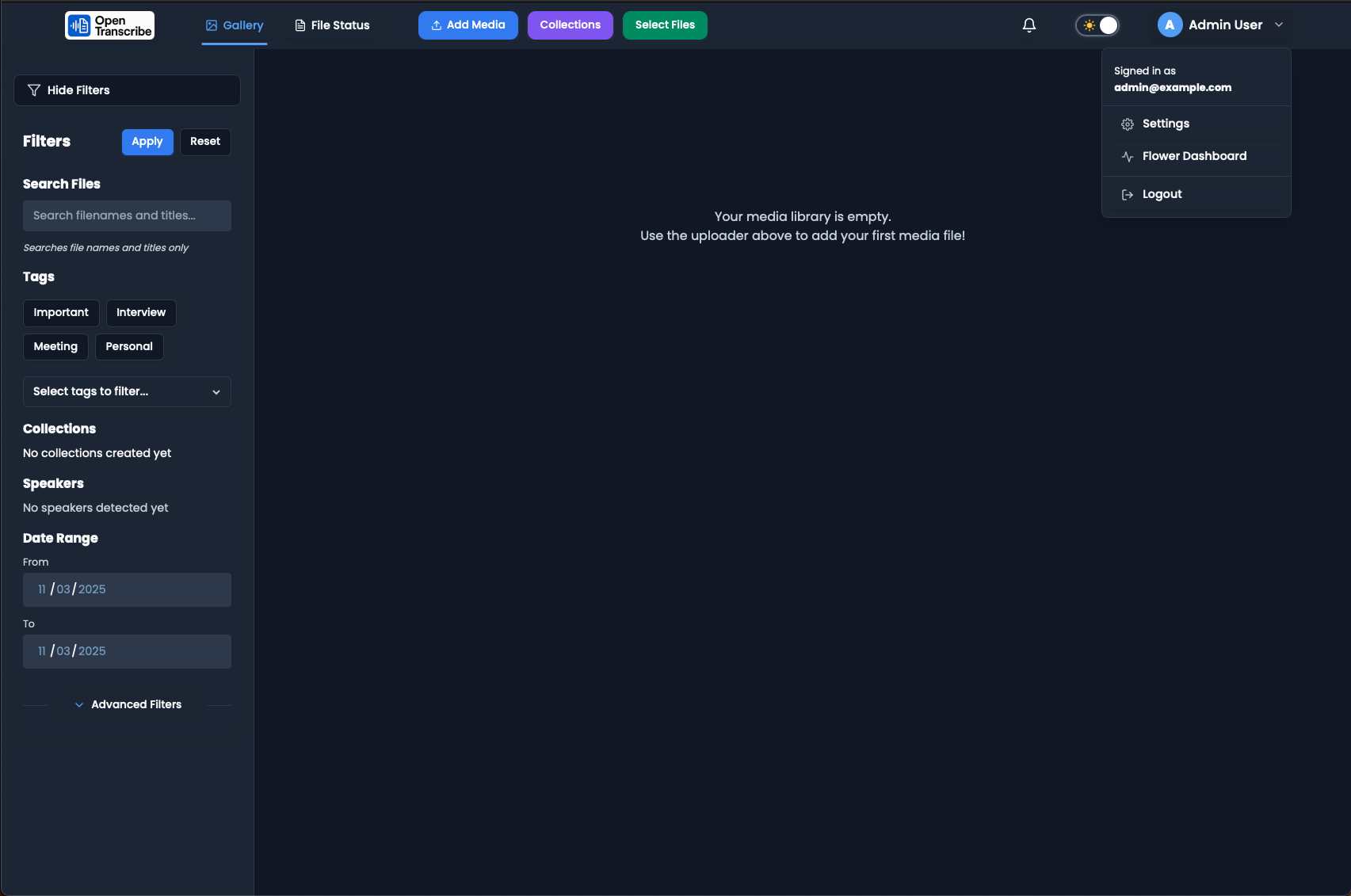
When you first log in, you'll see an empty gallery with a helpful message guiding you to add your first media file. The filters sidebar is visible, showing all the powerful filtering capabilities you'll use once you have content.
Empty gallery in dark mode. OpenTranscribe fully supports light and dark themes with proper contrast and readability.
OpenTranscribe features full dark mode support for comfortable viewing in any lighting condition.
Uploading Media
Drag-and-Drop File Upload
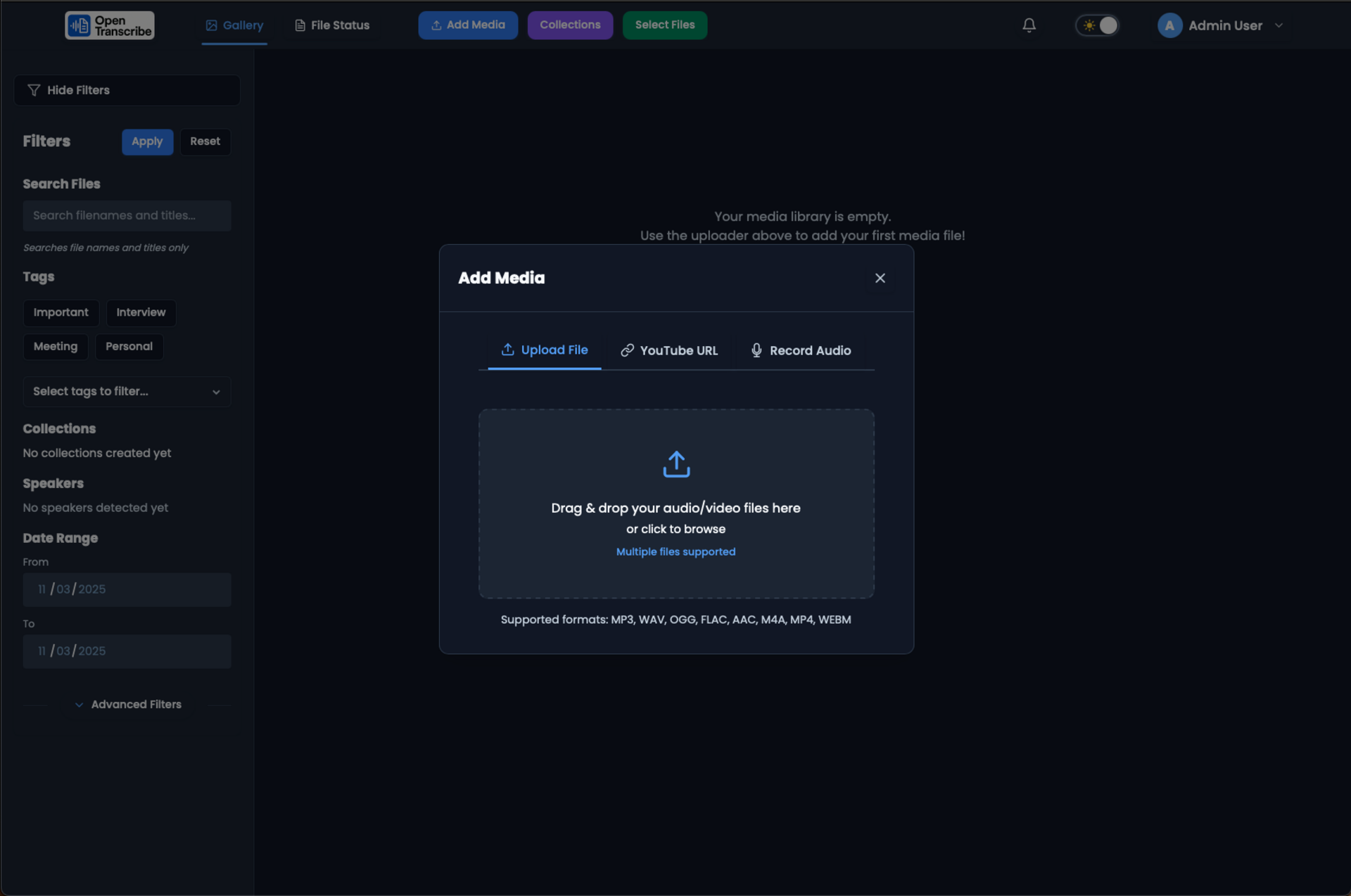
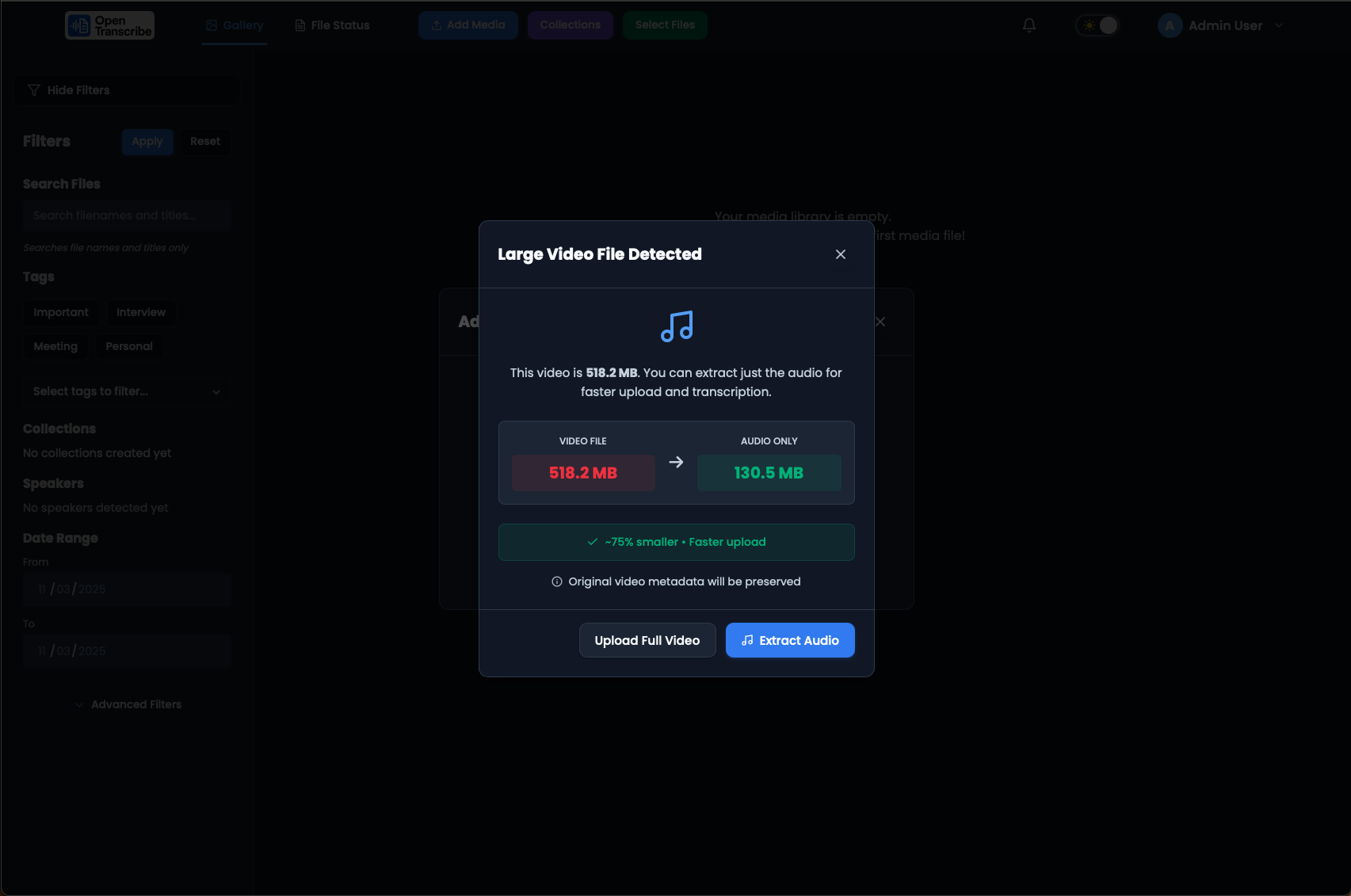
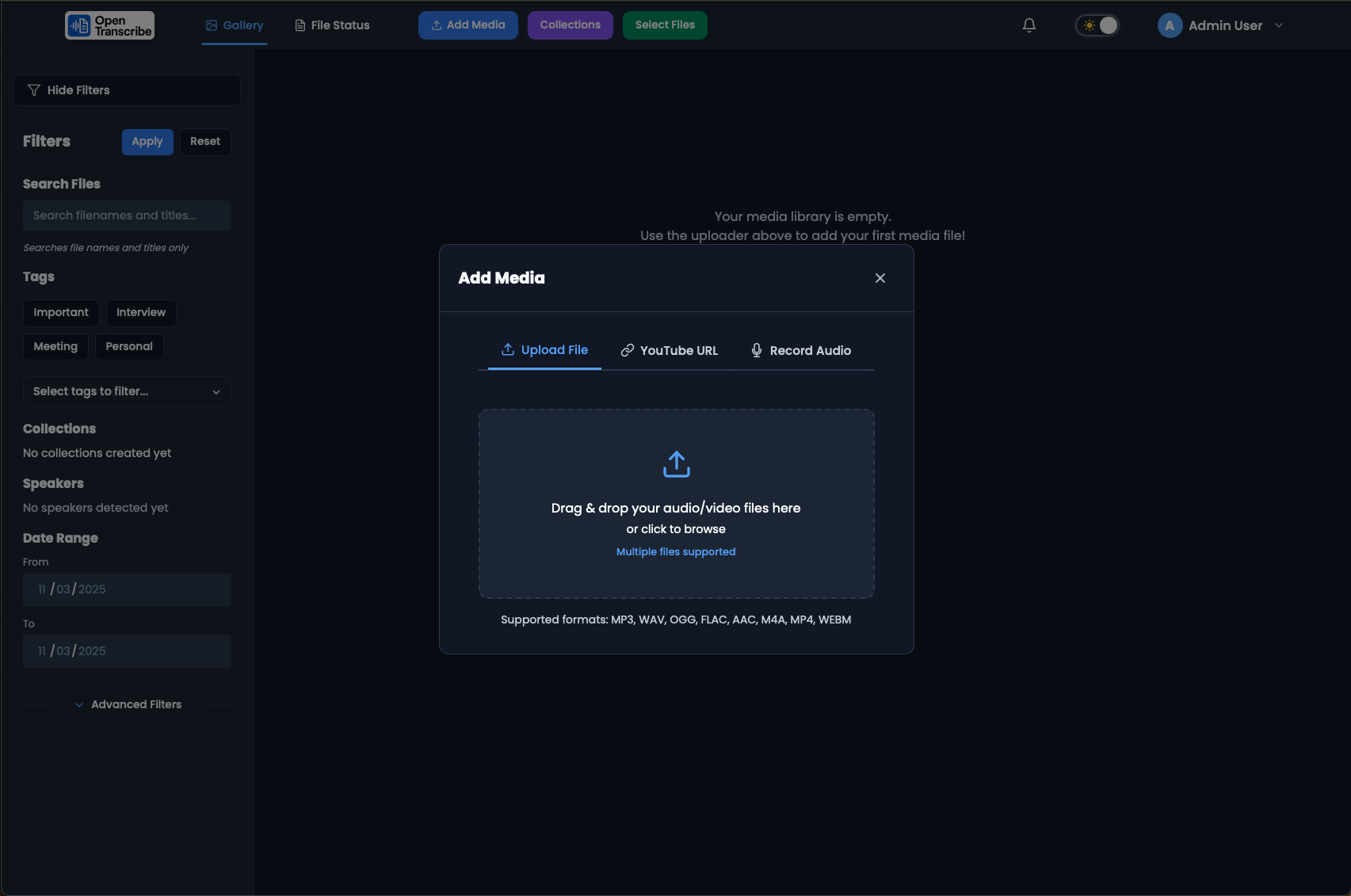
Drag-and-drop upload zone supporting multiple audio and video formats. Lists all supported formats: MP3, WAV, OGG, FLAC, AAC, M4A, MP4, WEBM.
The simplest way to add media is to drag and drop files directly into the upload zone. Click the zone to browse your file system instead. Multiple files can be uploaded simultaneously for batch processing.
YouTube Video Import
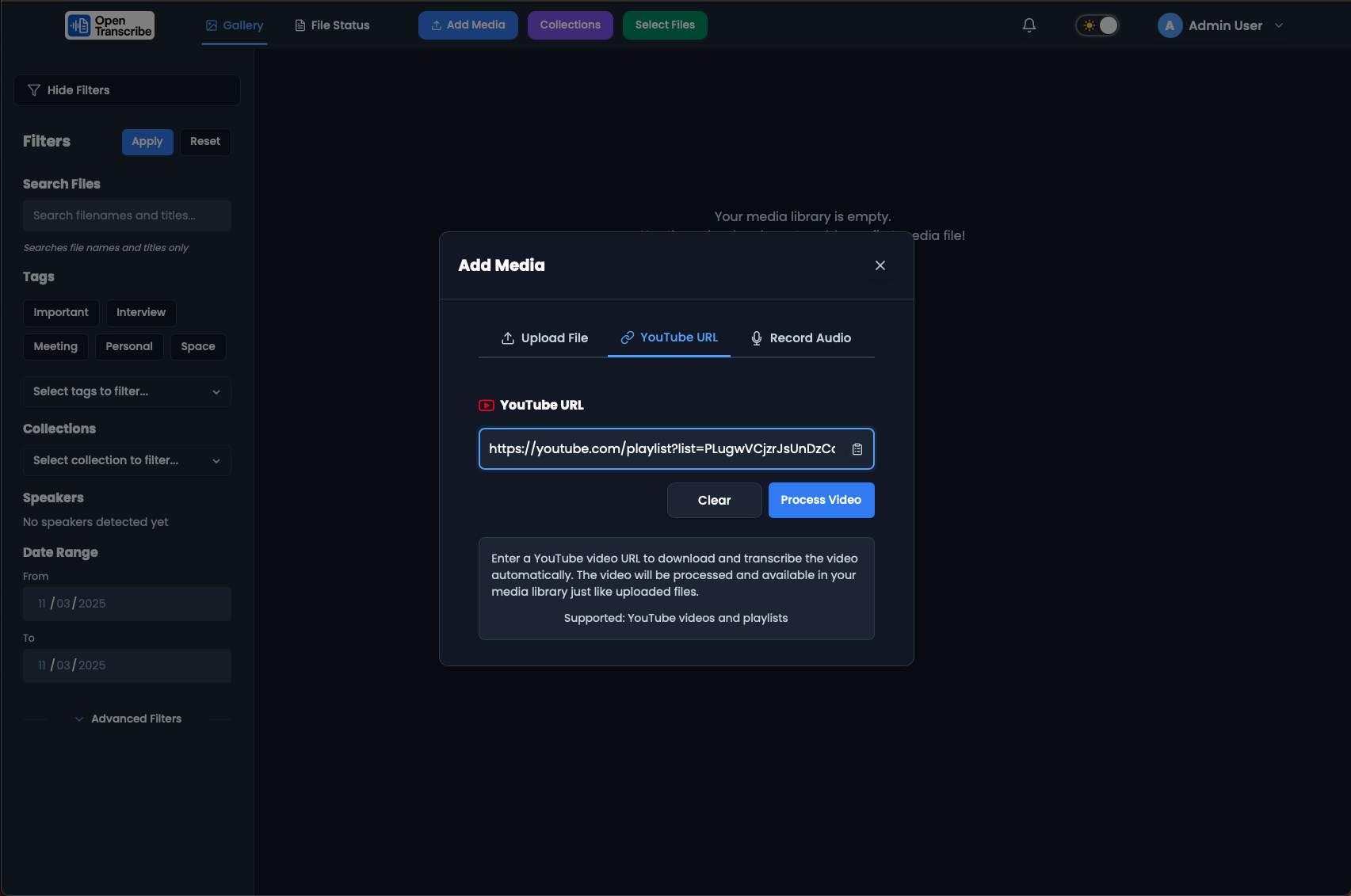
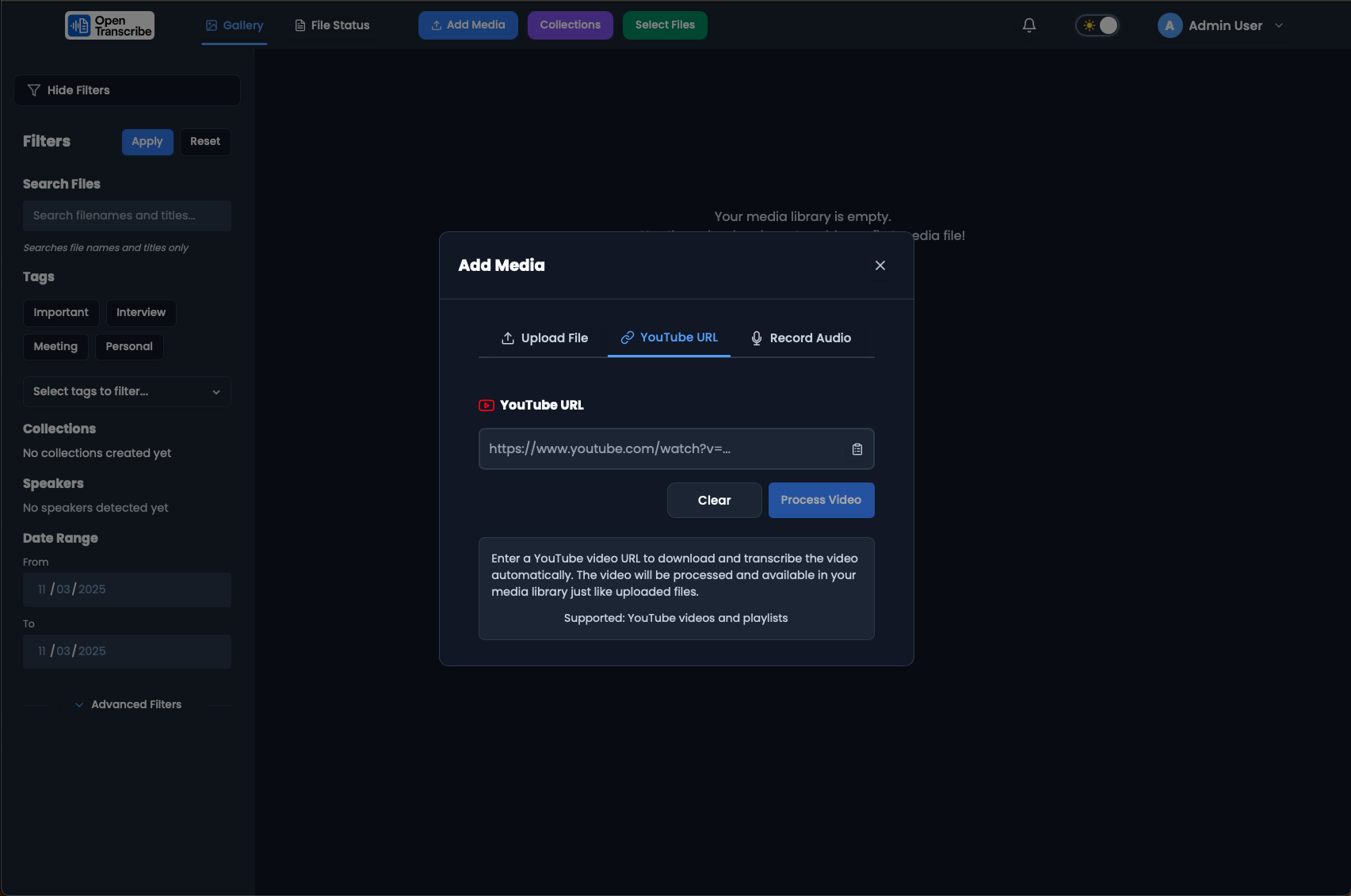
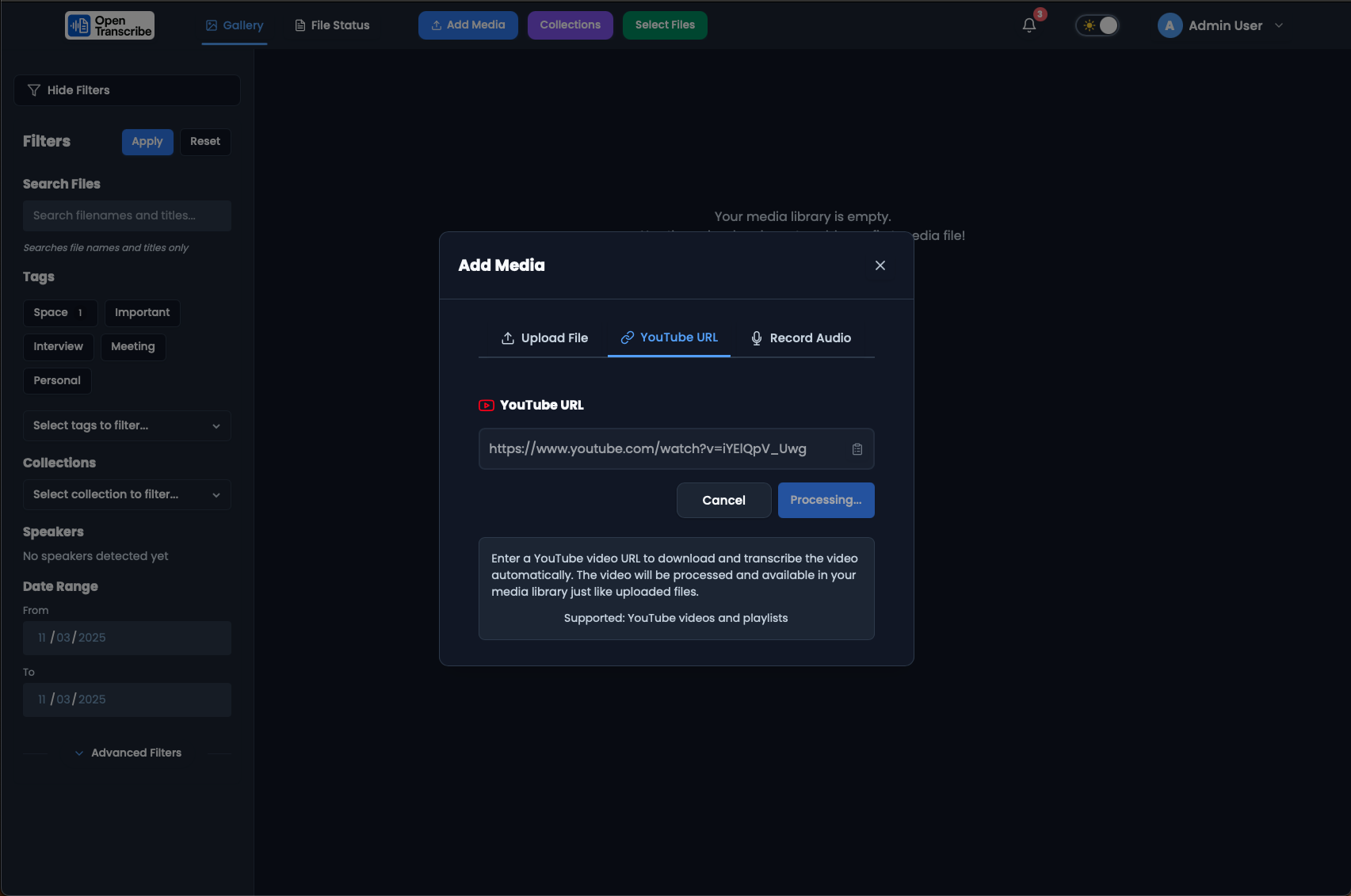
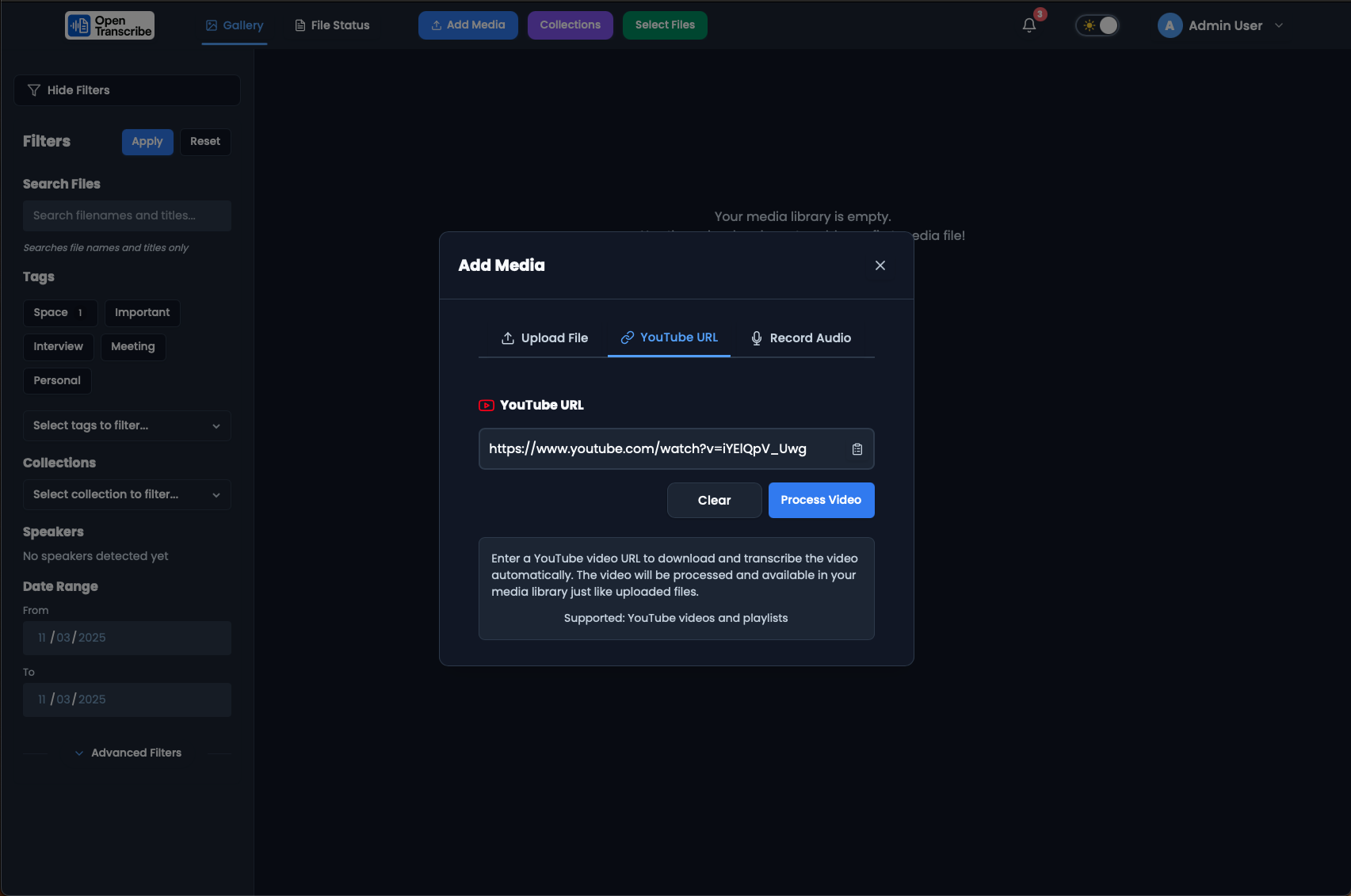
YouTube URL tab with playlist URL entered. Supports both individual videos and entire playlists for bulk processing.
Import videos directly from YouTube by pasting a URL. OpenTranscribe automatically detects playlists and can queue all videos for processing in one operation.
Audio Recording
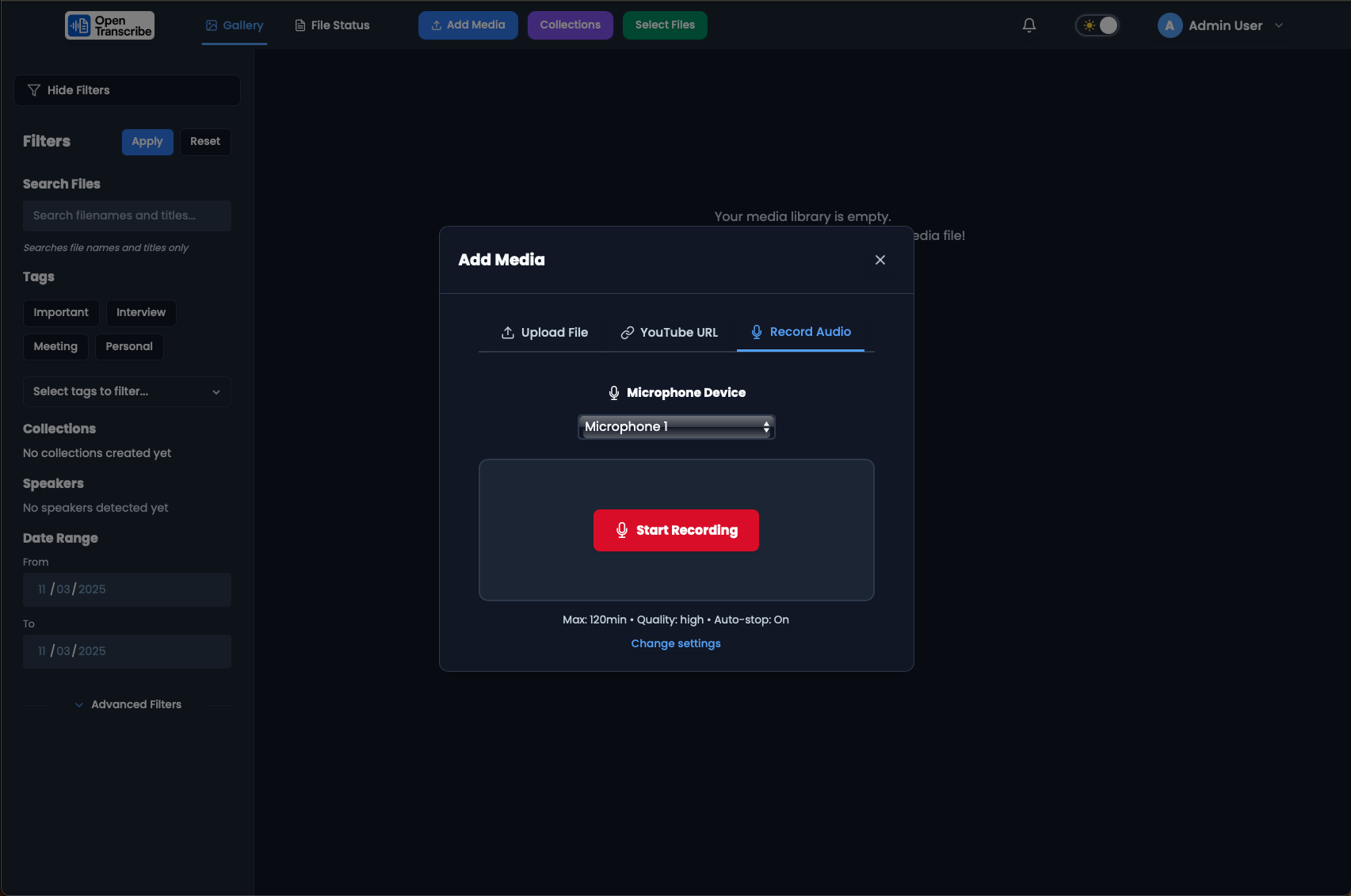
Record Audio tab showing microphone selection, recording settings (max 120min, high quality, auto-stop enabled).
Record audio directly through your browser microphone. Configure quality settings, maximum duration, and auto-stop behavior for meetings, interviews, or notes.
Processing & Progress Tracking
Initial Transcription Phase
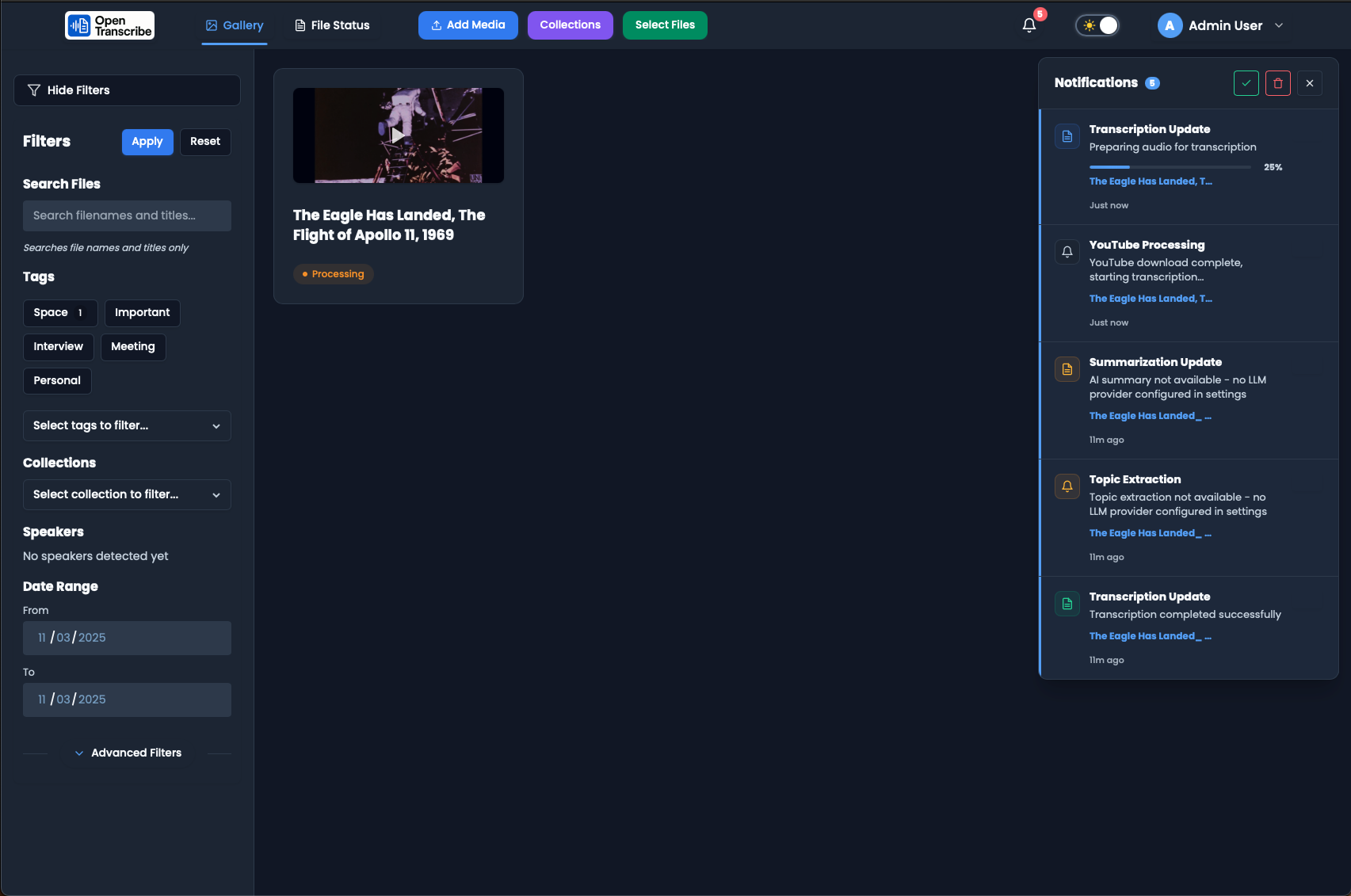
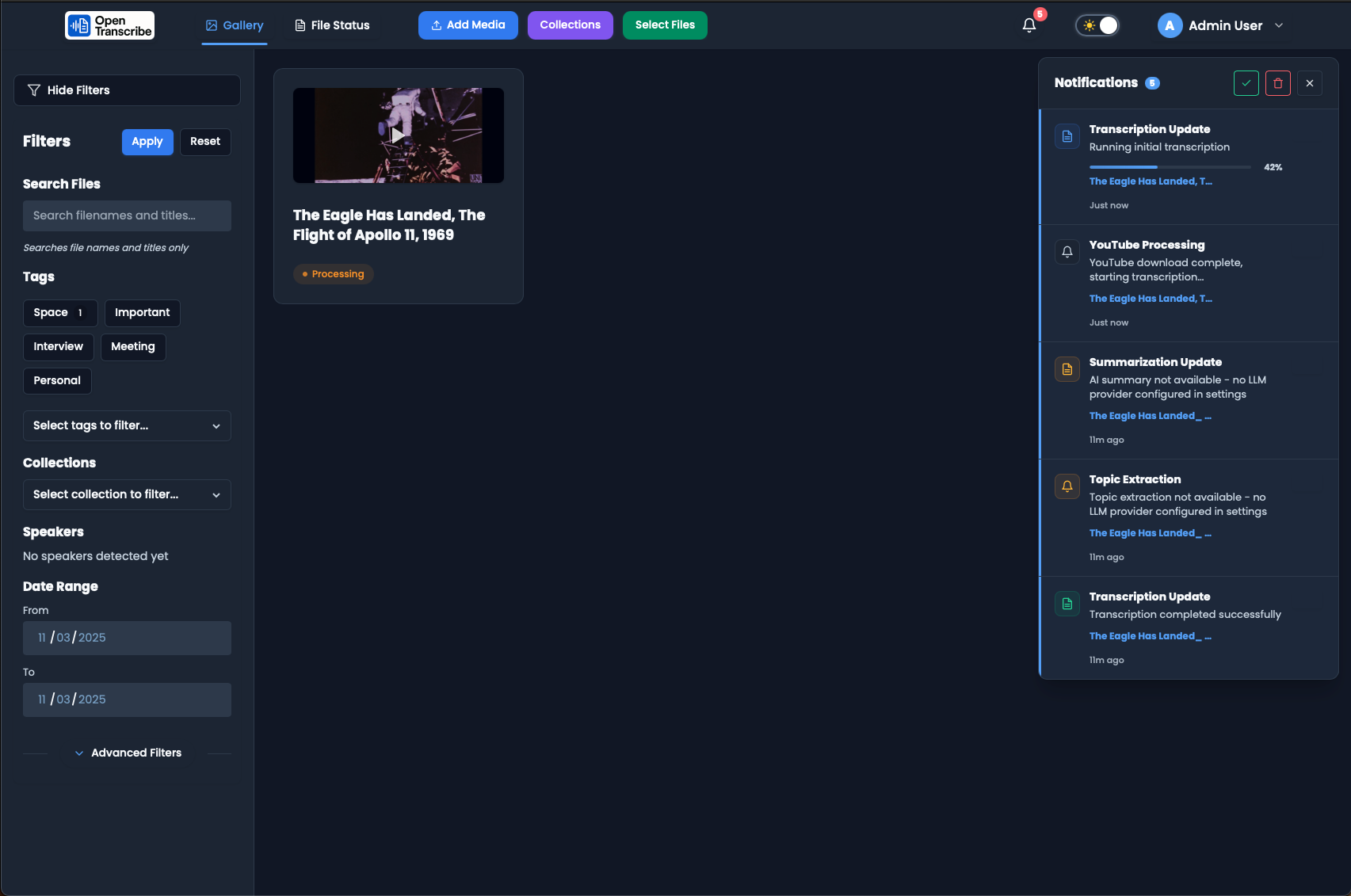
Processing view at 42% completion during initial transcription. Progress timeline shows Setup and Transcription stages, moving toward Analysis.
During processing, you can monitor real-time progress with detailed status messages. The progress bar shows which stage is active: Setup, Transcription, or Analysis.
Word-Level Alignment
Word-level timestamp alignment in progress. This creates precise timestamps for every word, enabling accurate click-to-seek.
OpenTranscribe uses WhisperX for word-level timestamp alignment, allowing precise navigation within your transcript.
Speaker Diarization
Speaker diarization phase at 65% completion. System assigns speakers to transcript segments using PyAnnote voice analysis.
The Analysis phase includes automatic speaker diarization, which identifies different speakers in your audio and assigns unique labels to each.
Real-Time Notifications
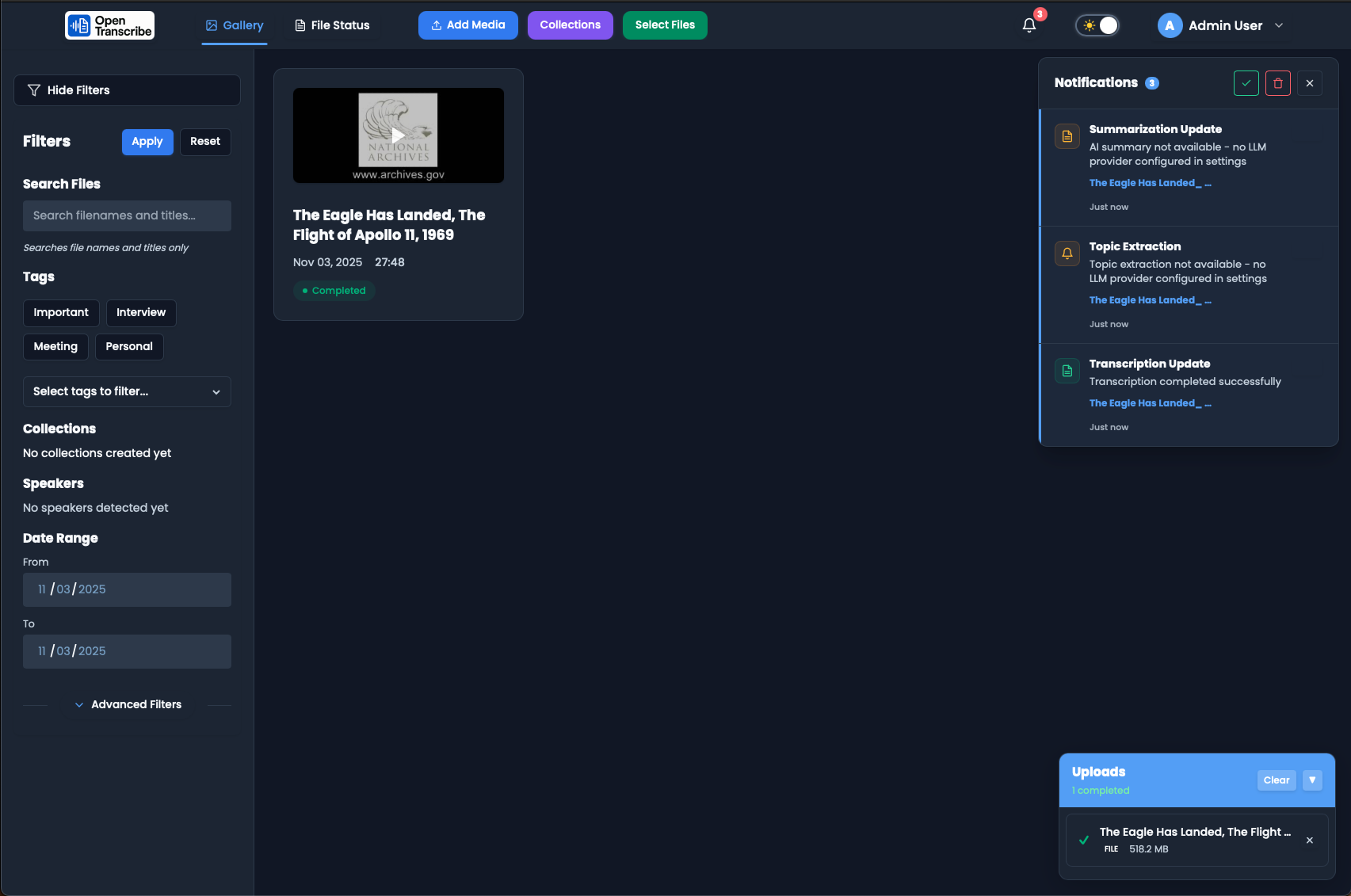
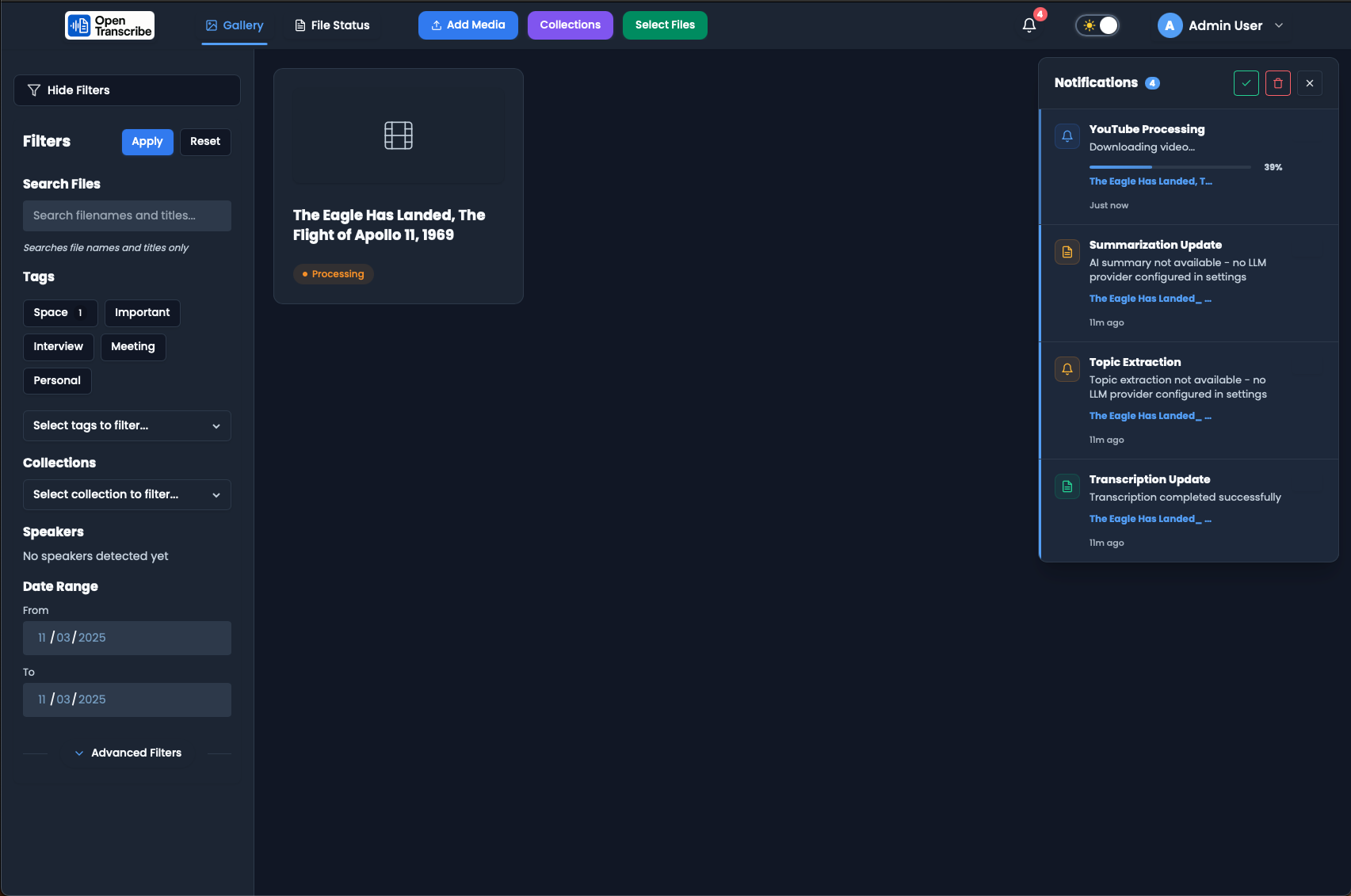
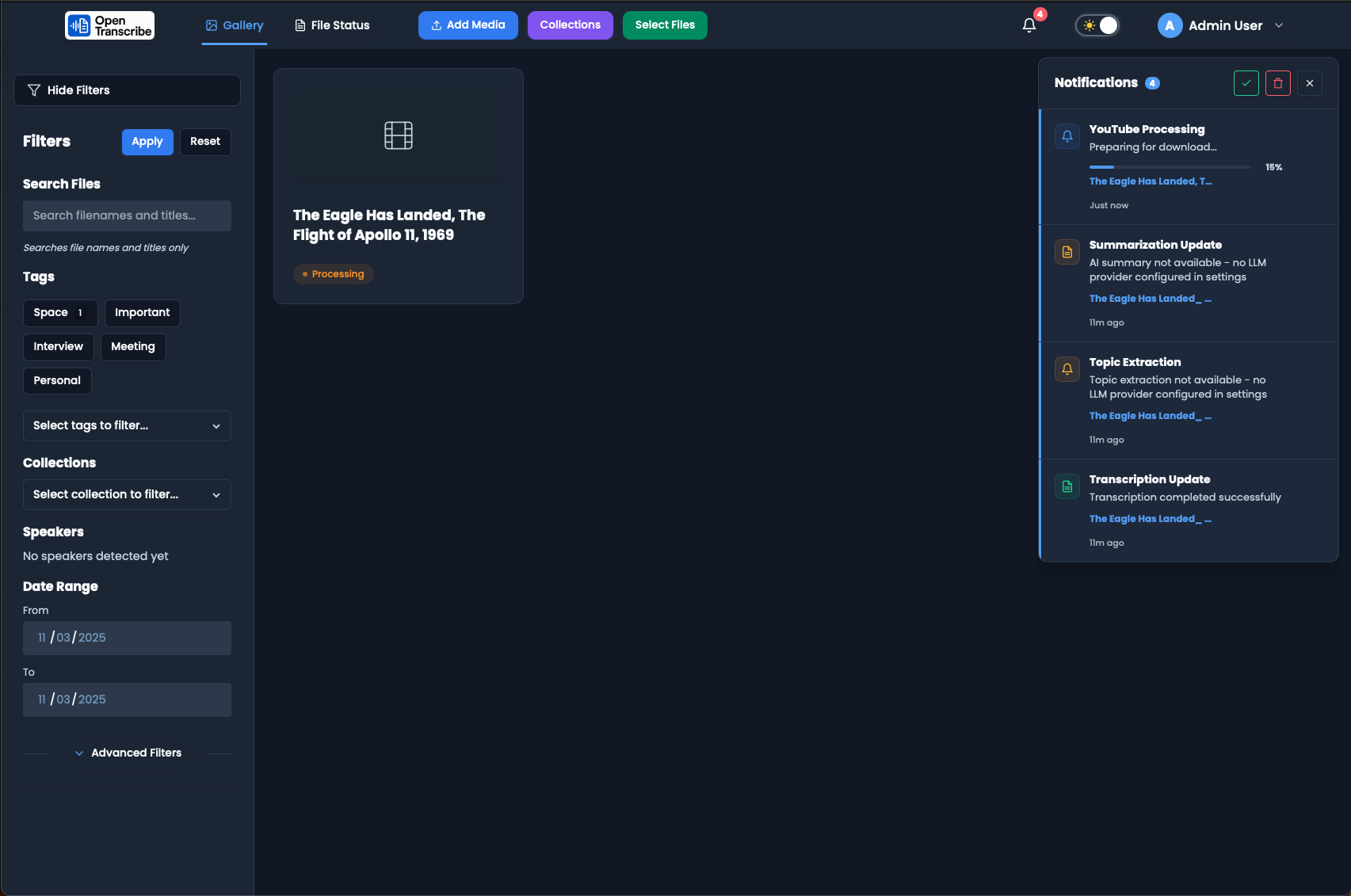
Notifications panel showing YouTube playlist detection: "28 of 28 videos queued for download" with individual task progress.
The notifications panel keeps you informed with real-time updates for all processing tasks. For playlists, you'll see each video's progress independently.
Batch Processing - YouTube Playlists
Playlist Processing Initialization
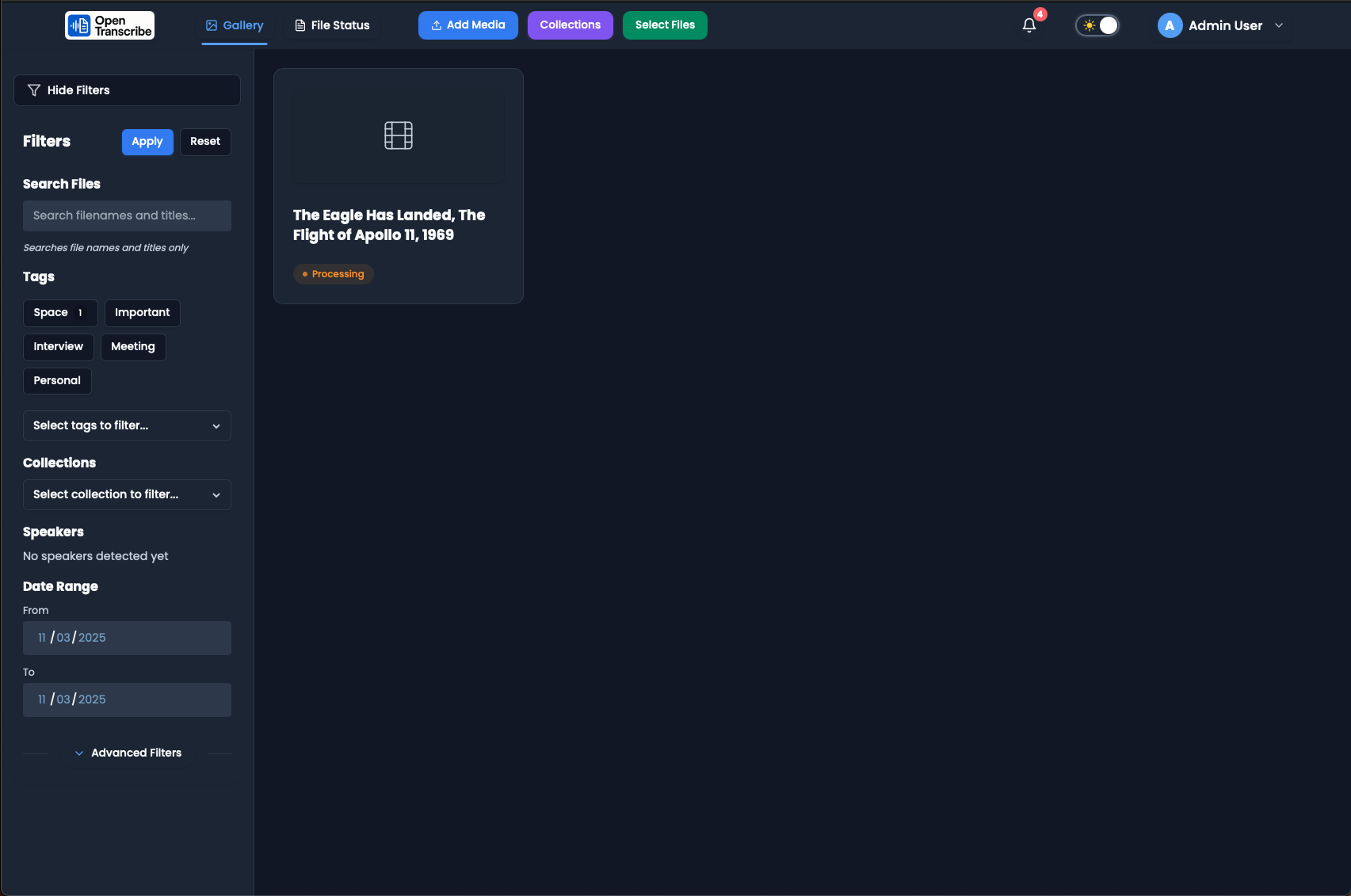
Gallery showing 12 videos all in "Processing" state from a NASA documentary playlist. Orange badges indicate active processing.
When you import a YouTube playlist, all videos are queued automatically. Processing happens in parallel for efficient batch operations.
Concurrent Downloads and Transcriptions
Multiple videos downloading and transcribing simultaneously with progress percentages. Demonstrates parallel processing capabilities.
OpenTranscribe efficiently processes multiple videos at once, with downloads and transcriptions running in parallel across available workers.
Thumbnails Generation
Gallery showing transition as thumbnails are automatically generated from video content. Bottom row shows completed videos with visual previews.
As videos complete processing, thumbnails are automatically extracted to provide visual previews in your gallery.
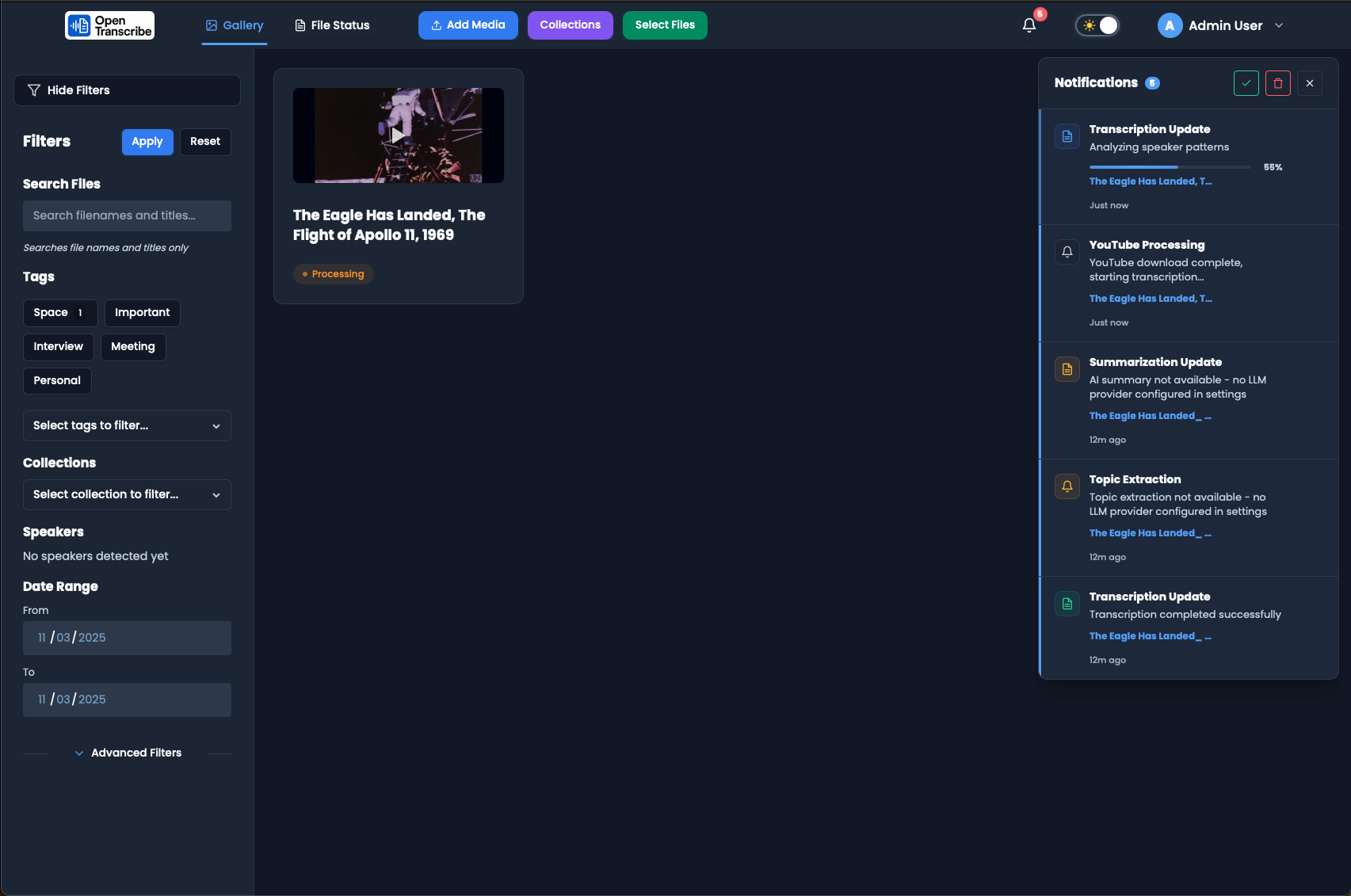
Batch Processing Complete
Full gallery view with all 28 videos from NASA playlist successfully processed. Diverse space documentary content with thumbnails ready.
Once batch processing completes, your gallery displays all videos with thumbnails, ready for viewing, searching, and organization.
Working with Transcripts
Main Transcript Interface
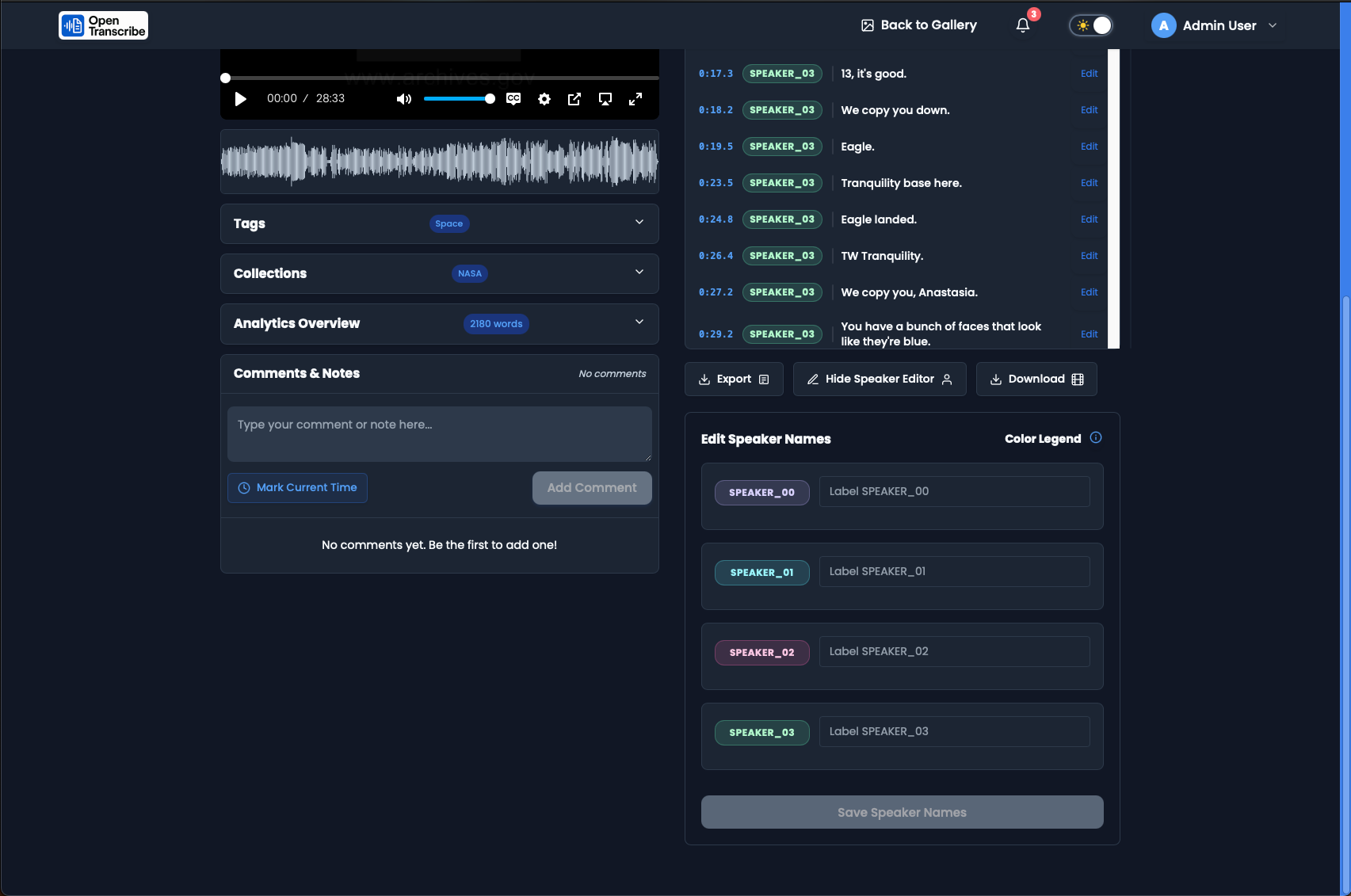
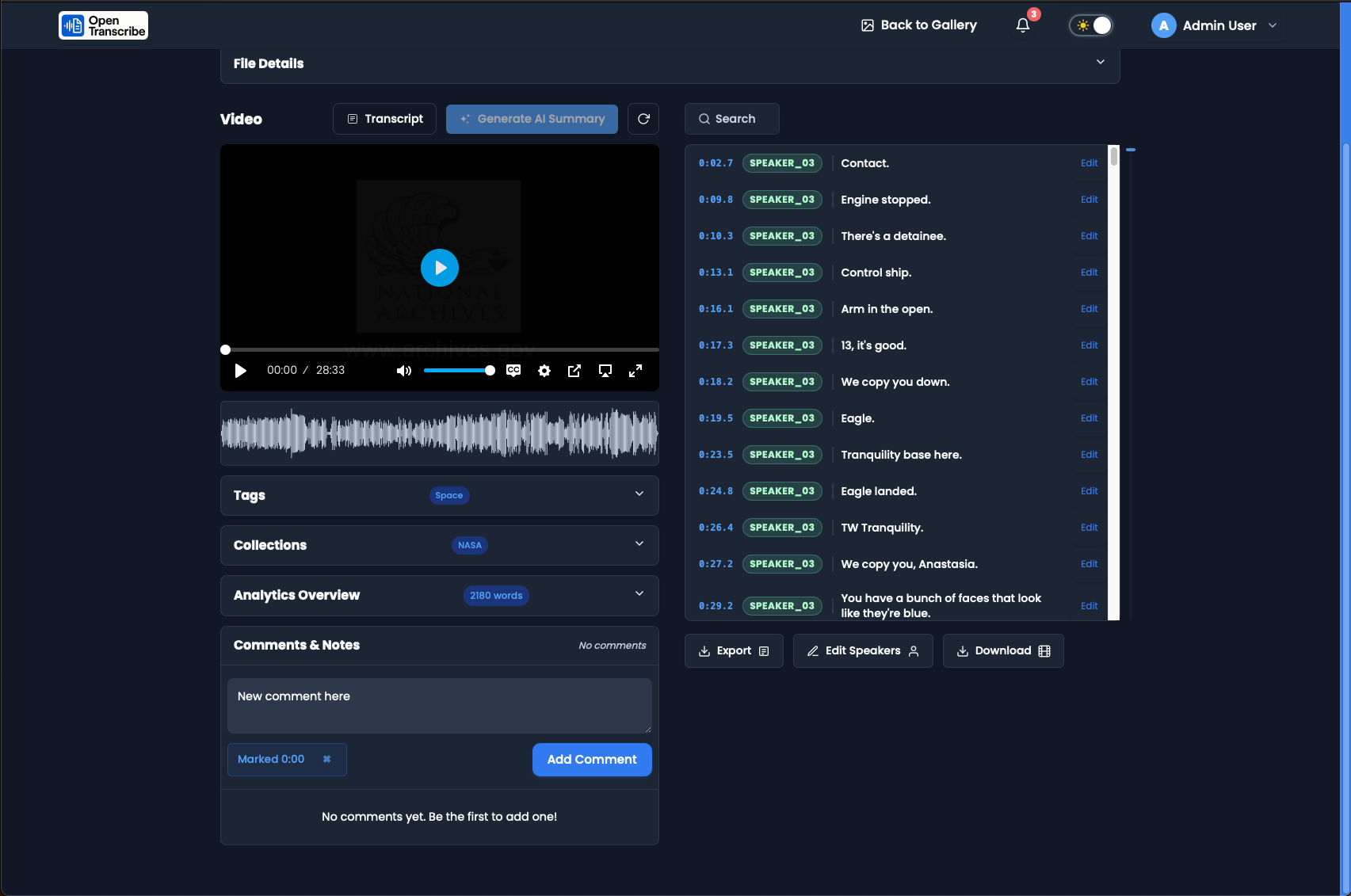
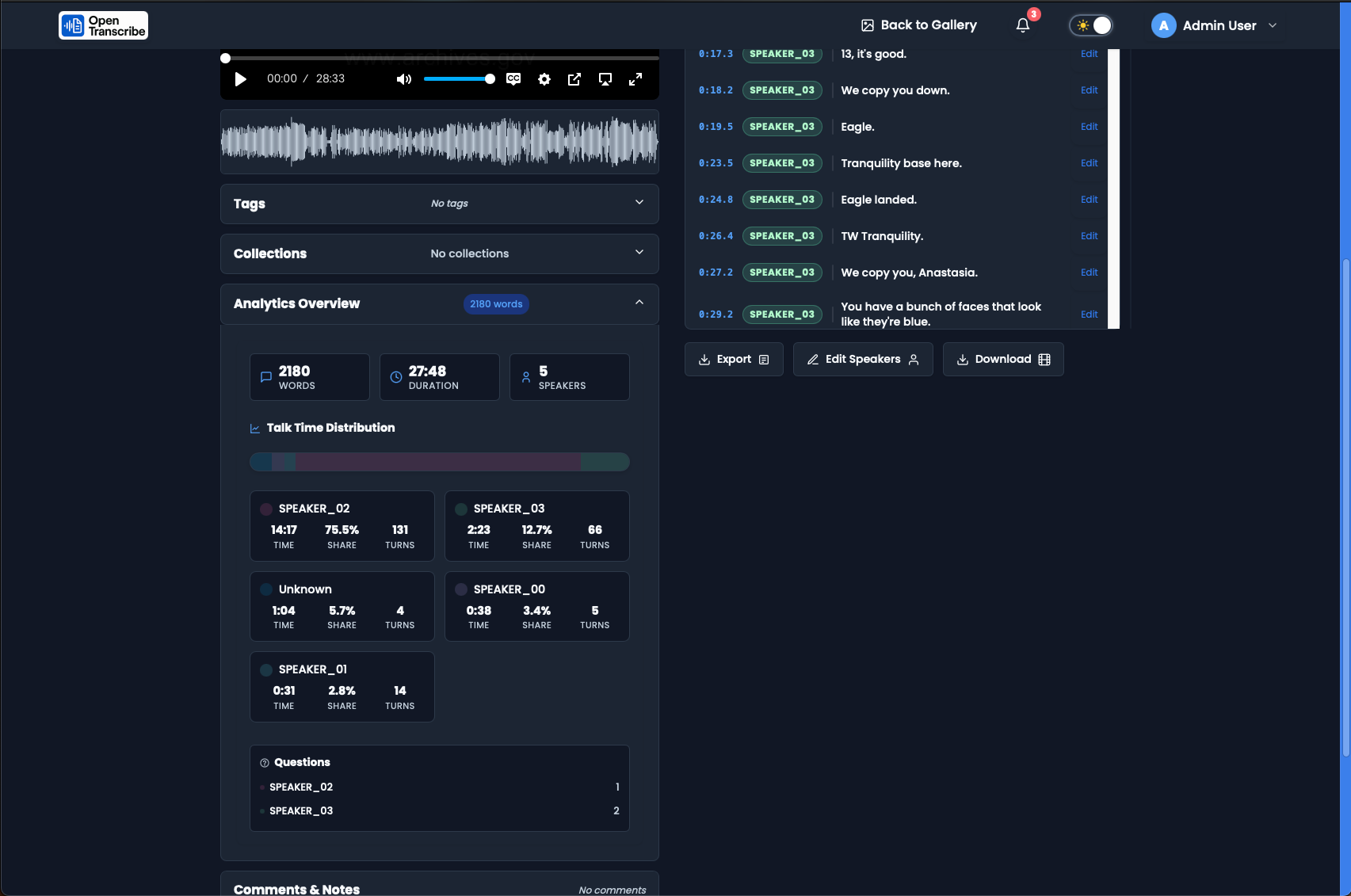
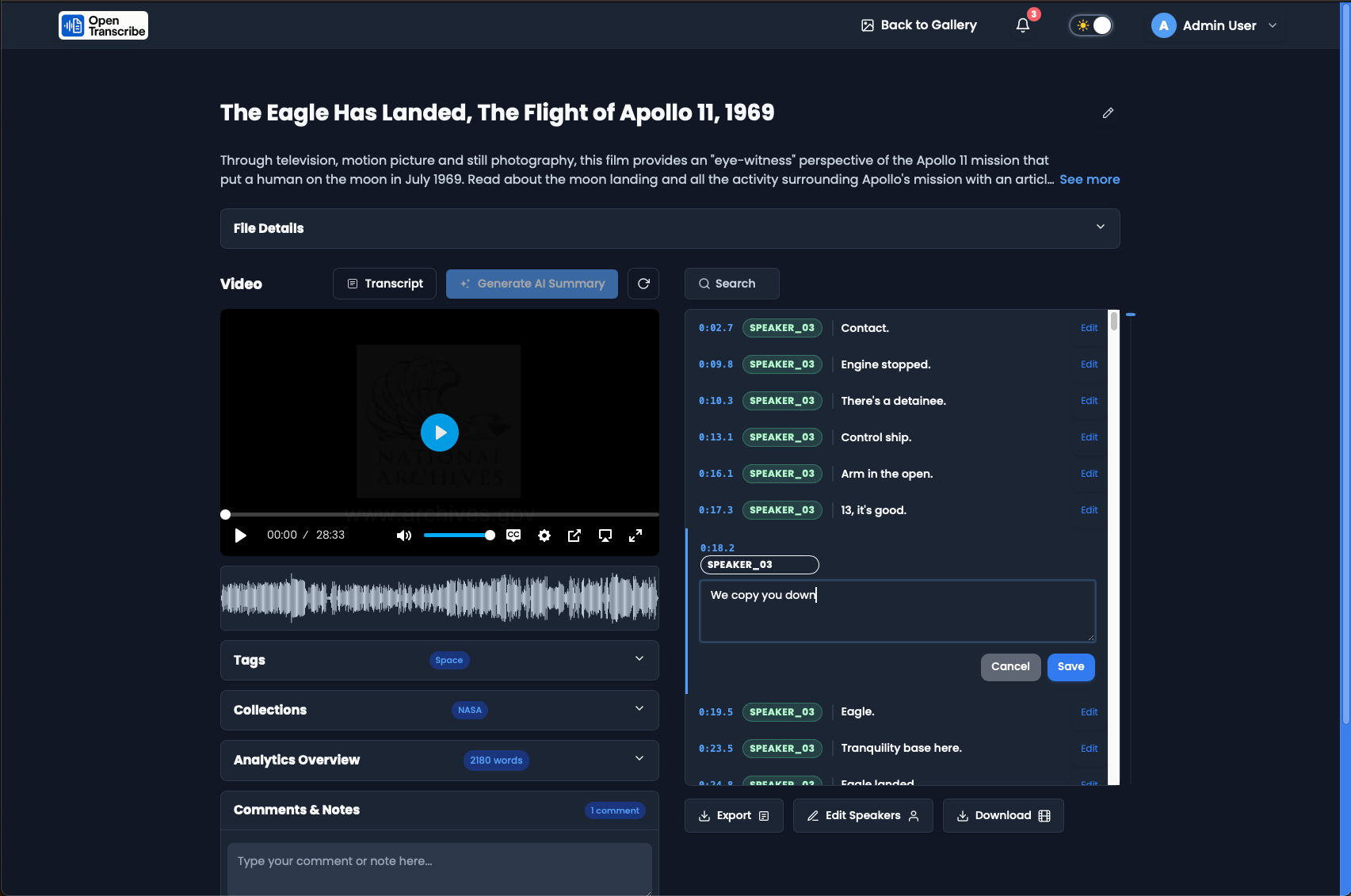
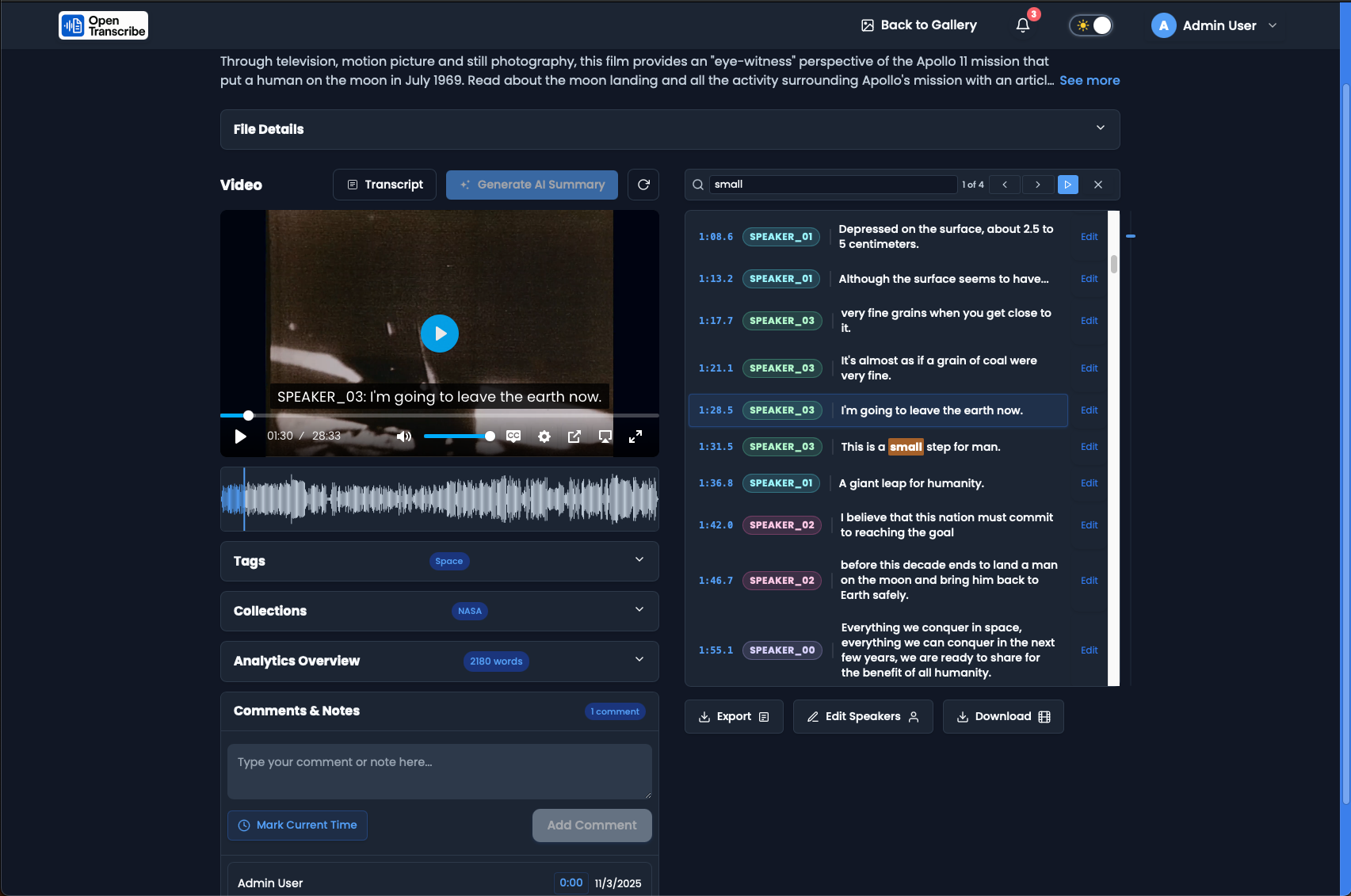
Complete transcript workspace with video player, waveform visualization, timestamped transcript entries, and speaker editor panel.
The transcript view combines video playback with interactive transcript navigation. Click any timestamp to jump directly to that moment in the video. The waveform provides visual audio feedback.
Transcript with Named Speakers
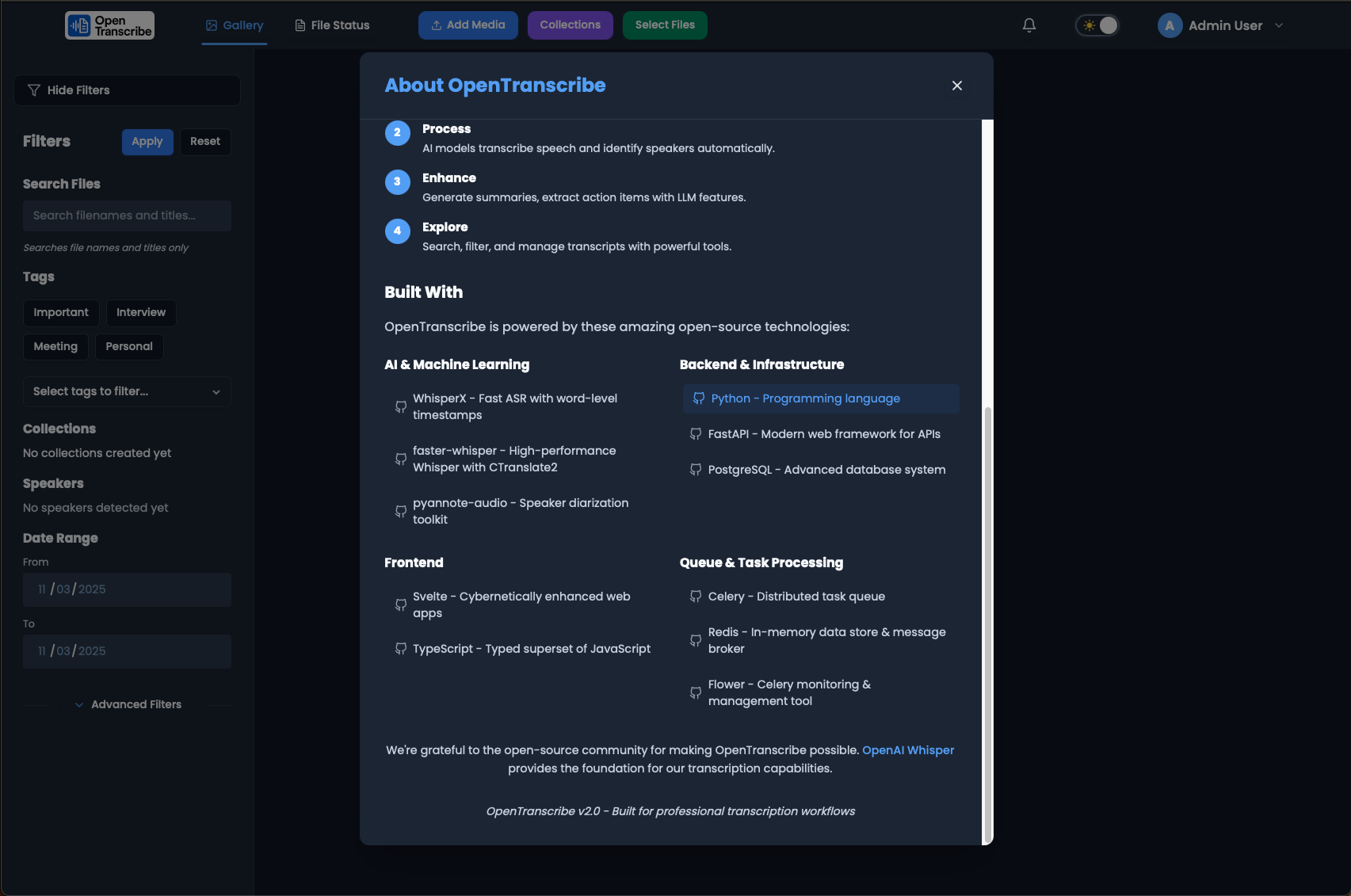
Transcript displaying properly identified speakers (NARRATOR, ED ALDRIN, MICHAEL COLLINS) with color-coded labels for easy reading.
After naming speakers, your transcript becomes much more readable with clear attribution for every statement.
Searching Within Transcripts
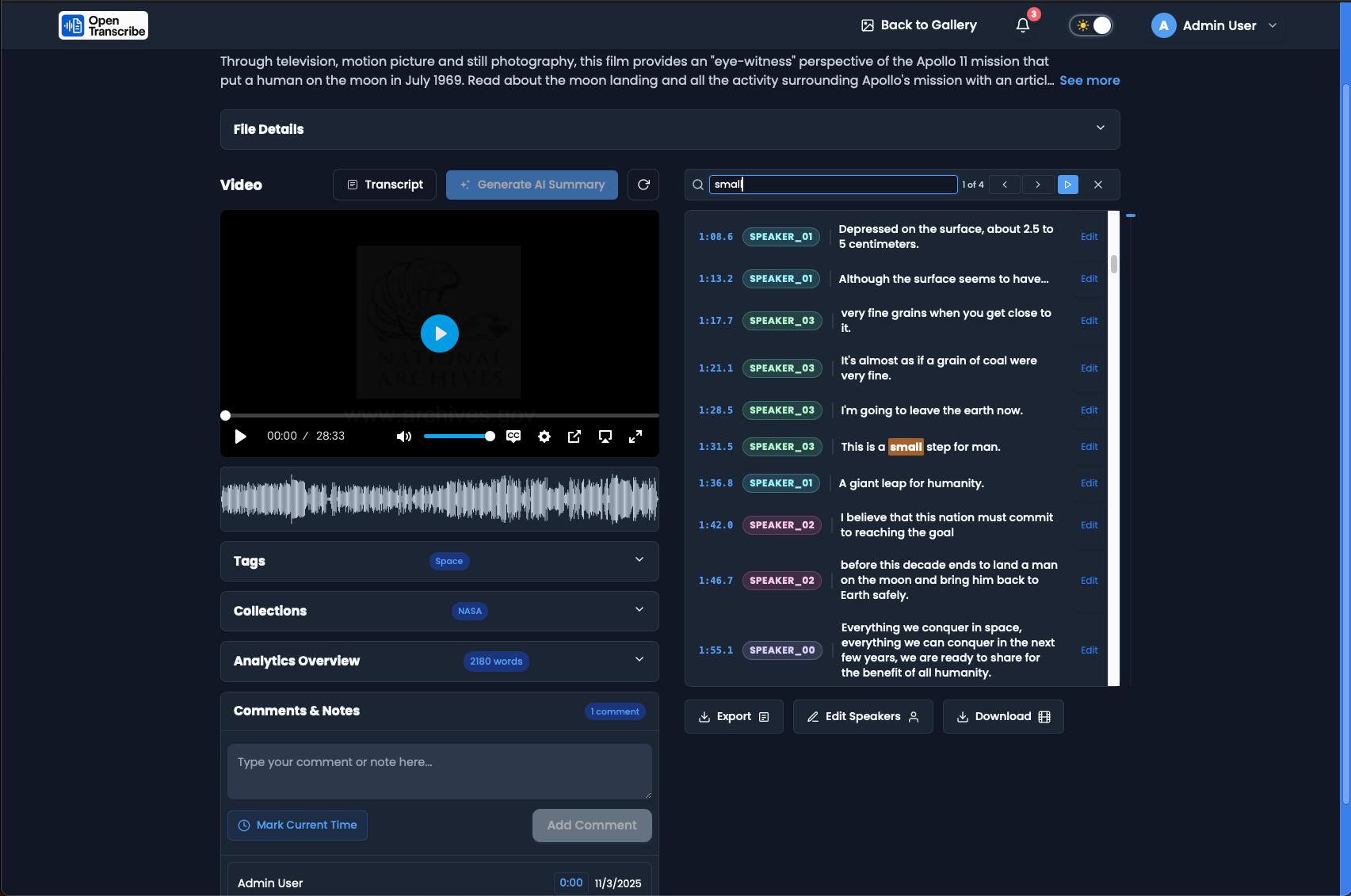
Search functionality with "Saturn V" query highlighted in orange. Shows "1/3" results with navigation arrows for easy searching.
Search within transcripts or AI summaries to quickly find specific words, phrases, or topics. Results are highlighted with navigation controls.
Speaker Management
Speaker Editor - Initial State
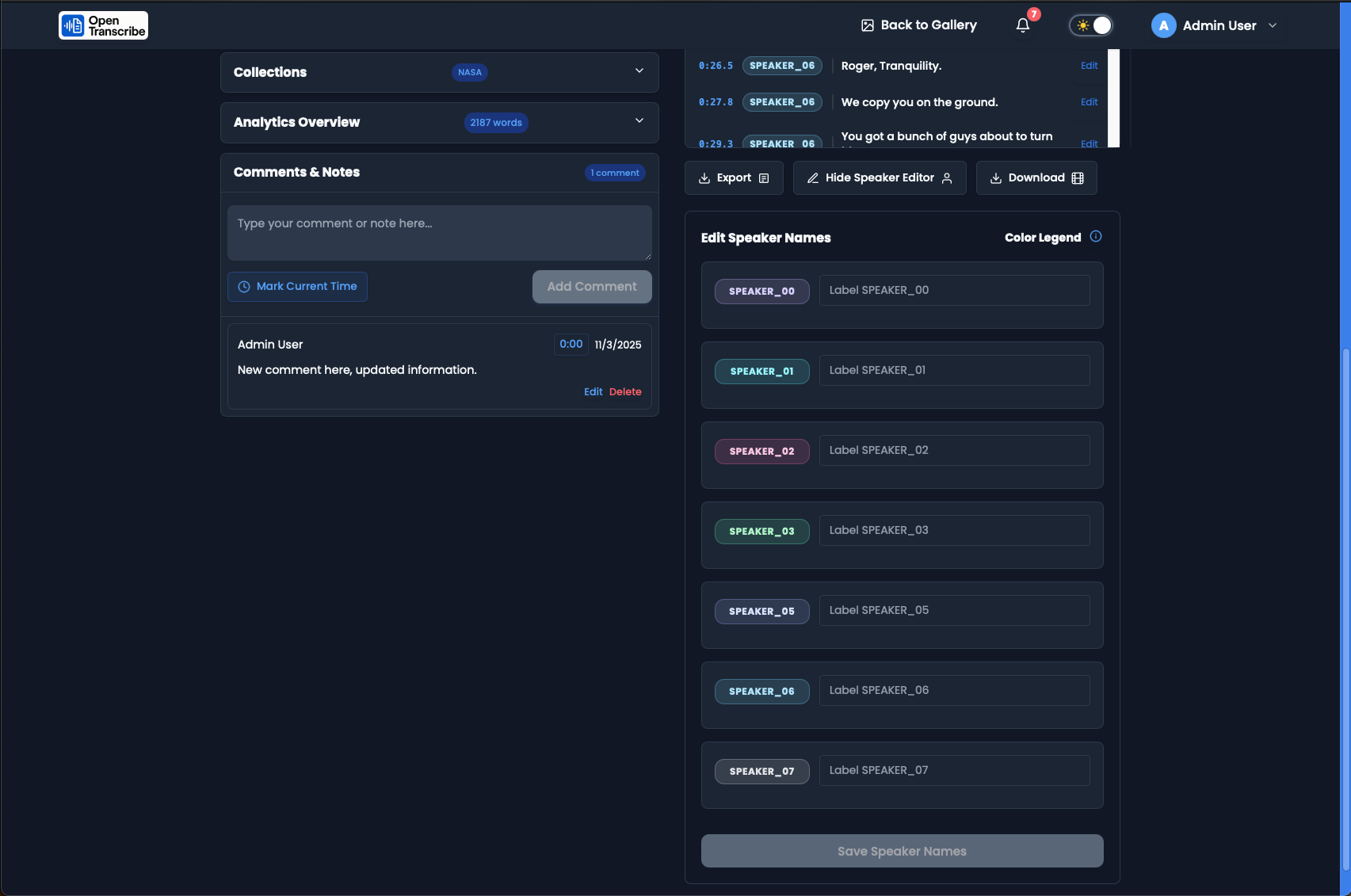
Speaker editor showing default labels (SPEAKER_00 through SPEAKER_07) after automatic diarization. Ready to be renamed.
After automatic speaker diarization, speakers are labeled with generic names (SPEAKER_00, SPEAKER_01, etc.). Use the speaker editor to assign meaningful names.
Named Speakers
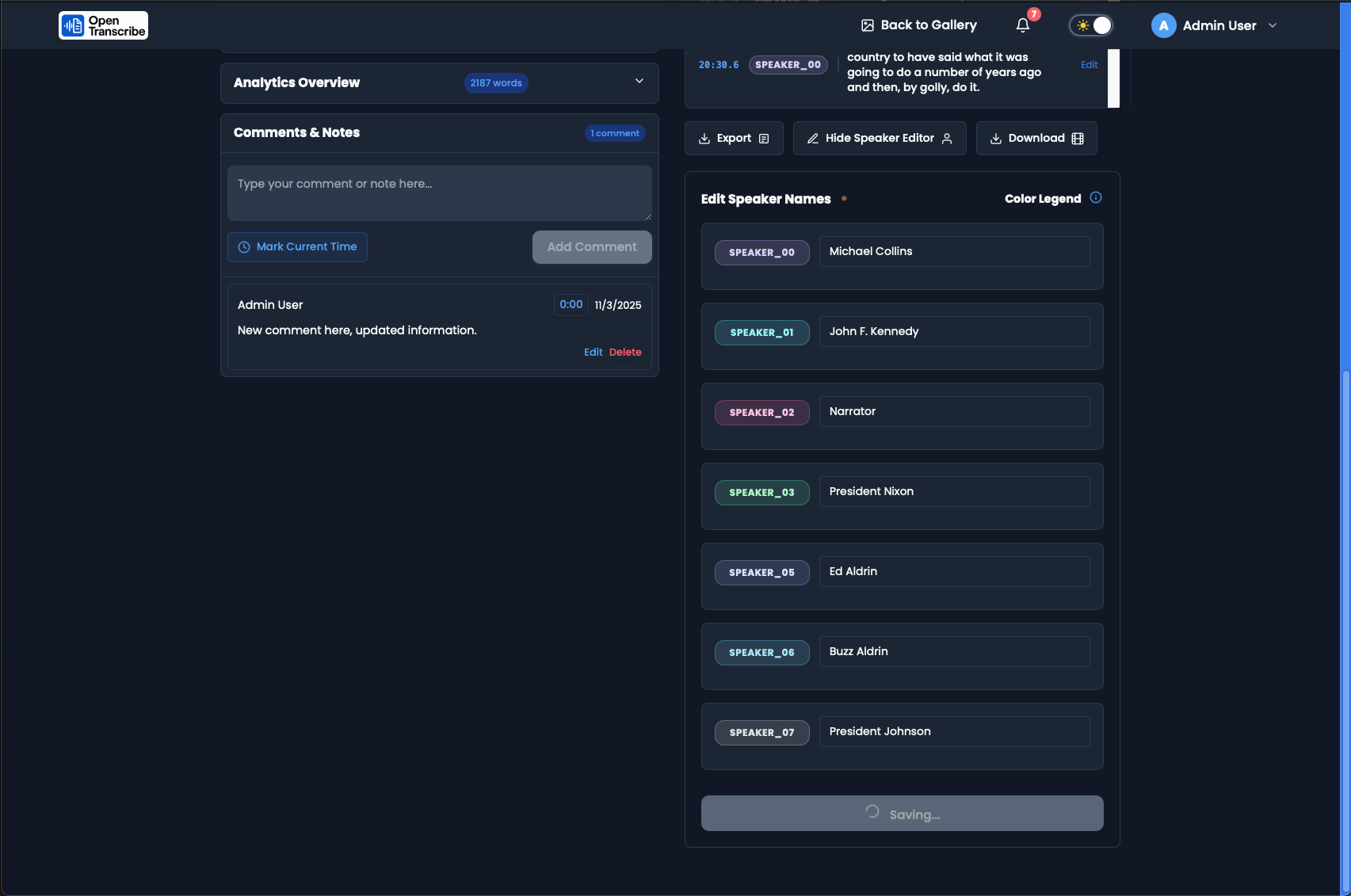
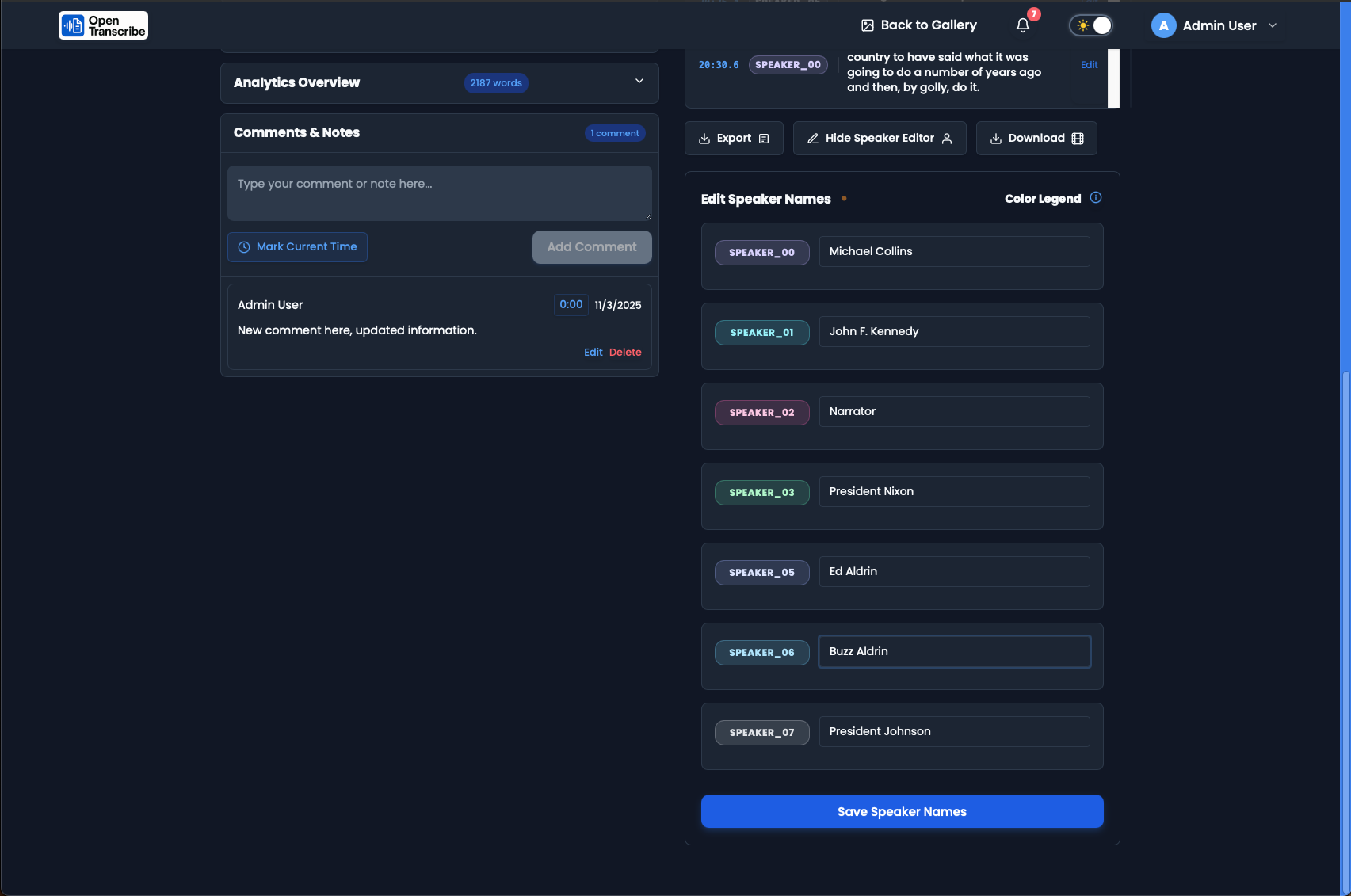
Speaker editor with Apollo 11 mission participants identified: Michael Collins, John F. Kennedy, Narrator, President Nixon, Ed Aldrin, Buzz Aldrin, President Johnson.
Assign proper names to speakers based on your knowledge of the content. Names are color-coded for easy visual identification throughout the transcript.
AI Speaker Suggestions
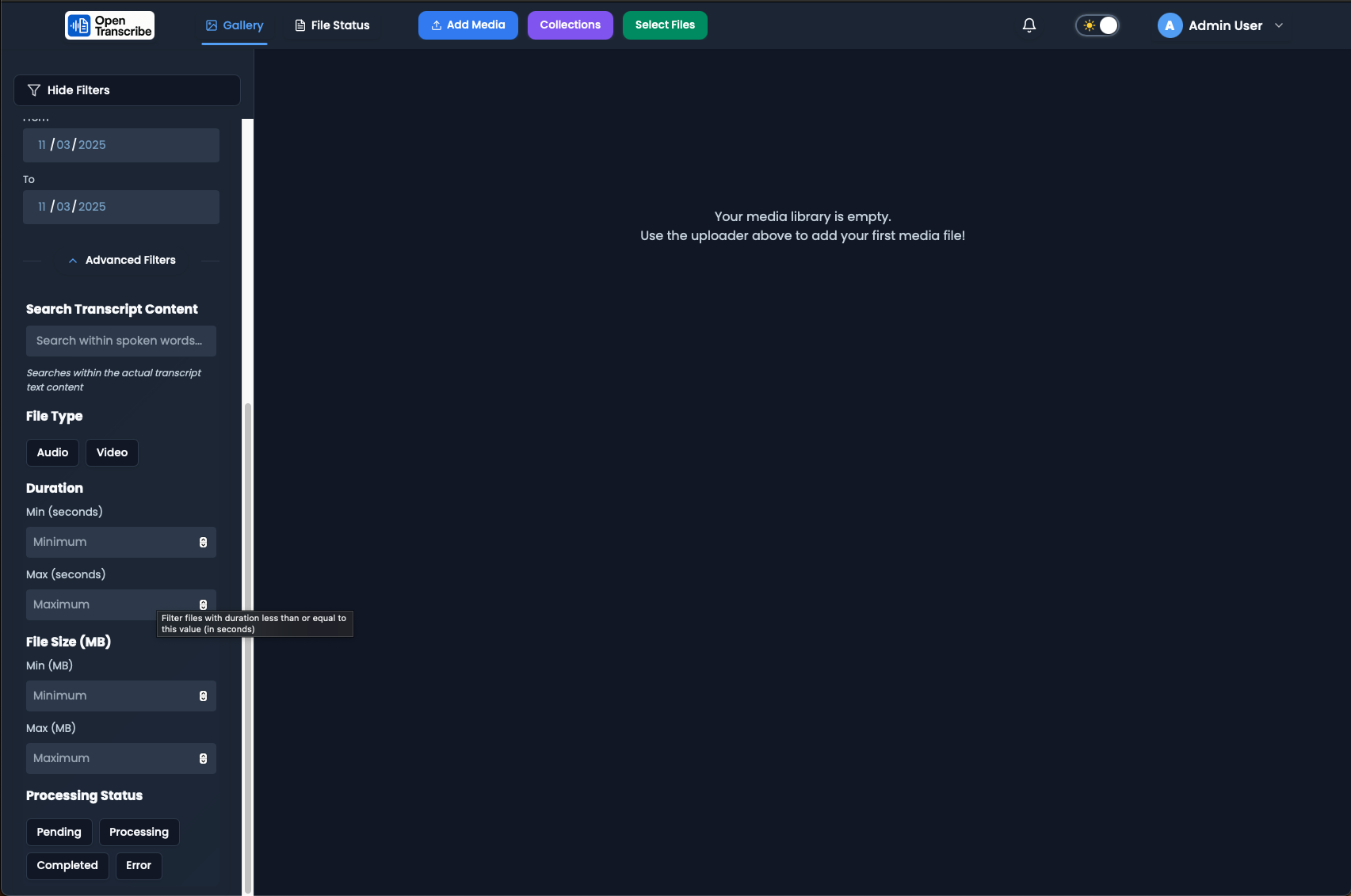
AI-powered speaker identification showing "5 suggestions available" with Profile badge. System analyzes voice patterns and transcript context.
OpenTranscribe can suggest speaker identities based on voice analysis and transcript content, helping you identify speakers faster.
Voice Similarity Analysis
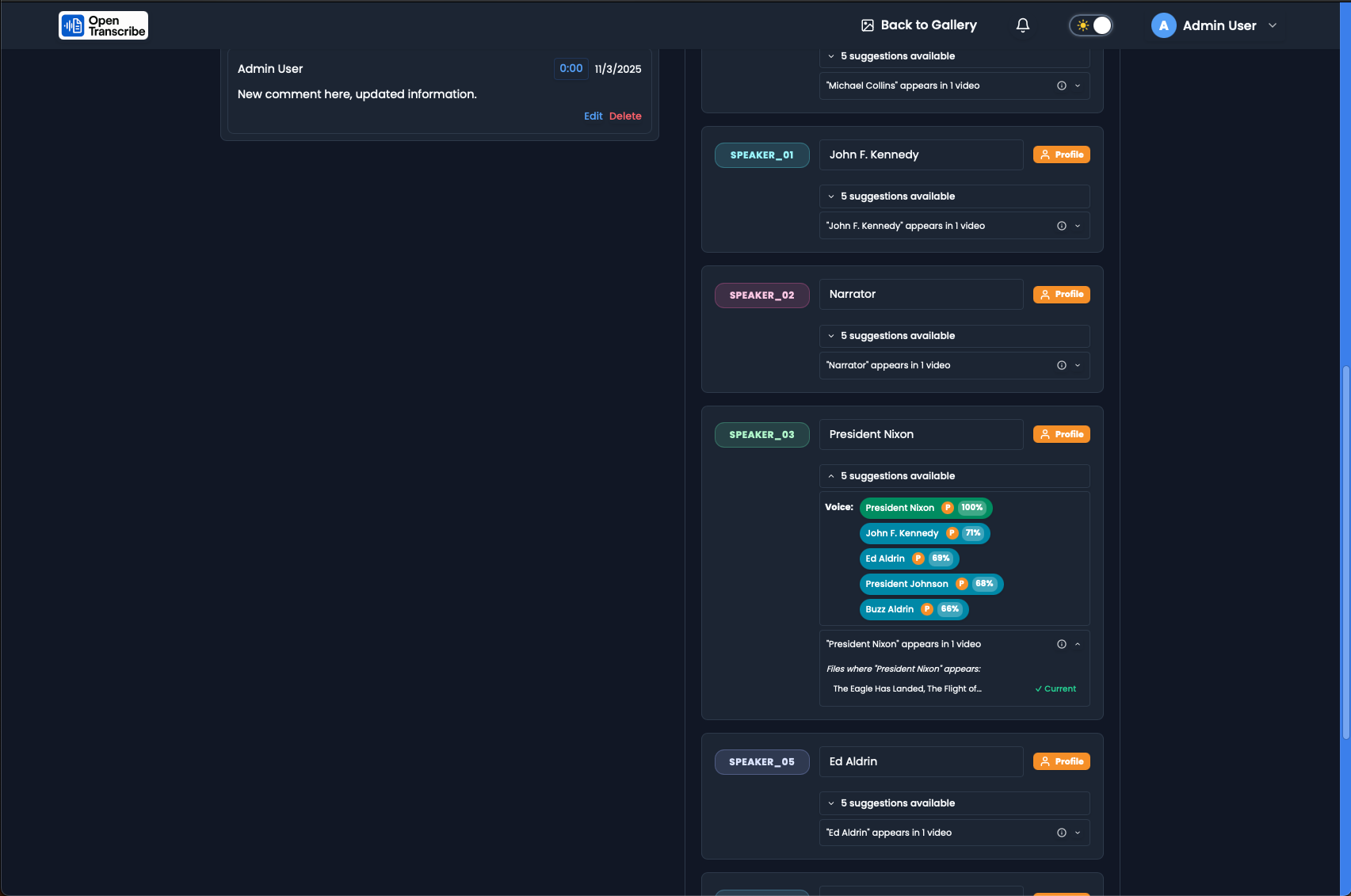
Voice fingerprinting showing similarity percentages: President Nixon (100% - self), Ed Aldrin (85%), Buzz Aldrin (86%), John F. Kennedy (71%), President Johnson (68%).
Advanced voice fingerprinting analyzes acoustic characteristics to compute similarity scores. This helps match the same speaker across different videos with high confidence.
Cross-Video Speaker Matching
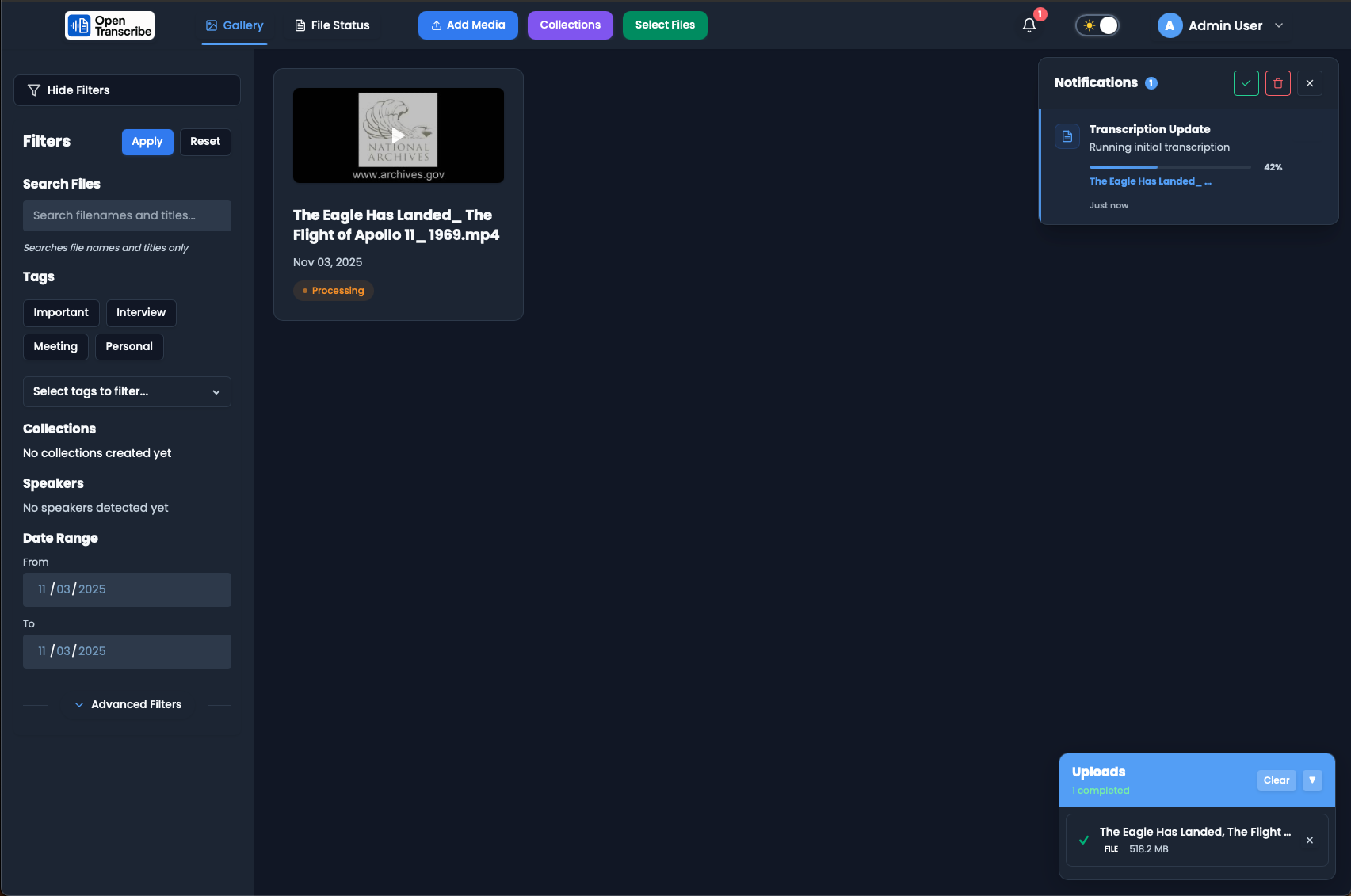
Voice fingerprint showing files where "President Nixon" appears. Current video marked with checkmark. Track speakers across your entire library.
Once you've named a speaker, OpenTranscribe can identify them in other videos using voice embeddings, making it easy to find all content featuring specific individuals.
AI-Powered Features
Generate AI Summary
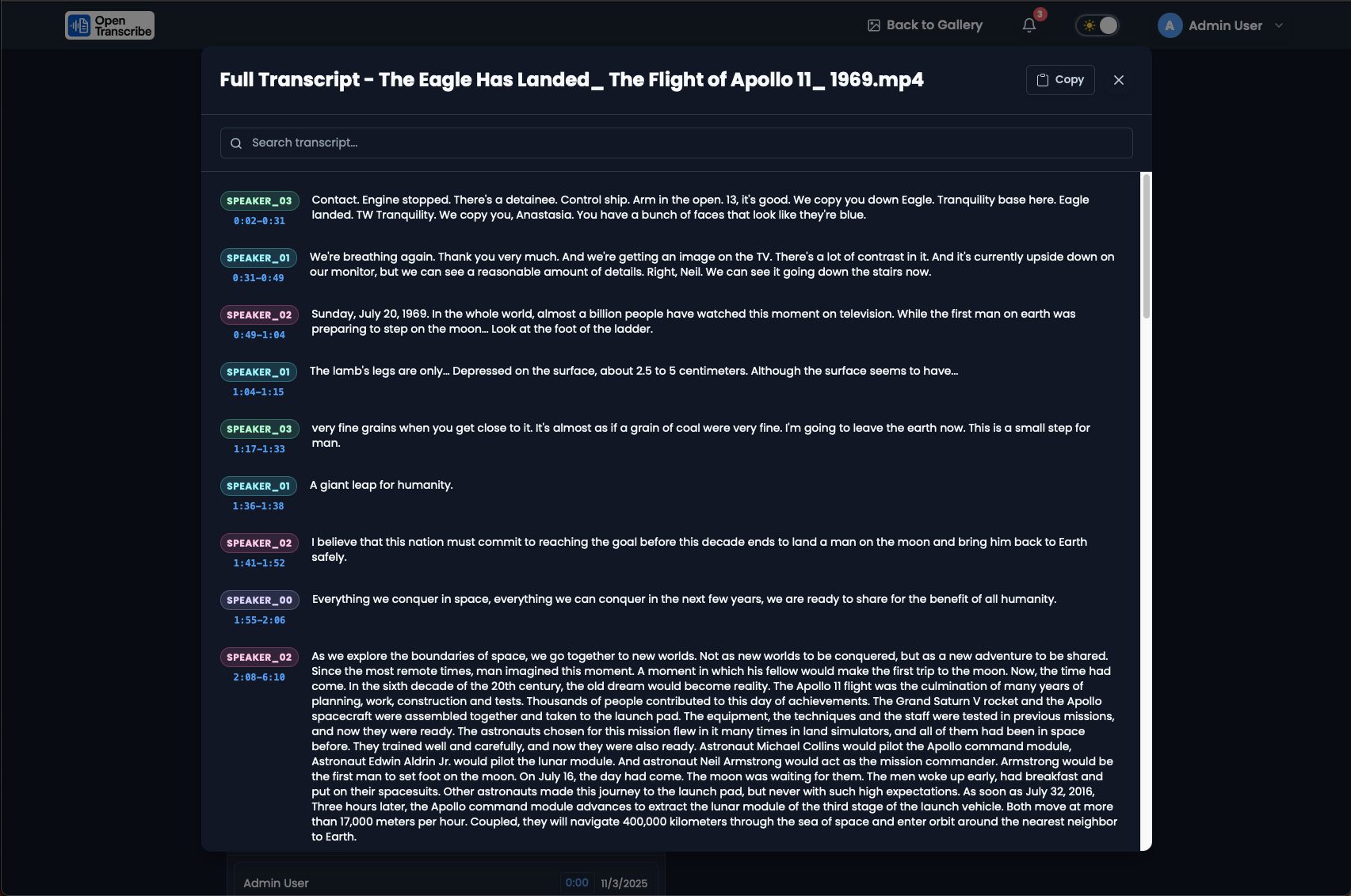
Transcript view with "Generate AI Summary" button available after transcription completes. AI summarization is optional and user-triggered.
After transcription completes, you can optionally generate an AI-powered summary using your configured LLM provider.
BLUF Format Summary
AI-generated BLUF (Bottom Line Up Front) summary with Executive Summary, Brief Summary, Major Topics, Key Decisions, and Follow-up Items sections.
Summaries are generated in BLUF format with structured sections including Executive Summary, Major Topics Discussed, Key Decisions, and Action Items. Perfect for quickly understanding long content.
Detailed Summary Sections
Scrolled summary showing Return Journey and Recovery, Historical Context, Key Decisions, and Follow-up Items. Includes AI disclaimer at bottom.
Summaries provide comprehensive detail with historical context, technical information, and actionable items. An AI disclaimer reminds users to verify important details.
AI-Suggested Tags
AI-generated tag suggestions (8 found): apollo 11, moon landing, first step, eagle, tranquility base, neil armstrong. Select to apply.
After processing, AI analyzes transcript content to suggest relevant tags. Simply check the tags you want to apply for instant organization.
AI-Suggested Collections
AI-suggested collections: "Apollo 11 Mission", "Moon Landing Events", "Space Exploration Milestones". One-click to apply.
AI also suggests logical collections for grouping related content. Collections help organize large media libraries into meaningful categories.
Applied Tags and Collections
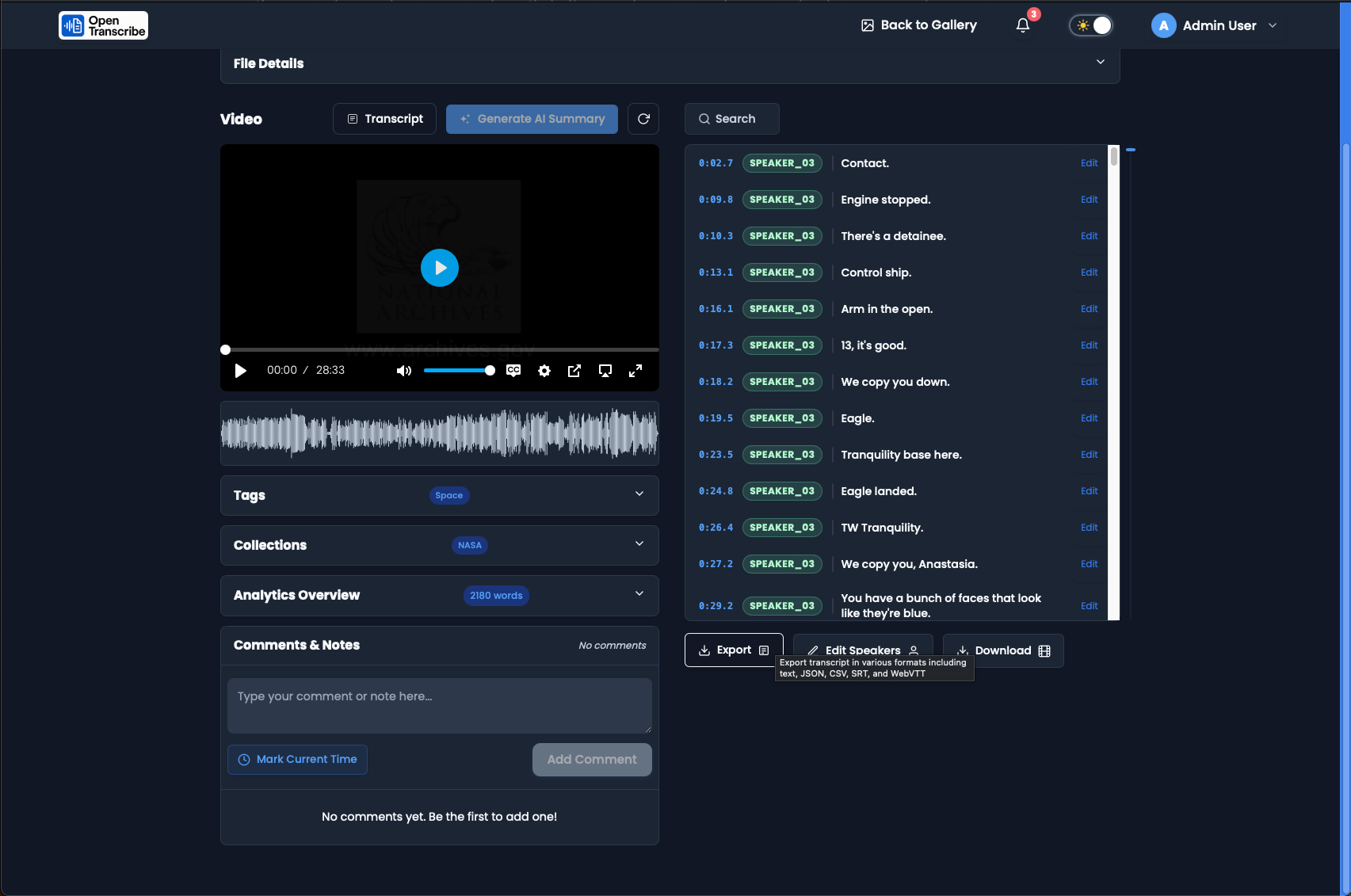
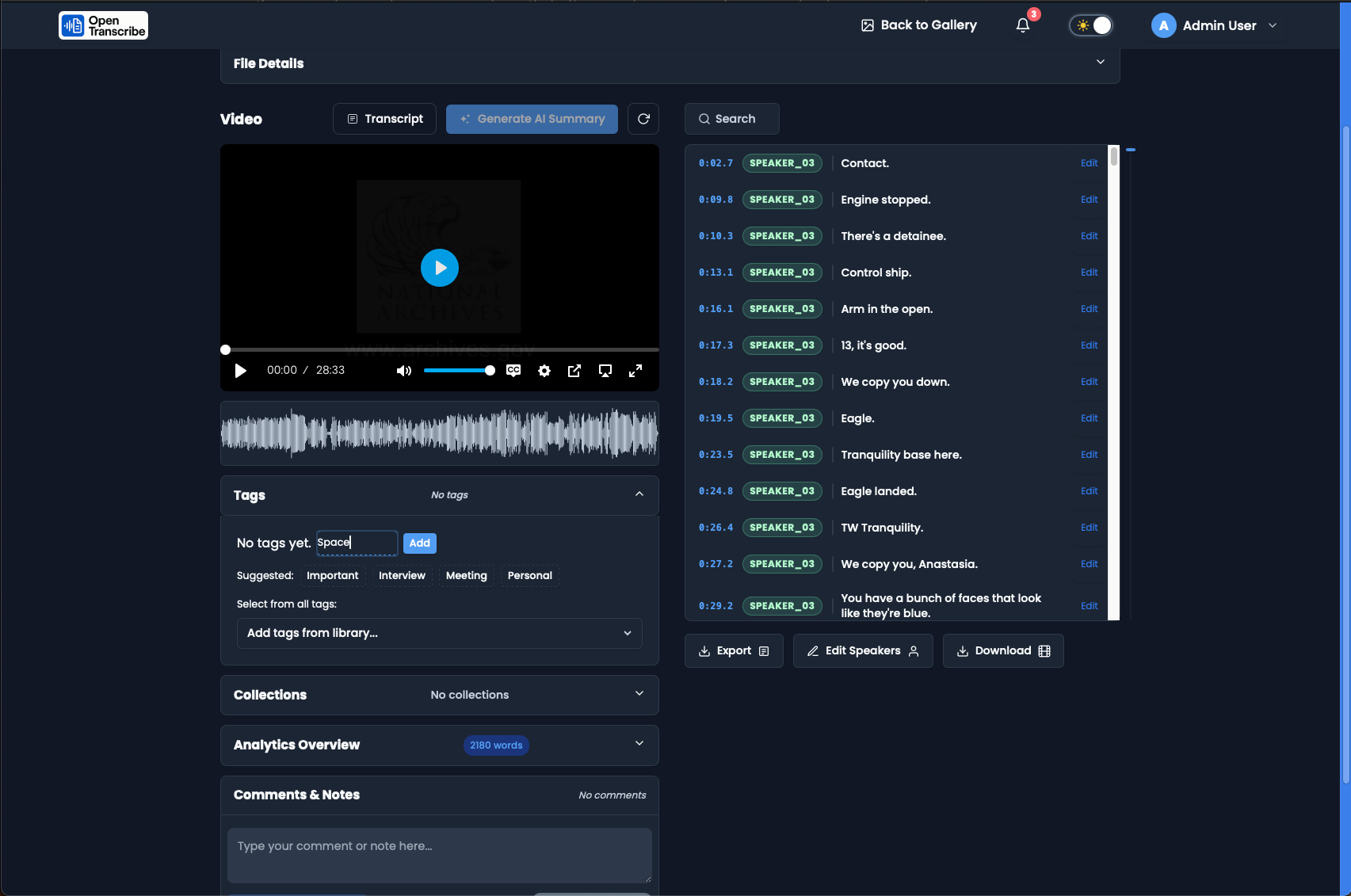
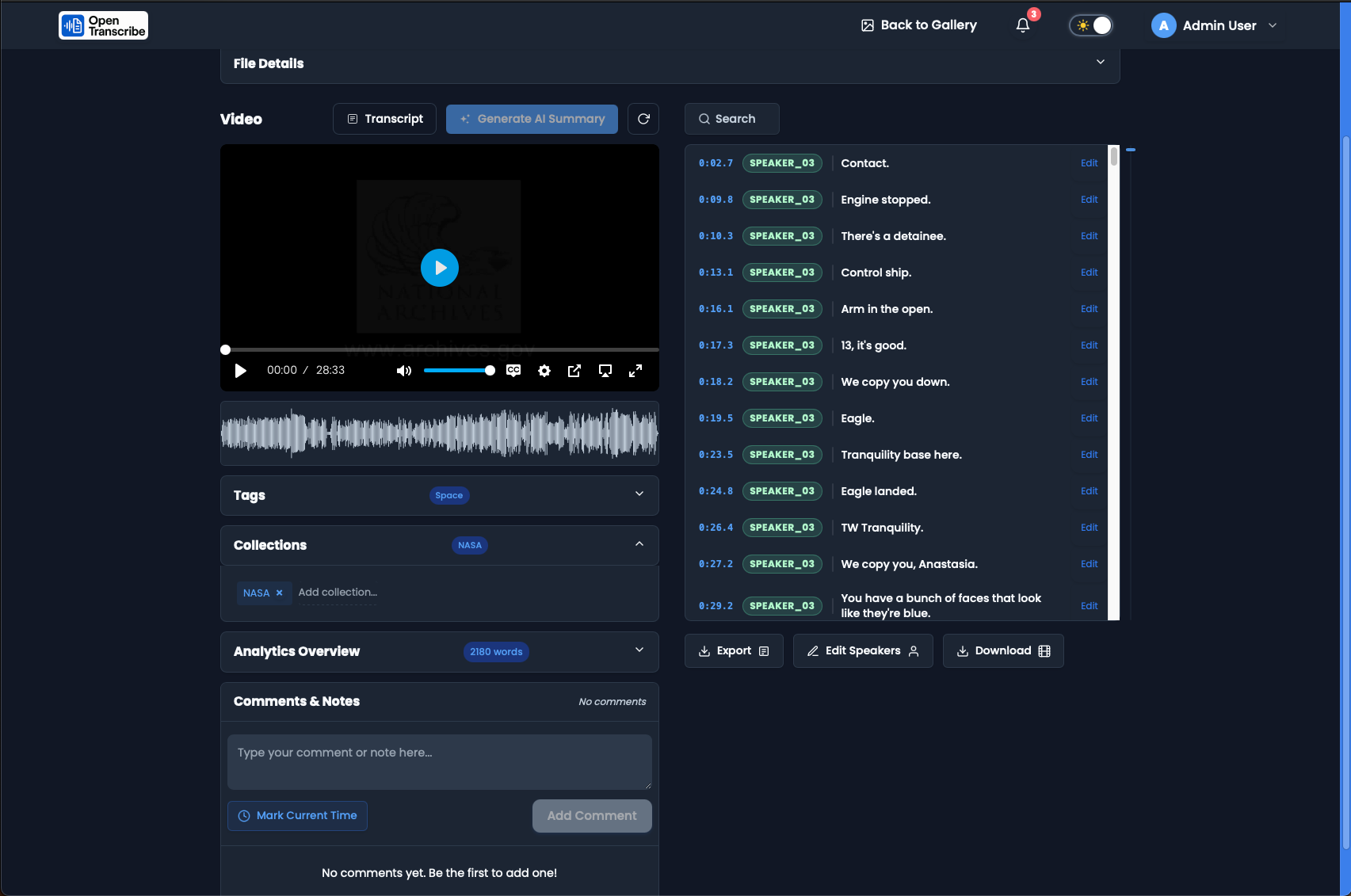
Tags and Collections sections showing applied items (Space tag, NASA collection) with options to remove or add more suggestions.
Once applied, tags and collections appear in their respective sections with easy removal options. Additional AI suggestions remain available if you want to add more.
AI Chat (RAG)
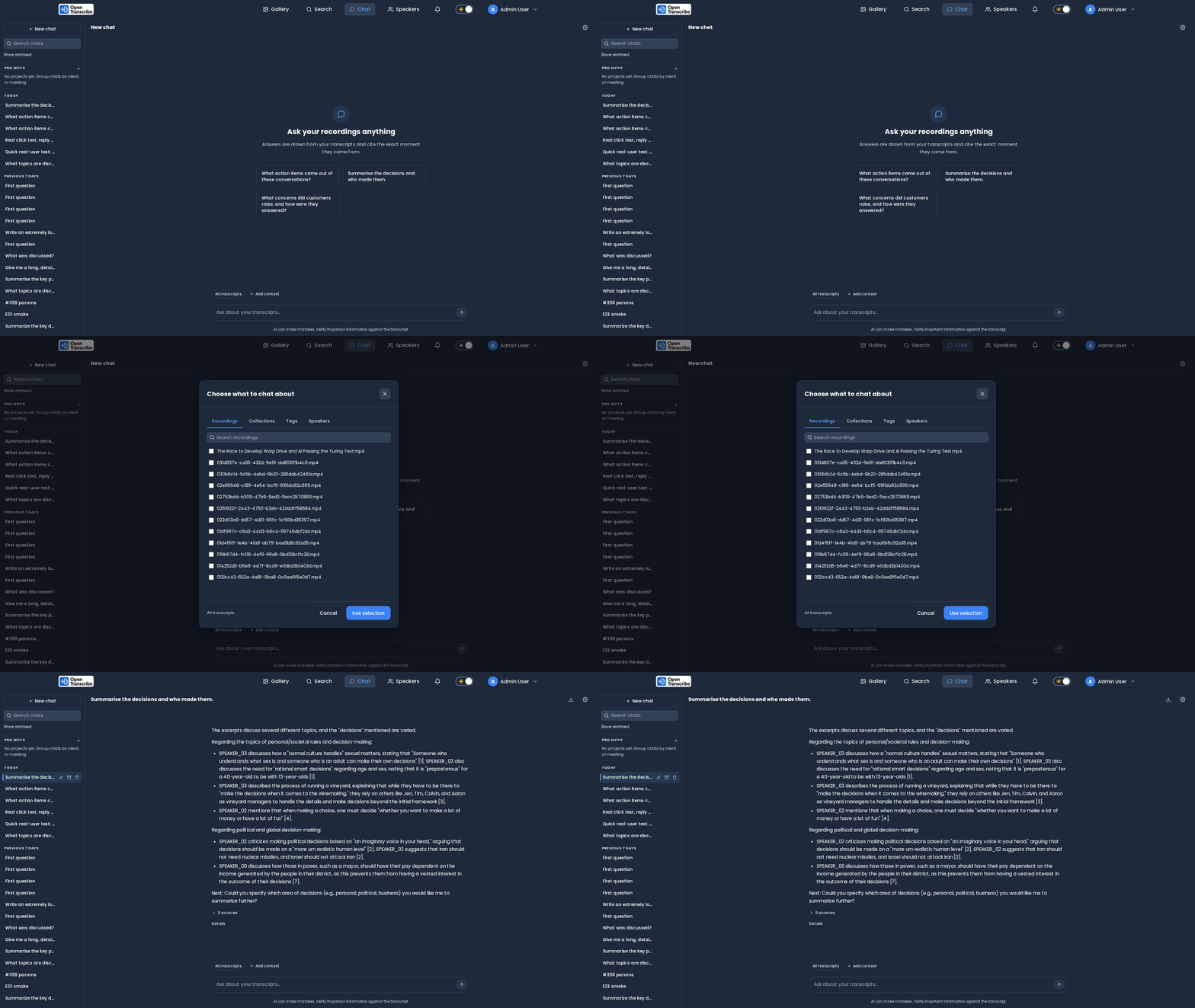
Chat workflow: ask a question → narrow the scope with Add context → get a grounded, cited answer.
Ask Your Recordings Anything
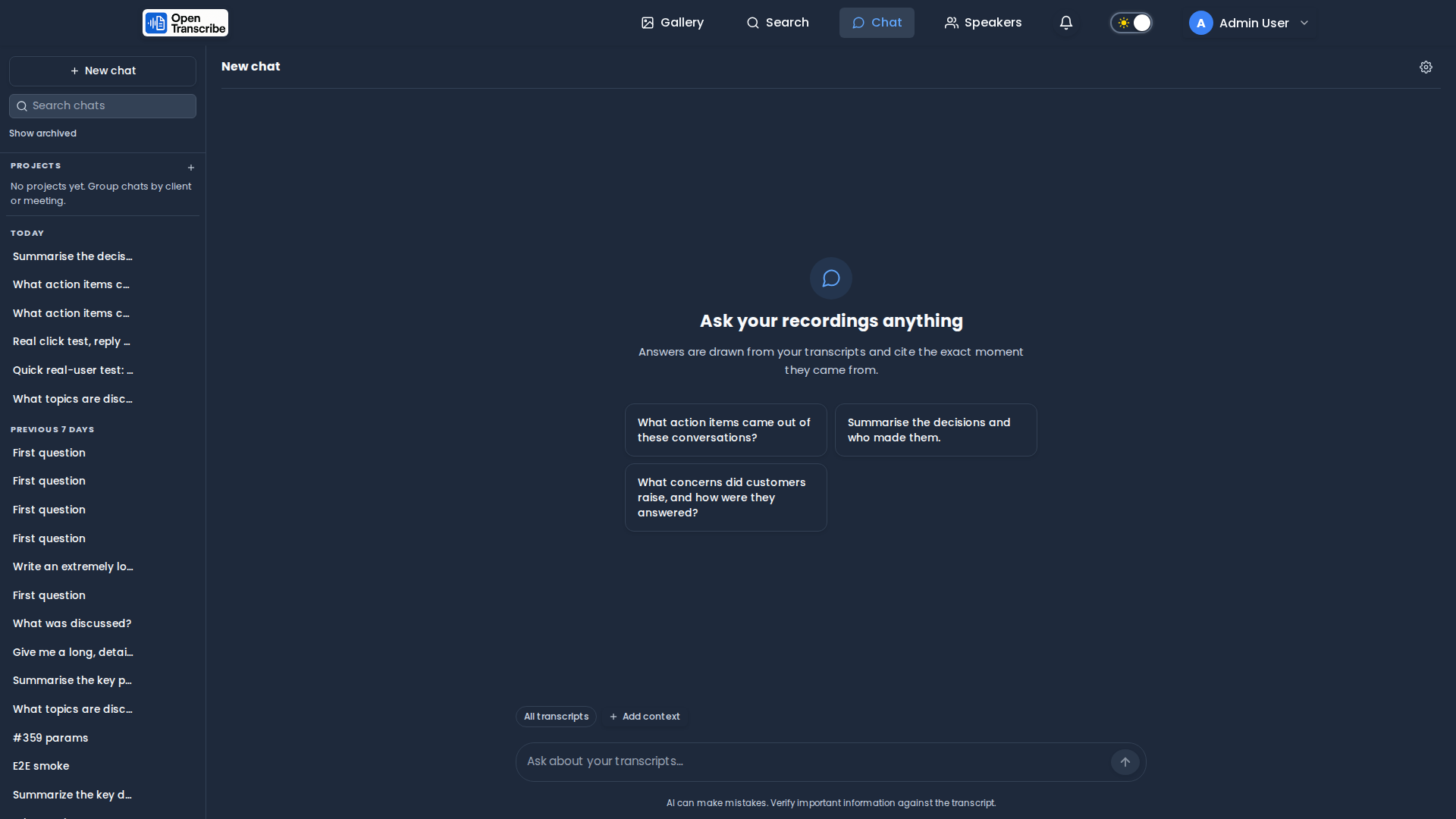
Chat is a first-class page alongside Search and Speakers. Suggested starter questions and a date-grouped conversation history sit beside the composer.
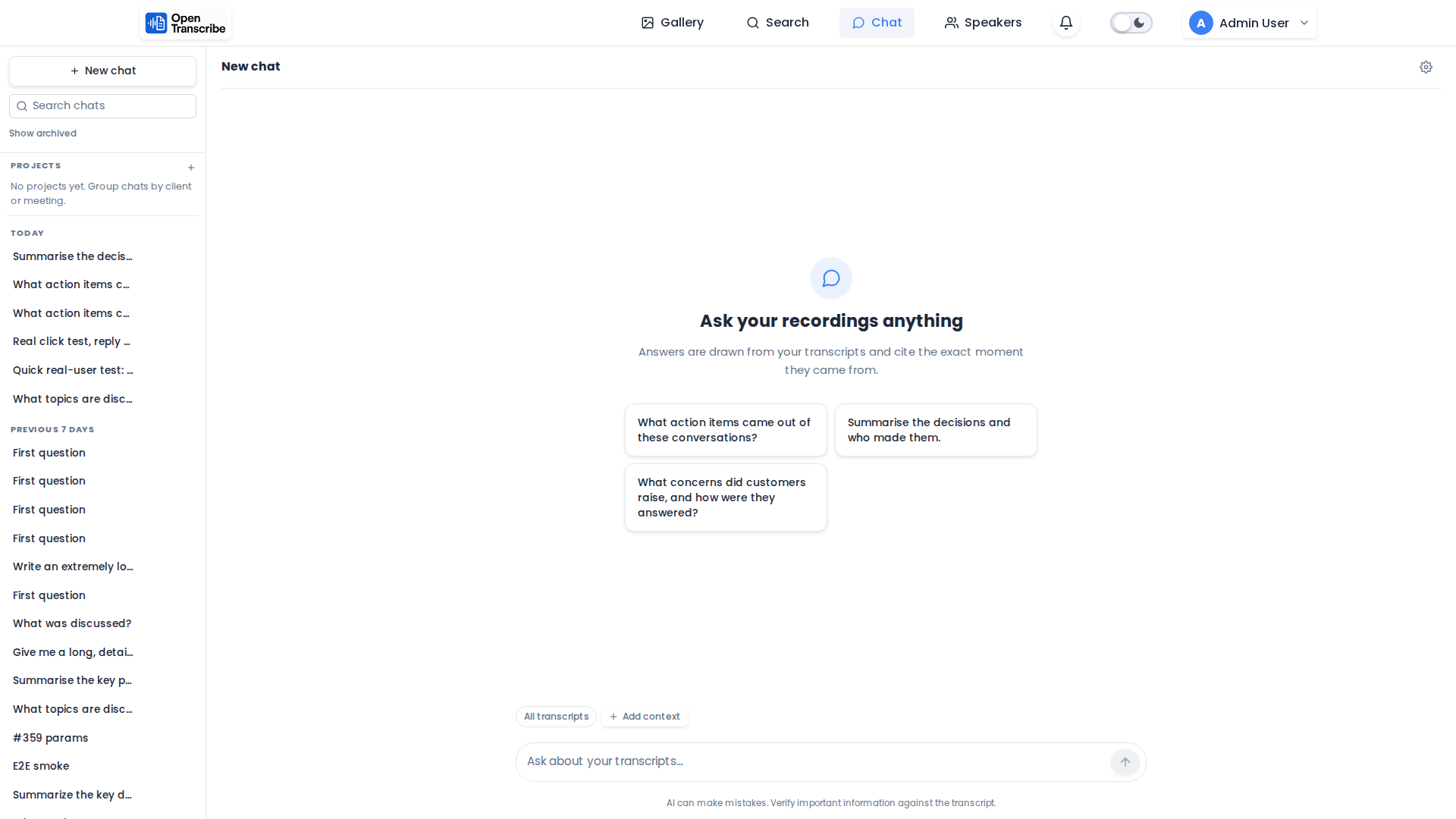
The same empty state in light mode.
Ask a question in plain language and the assistant searches your transcripts for the passages most relevant to it, rather than sending whole recordings to a language model.
Choosing What to Chat About
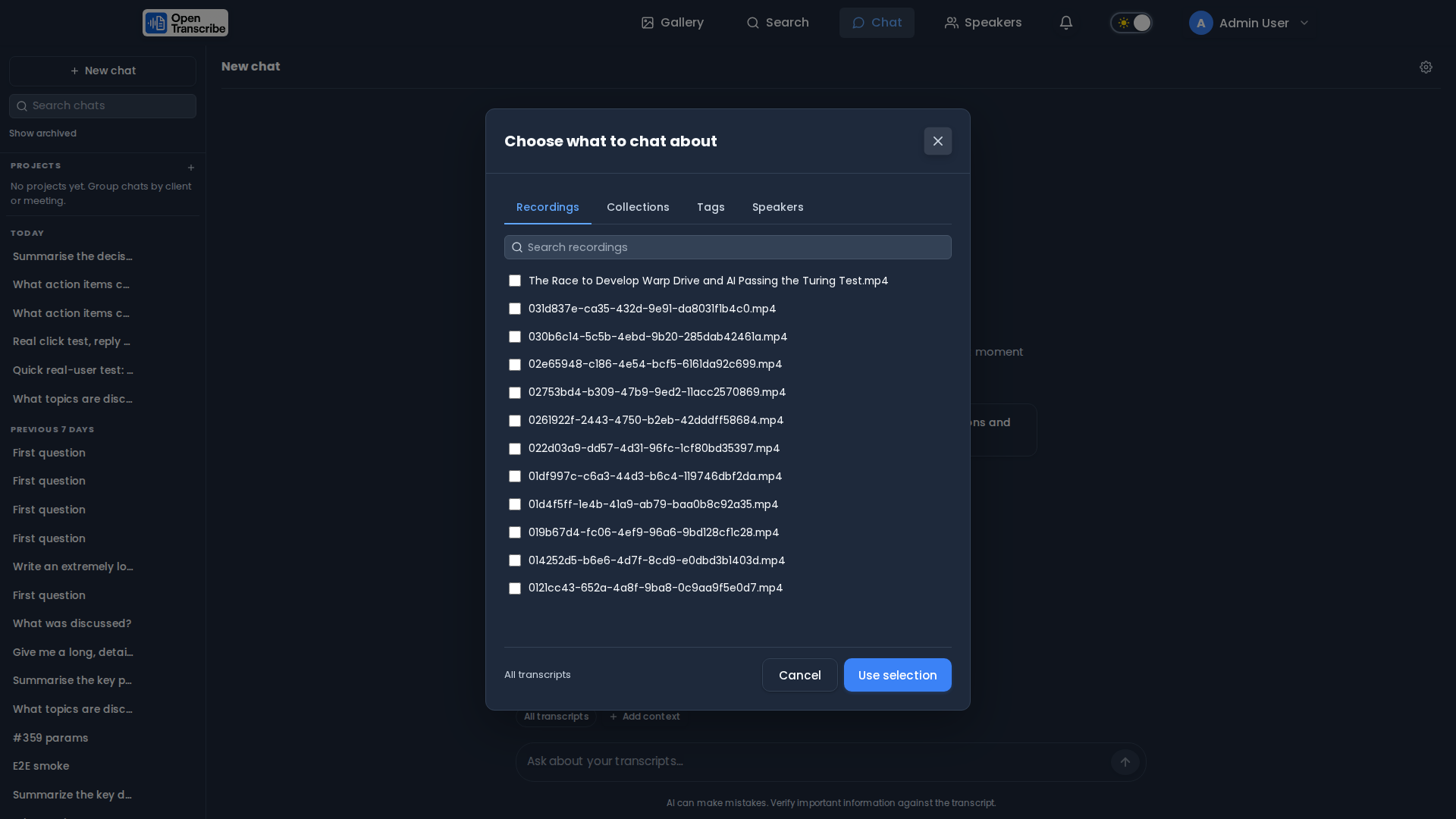
"Add context" narrows a conversation to specific recordings, a collection, a set of tags, or one speaker's own words — or leave it as "All transcripts".
By default a conversation searches everything you can access. Narrowing the scope to the recordings that actually matter makes answers noticeably more specific — and the Speakers tab retrieves only one person's own turns, never a sentence in which someone else merely mentions them.
Grounded Answers with Citations
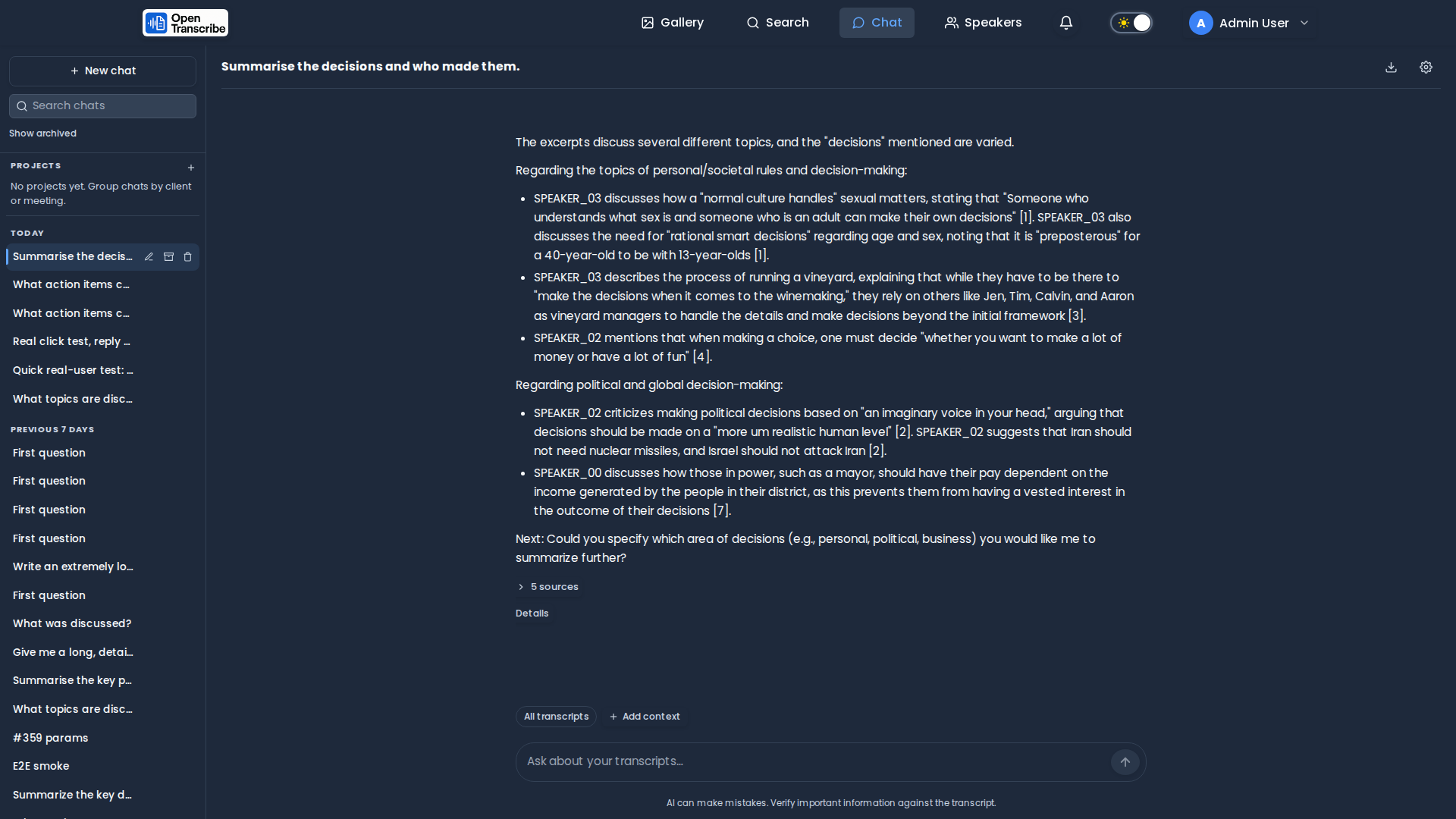
Every answer that uses your transcripts cites them with numbered markers and lists the sources underneath, with an expandable "Details" view. Clicking a source jumps to that exact moment in the player.
Answers stream in token by token and cite the exact recording, speaker, and timestamp they came from. If the retrieved excerpts don't contain the answer, the assistant says so rather than guessing.
Organization & Filtering
Gallery with Filters
Gallery with filters sidebar showing Search Files, Tags (Important, Interview, Meeting, Personal, Space), Collections, Speakers, and Date Range sections.
The filters sidebar provides powerful ways to find specific content: search by filename, filter by tags, collections, speakers, or date range.
Speaker-Based Filtering
Speakers filter showing detected speakers with video counts: Buzz Aldrin (1), Ed Aldrin (1), John F. Kennedy (1), Michael Collins (1).
After processing, speakers automatically appear in the filter sidebar with counts showing how many videos they appear in. Filter your library to find all content featuring specific individuals.
Tag Filter Dropdown
Tag filter dropdown with searchable checkbox list: Space, Important, Interview, Meeting, Personal. Search field at top for filtering options.
The tag dropdown is searchable and supports multiple selections, making it easy to filter by combinations of tags.
Collections Management
Collections Modal
Manage Collections modal showing existing "NASA" collection (0 files) with New Collection button, edit and delete actions.
Collections help organize your media library into logical groups. Create, edit, and delete collections through the management modal.
Create Collection
Create New Collection modal with Name field ("My Collection") and Description field. Simple form for organizing content.
Creating a collection is simple: provide a name and optional description. Collections can represent projects, topics, events, or any organizational scheme you prefer.
Edit Collection
Edit Collection modal for NASA collection. Update name, description, and settings for existing collections.
Edit existing collections to update their name or description as your organizational needs evolve.
Bulk Operations
Selection Mode
Selection mode enabled showing checkbox on video thumbnail. Header displays "Select all", "Add to Collection", "Delete 0 selected", "Cancel Selection" buttons.
Enable selection mode to perform bulk actions on multiple files. Checkboxes appear on each video card for easy selection.
File Selected
Video selected with blue border and checked checkbox. Action buttons enabled: green "Add to Collection", red "Delete 1 selected".
Selected files are indicated with a blue border and checked checkbox. Action buttons activate showing the count of selected items.
Add to Collection
Collections modal with selected file. NASA collection shows blue "Add 1 file" button for bulk assignment.
With files selected, you can add them all to a collection in one operation. The "Add X files" button shows how many will be added.
Delete Confirmation
Delete confirmation dialog: "Are you sure you want to delete 1 selected file(s)? This action cannot be undone." Safety warning for destructive actions.
Destructive actions like deletion require confirmation to prevent accidents. The system clearly warns that deletions cannot be undone.
Monitoring & Administration
File Status Dashboard
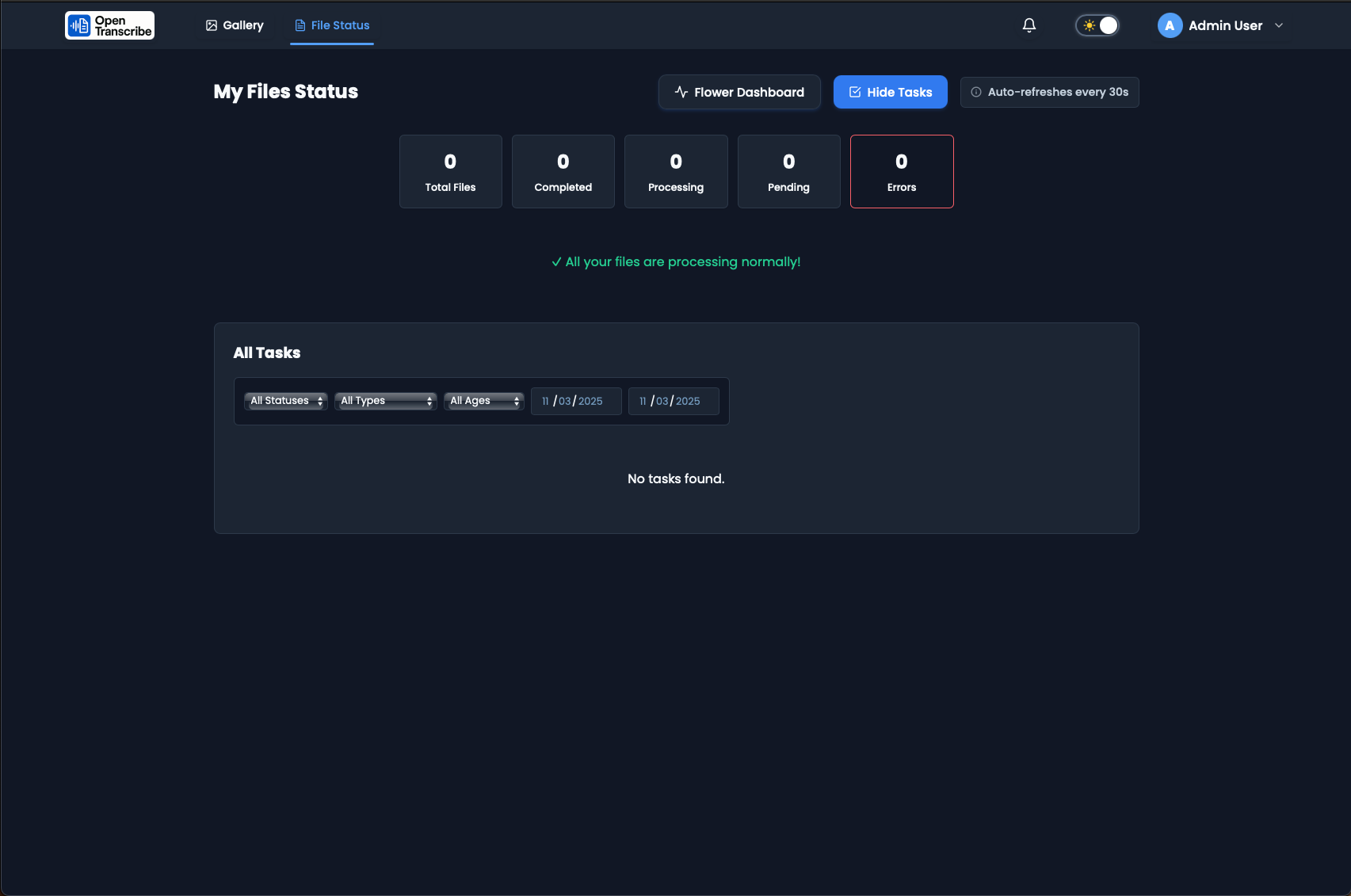
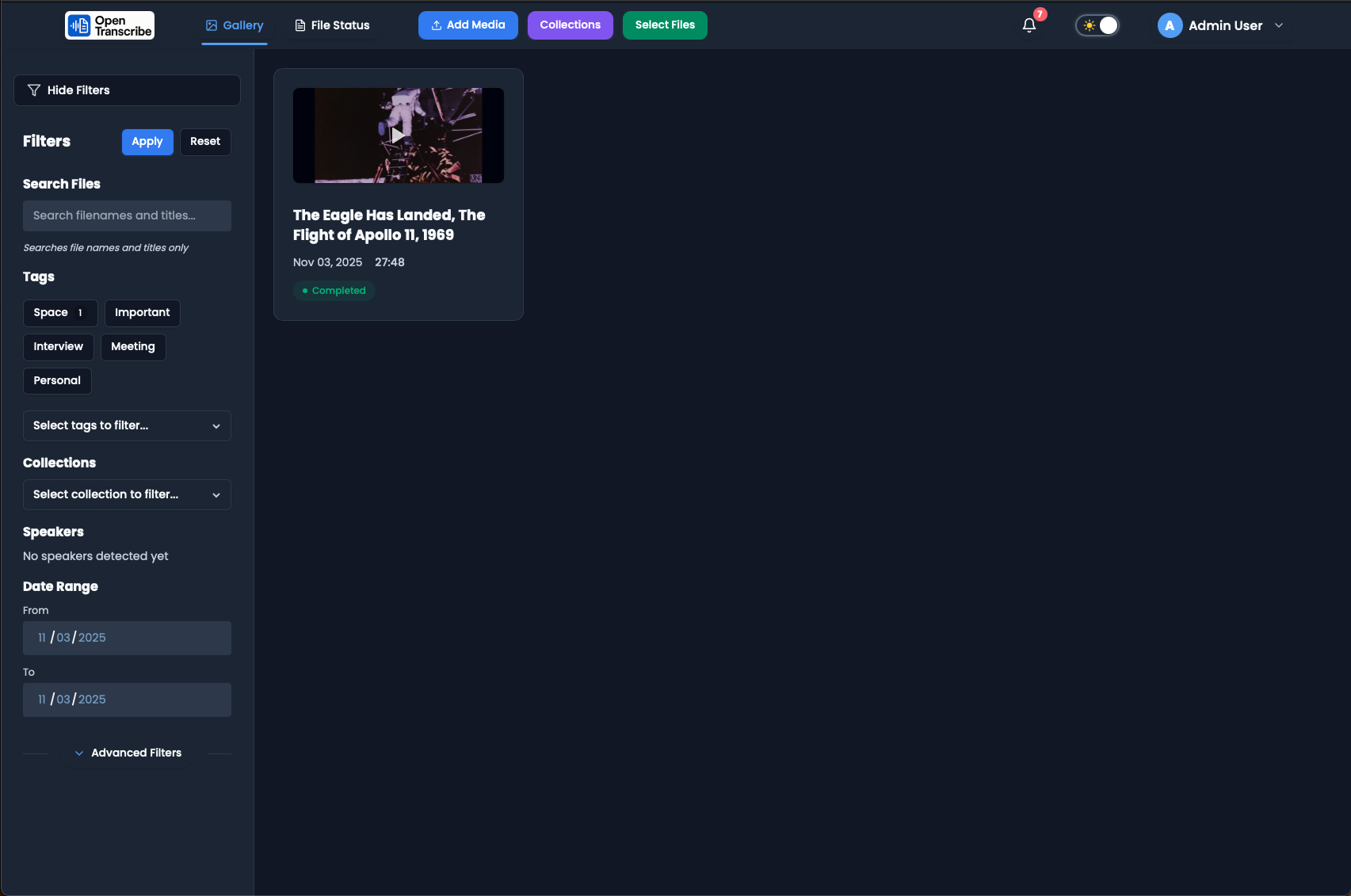
My Files Status dashboard showing: 1 Total Files, 1 Completed, 0 Processing, 0 Pending, 0 Errors. Green success message "All your files are processing normally!"
The File Status dashboard provides an overview of all processing activity. Monitor total files, completion status, and identify any errors requiring attention.
File Details Modal
File Details modal showing file information (name, size 70 MB, duration 27:48, language) and Task Details with completion status.
Click any file to view detailed information including file size, duration, language, upload time, and completion status for all processing tasks.
Task Processing Times
Complete task timeline showing processing times: Analytics (0s), Speaker_identification (33s), Summarization (41s), Transcription (1m 33s).
Detailed task information includes processing times for each stage, helping you understand performance and identify any bottlenecks.
System Statistics
System statistics dashboard showing users, media files, tasks, AI models, and resource usage (CPU, memory, disk, GPU) for administrators.
Administrators can monitor system-wide statistics including user counts, media library size, task health, and resource utilization.
Configuration & Settings
Settings Navigation
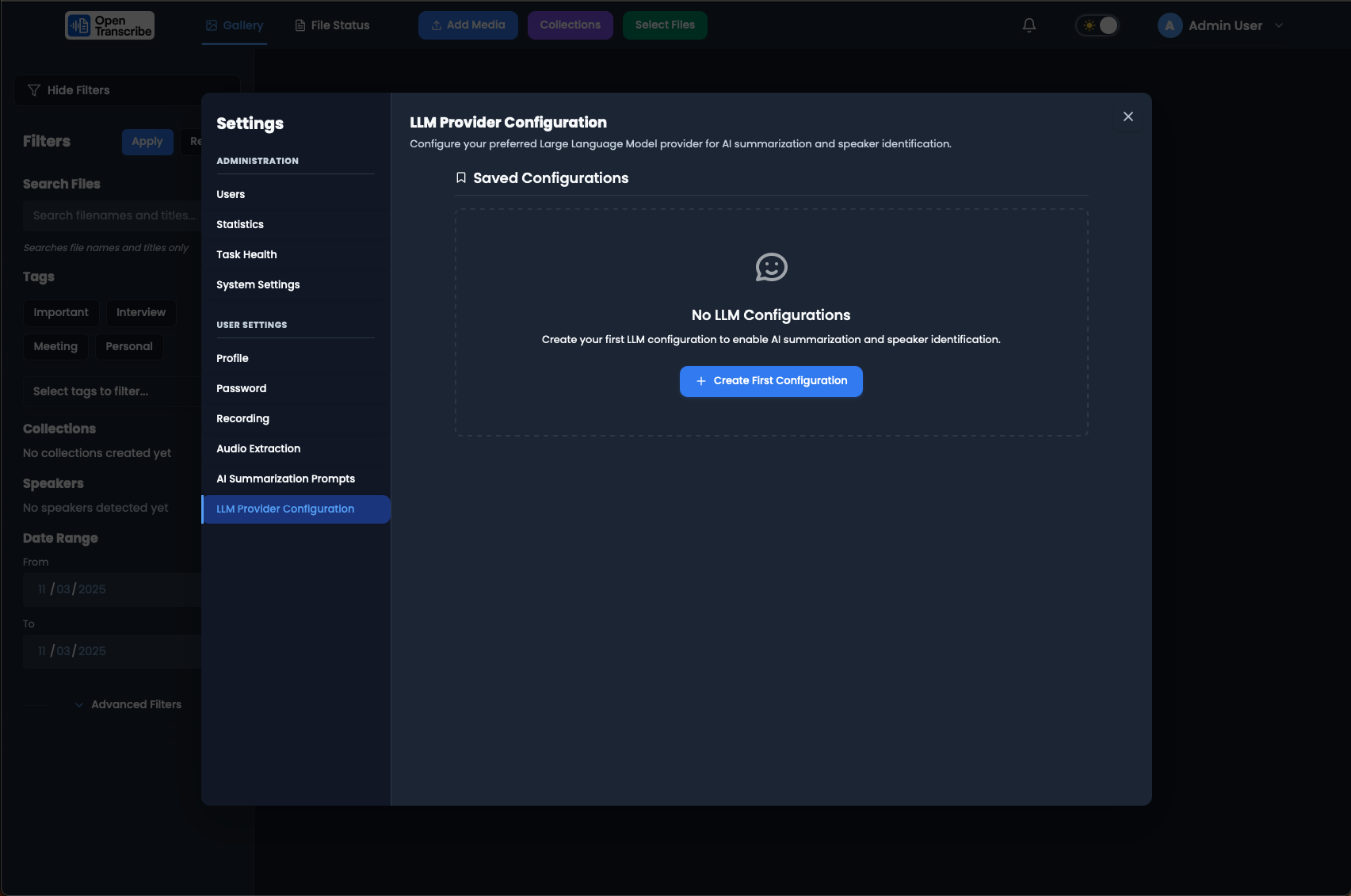
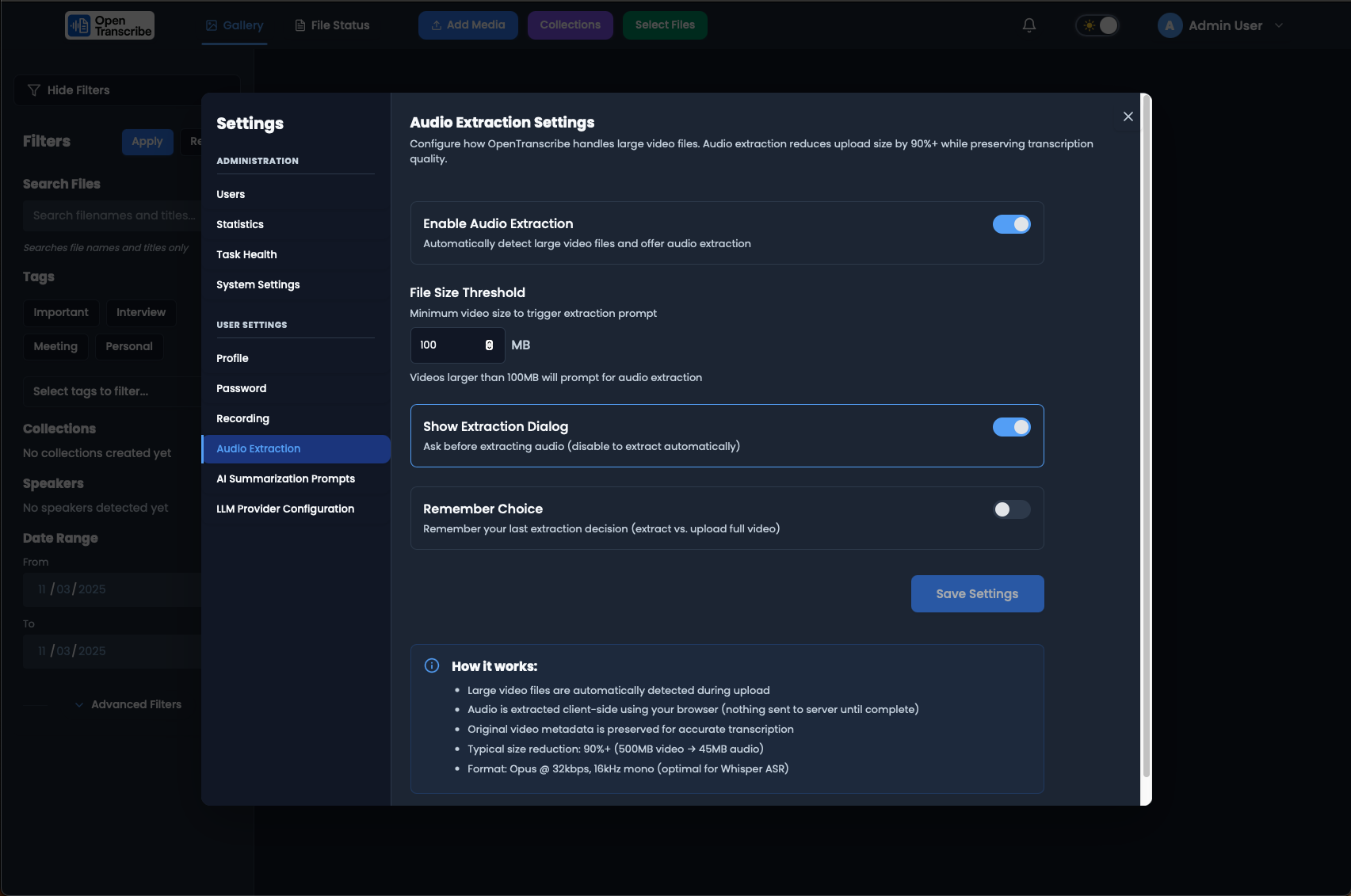
Settings sidebar showing ADMINISTRATION (Users, Statistics, Task Health, System Settings) and USER SETTINGS (Profile, Password, Recording, Audio Extraction, AI Prompts, LLM Configuration).
Settings are organized into Administration (system-wide) and User Settings (personal preferences). Navigate easily between all configuration options.
LLM Configuration
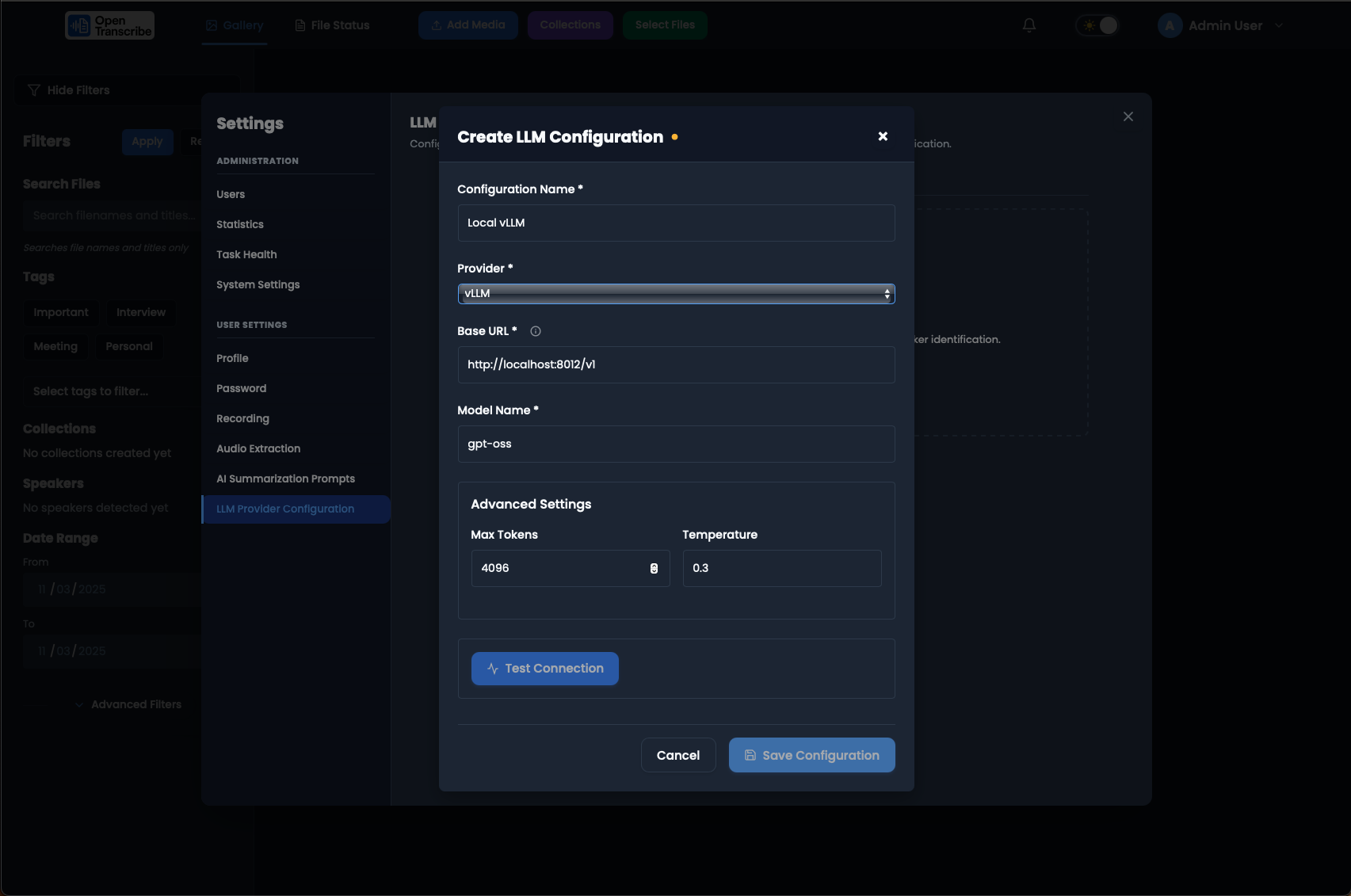
Create LLM Configuration modal with fields: Configuration Name (Local vLLM), Provider (vLLM), Base URL, Model Name (gpt-oss-20b), Max Tokens (131000), Temperature (0.3). Green success from Test Connection.
Configure your LLM provider for AI features. OpenTranscribe supports vLLM, OpenAI, Ollama, Claude (Anthropic), and OpenRouter. Test connections before saving to ensure proper configuration.
LLM Provider Management
Saved LLM configuration card showing provider details with Activate, Test Connection, Edit, and Delete buttons.
Manage saved LLM configurations with options to activate, test connectivity, edit settings, or delete providers you no longer need.
AI Summarization Prompts
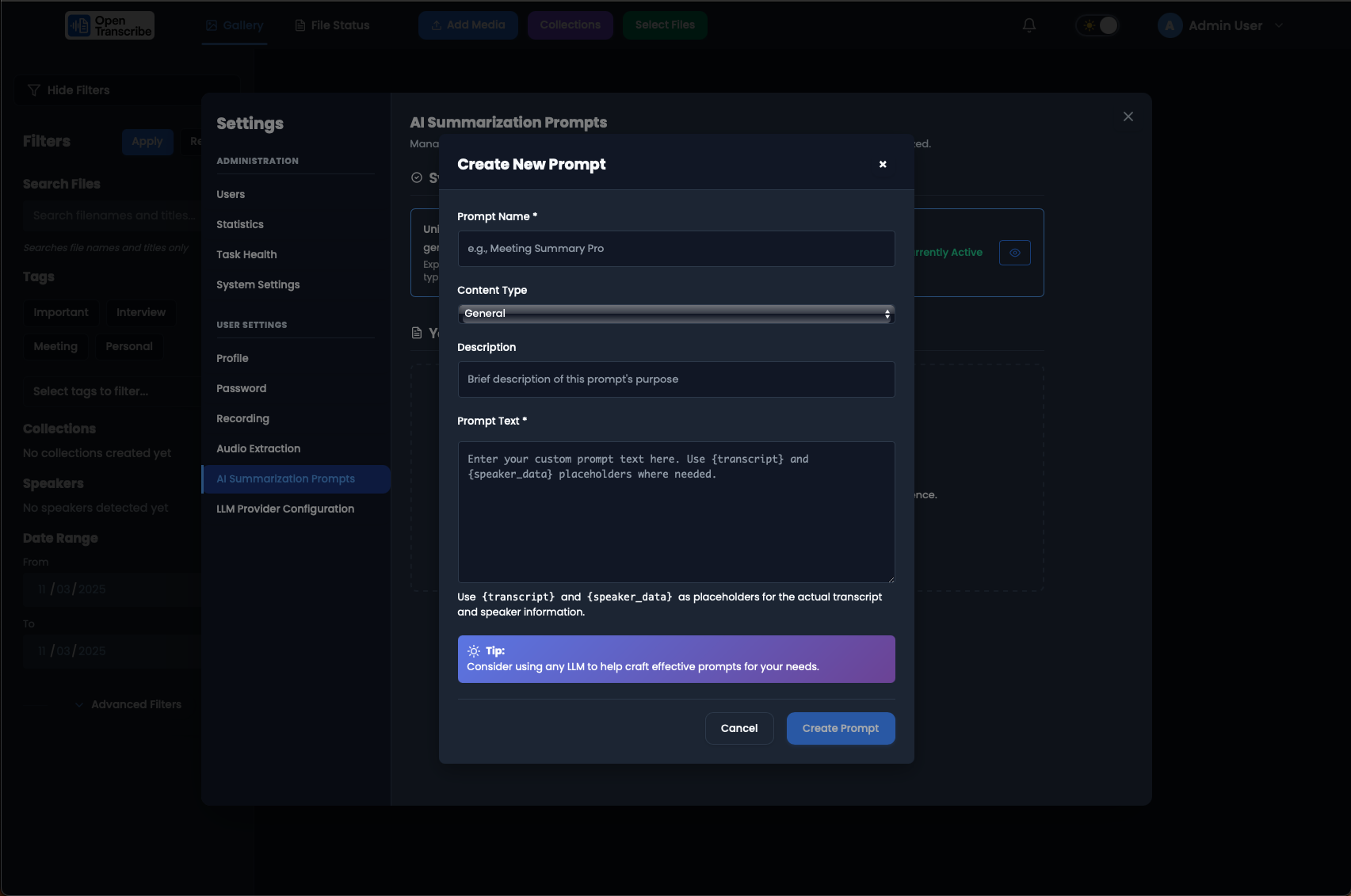
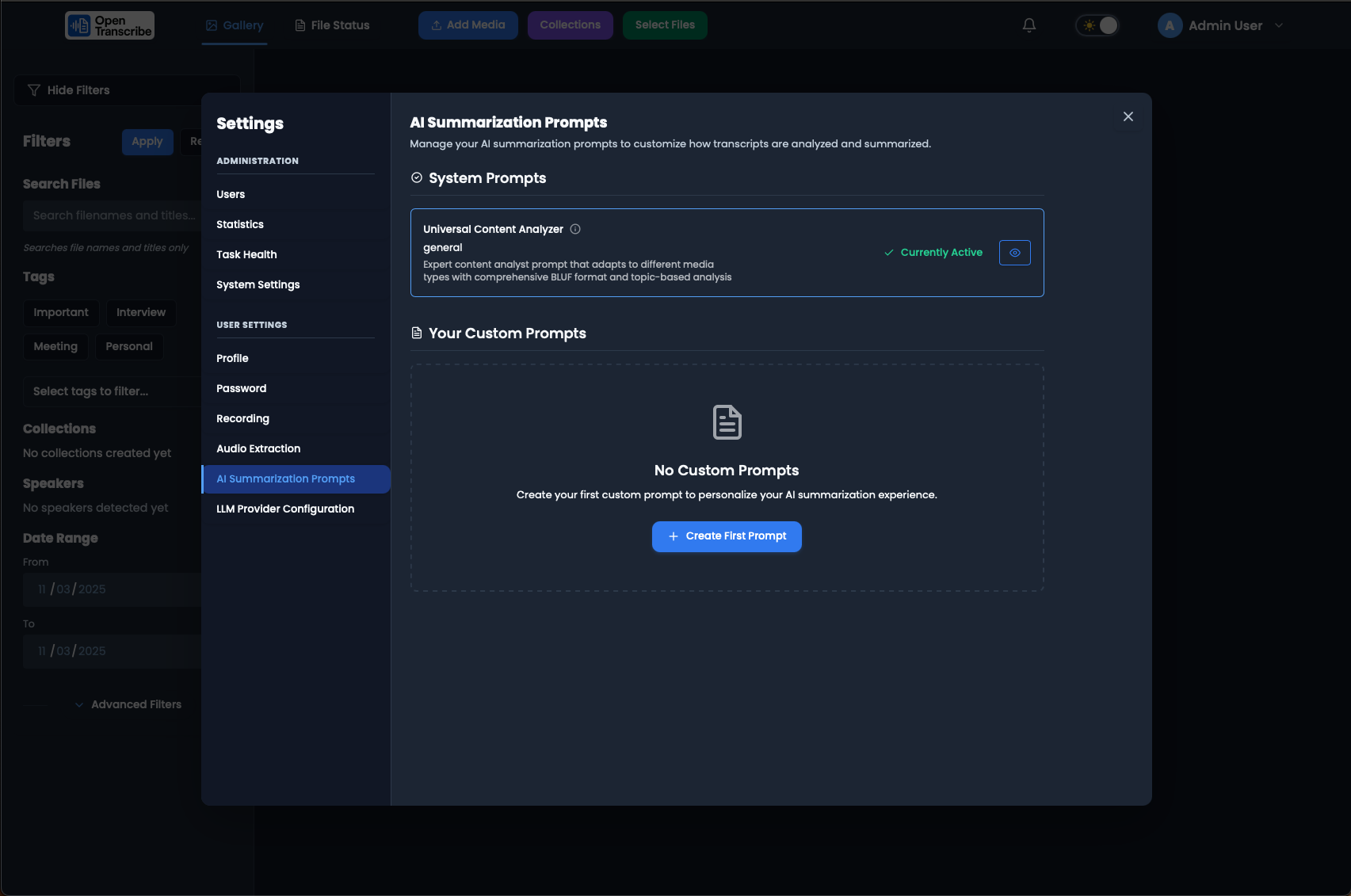
AI Summarization Prompts viewer showing "Universal Content Analyzer" prompt details including full prompt text with BLUF format instructions. Copy button available.
Customize AI prompts used for summarization. View system prompts, copy them for reference, or create custom prompts tailored to your content types.
User Management
Users administration panel for creating and managing user accounts with role-based access control.
Administrators can create and manage user accounts, assign roles, and control access to features throughout the application.
Advanced Workflow Features
Complete AI Processing Notifications
Notifications showing all AI tasks completed: Summarization (100%), Topic Extraction (8 tags, 3 collections found), Transcription completed.
When all processing completes, notifications confirm success for each stage: transcription, topic extraction, and summarization. Your content is now fully analyzed and ready to use.
Summary Tab Available
Transcript view with Summary tab now available next to Transcript tab. AI summary successfully generated and ready to view.
Once AI summarization completes, a Summary tab appears next to the Transcript tab. Switch between tabs to view the full transcript or AI-generated summary.
Fully Processed and Interactive
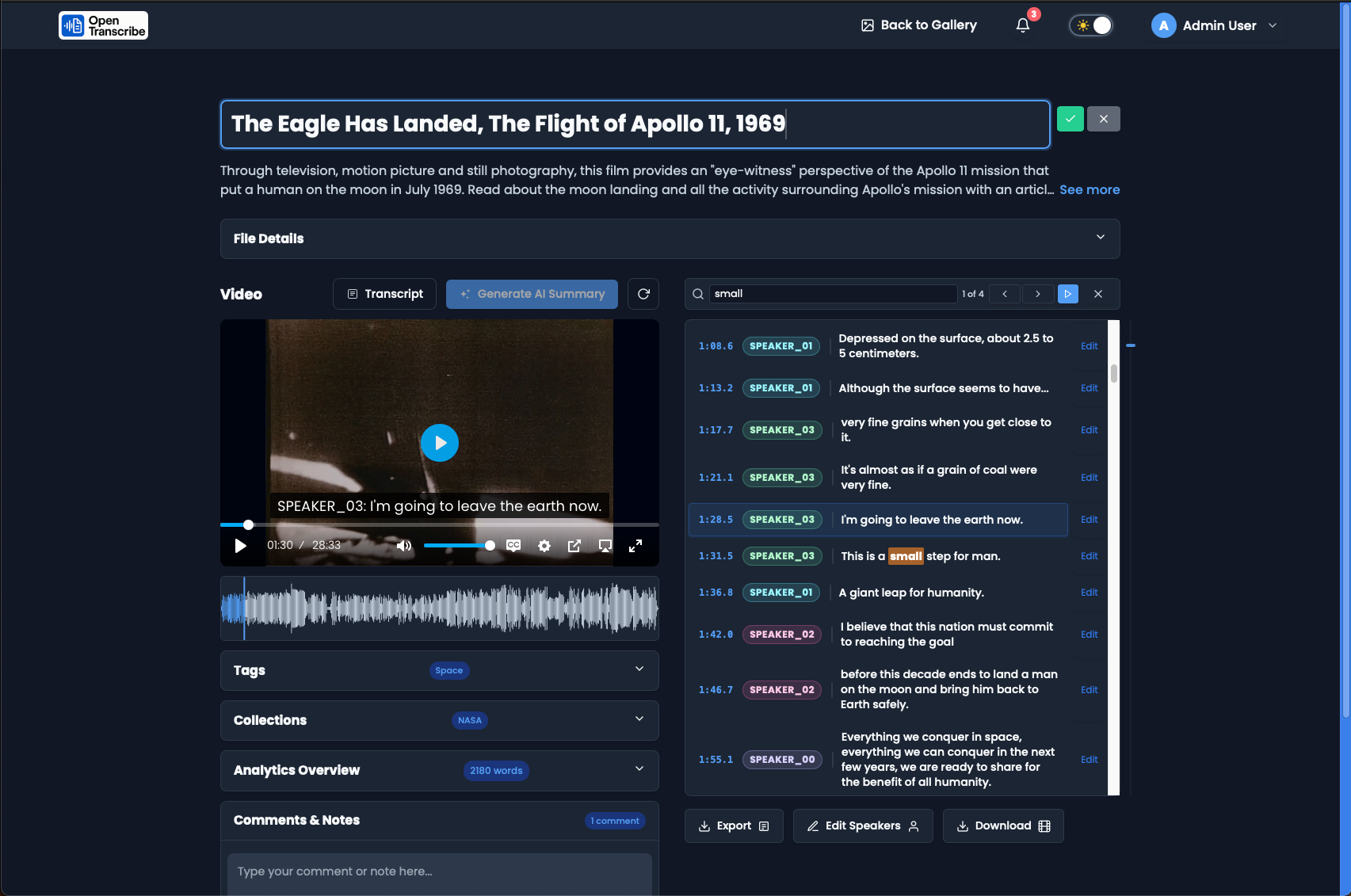
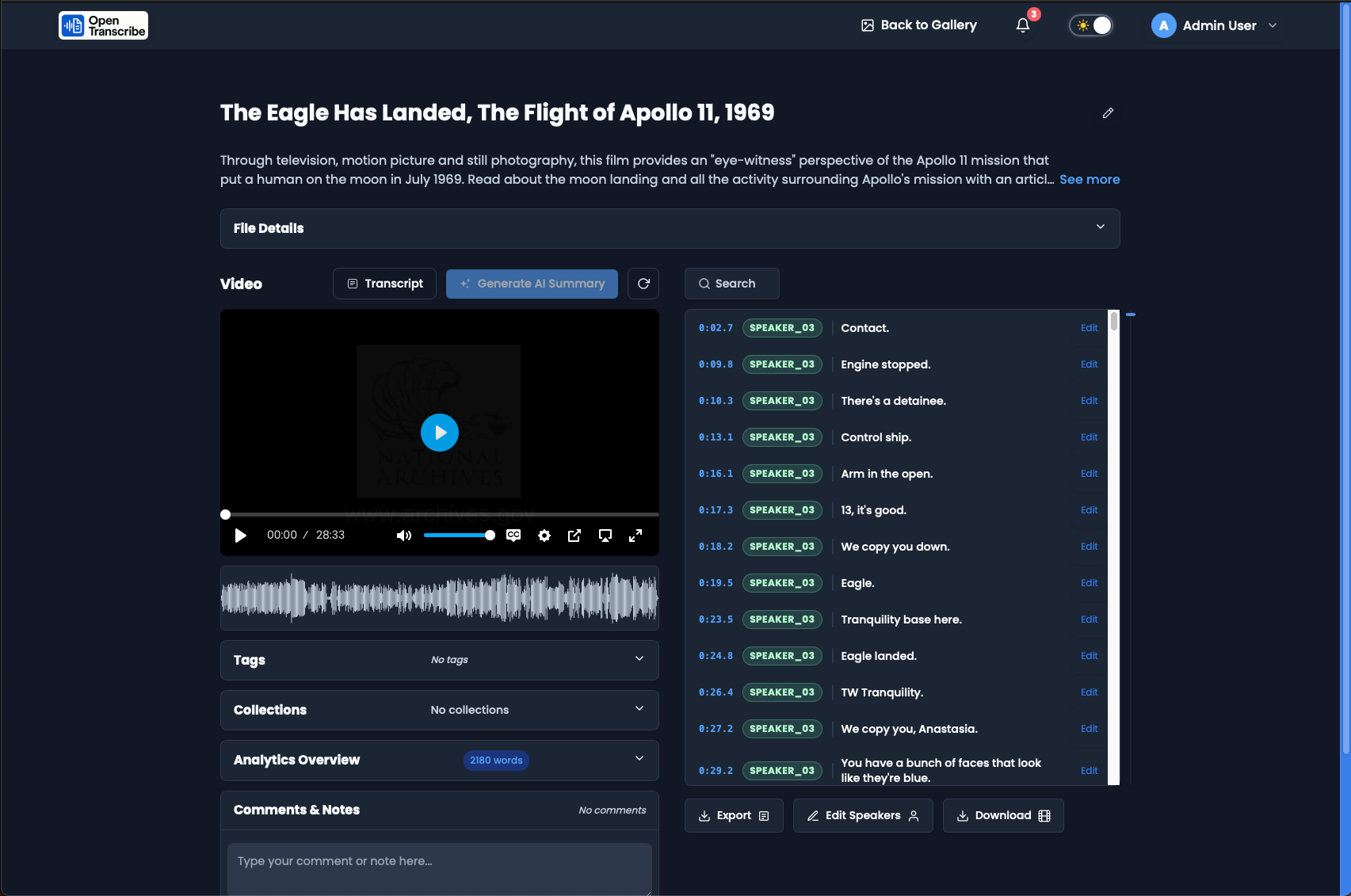
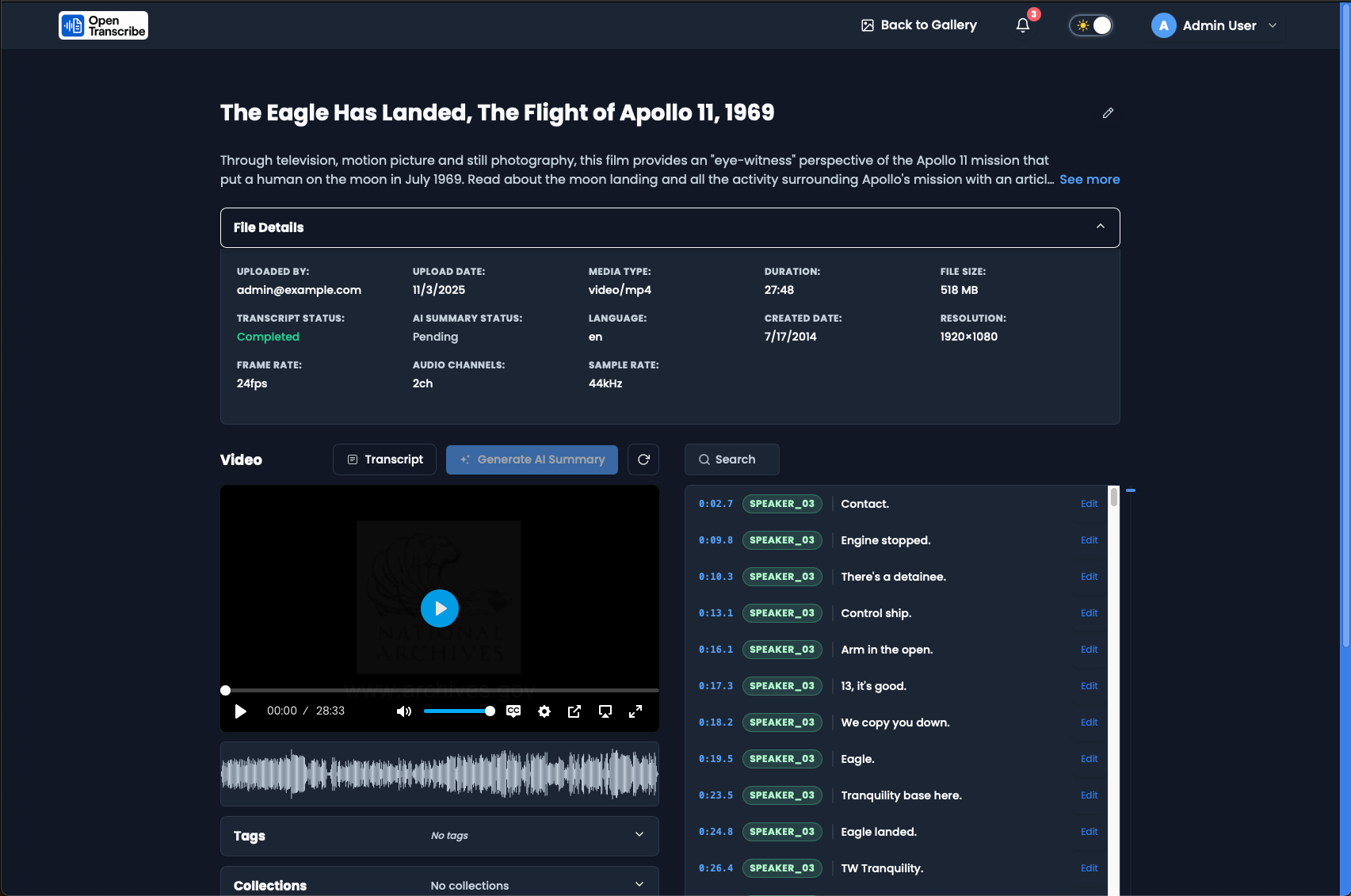
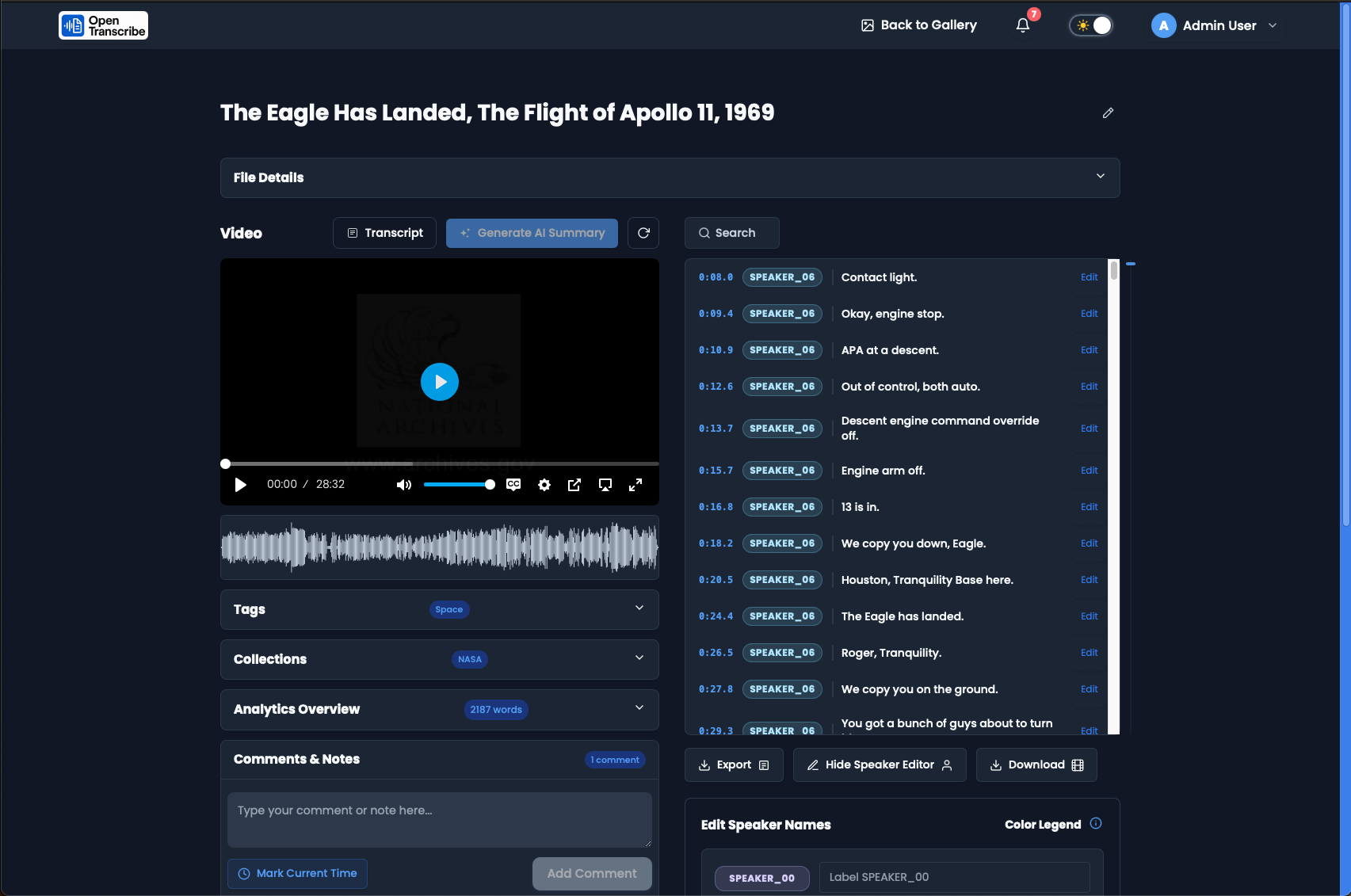
Fully processed video showing player, waveform, transcript entries, and all metadata sections (Tags, Collections, Analytics, Comments). Ready for complete user interaction.
With processing complete, you have access to the full OpenTranscribe experience: video playback with synchronized transcript, named speakers, AI summaries, suggested tags and collections, and all metadata management tools.
Additional Resources
For more detailed information about using OpenTranscribe:
- Uploading Files - Step-by-step instructions for all features
- Installation Guide - Set up OpenTranscribe on your system
- Environment Variables - Customize your installation
- Architecture - Developer reference for integrations. A running instance also serves interactive OpenAPI docs at
/docson the backend port.
All screenshots captured from OpenTranscribe. Interface may vary slightly with updates.